The Data Types tab provides the ability to manage data types.
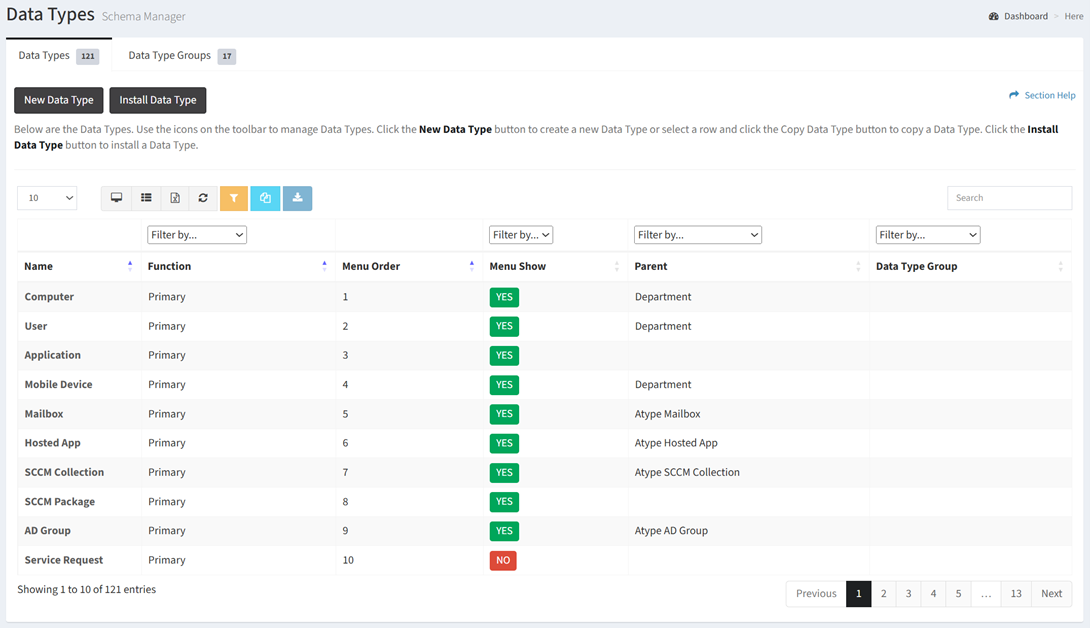
Available operations:
- Create new data types by clicking on the New Data Type button
- Install new data types by clicking on the Install Data Type button
- View a list of data types in ReadyWorks
- Columns available
- Id (hidden by default) – System Id of the data type
- Name – Name of the data type
- Function – Function of the data type (primary or secondary)
- Filter by Primary, Secondary, Secondary Status
- Menu Order – Position of each data type on the navigation menu. Each data type function (primary, secondary, secondary status) is ordered separately.
- Menu Show – Whether the data type will display or be hidden on the navigation menu
- Parent – Parent of the data type
- Data Type Group – Data type group (menu group) to which the data type is assigned
- View the properties of data types by clicking the hyperlink of the Name field
- Copy data types by selecting a data type (row) and clicking the Copy Data Type button on the toolbar
- Download a data type schema ZIP by selecting a data type (row) and clicking the Download Data Type button on the toolbar
- Delete data types by selecting a data type (row) and clicking the Delete Data Type button on the toolbar
- You can also change the number of visible rows in the table, view full screen, set column visibility, export to CSV or Excel, refresh the table, and search for text
In this section