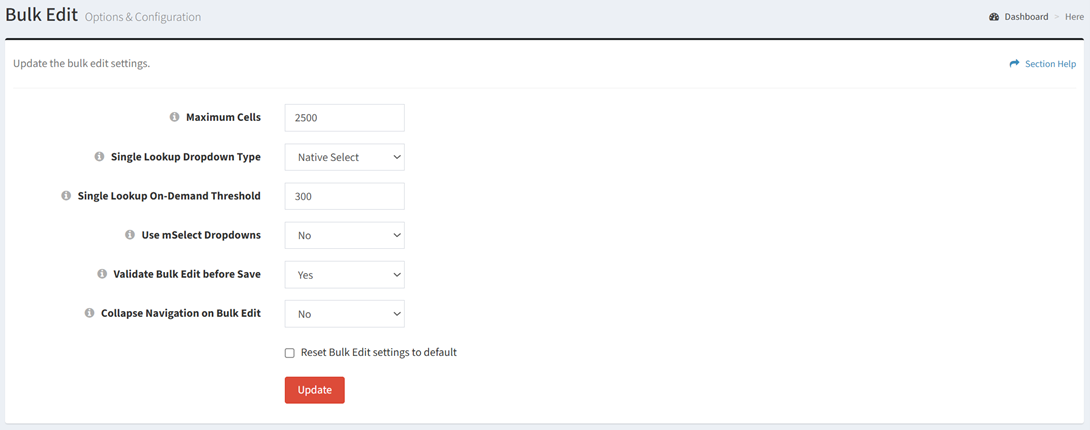
The Bulk Edit settings page provides the ability to view and configure bulk edit settings.
Available operations:
- View and update bulk edit settings
- Fields available
- Maximum Cells – Enter the maximum number of cells allowed for bulk editing. If the cell count is over the maximum cell count, you will receive a warning to use Column Visibility to hide columns and reduce the cell count.
- Single Lookup Dropdown Type – Select drop down type of single lookups
- Single Lookup On-Demand Threshold – Enter threshold for the number of cells before single lookups are populated on-demand when you click on the drop down. Enter 0 to always populate single lookups on-demand. The default setting is 300.
- Use mSelect Dropdowns – Choose if mSelect drop downs are used when opening single lookup drop downs. The mSelect drop down allows you to search for you selection easier.
- Single lookup drop downs will load as Native Select
- Fill down drop down menu
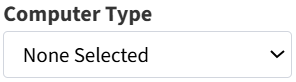
- Field drop down menu

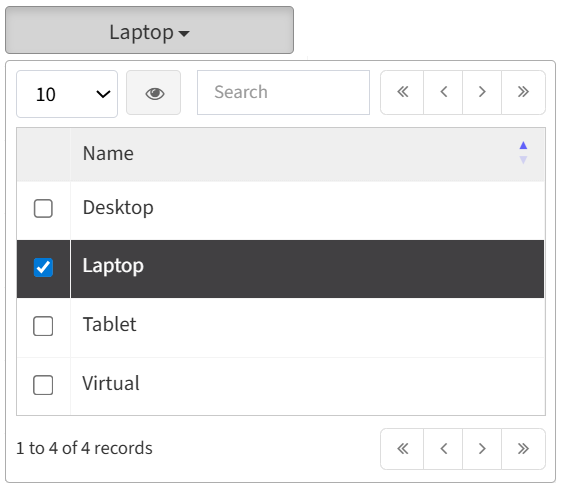
- Single lookup drop downs will change to an mSelect when clicked
- Fill down drop down menu
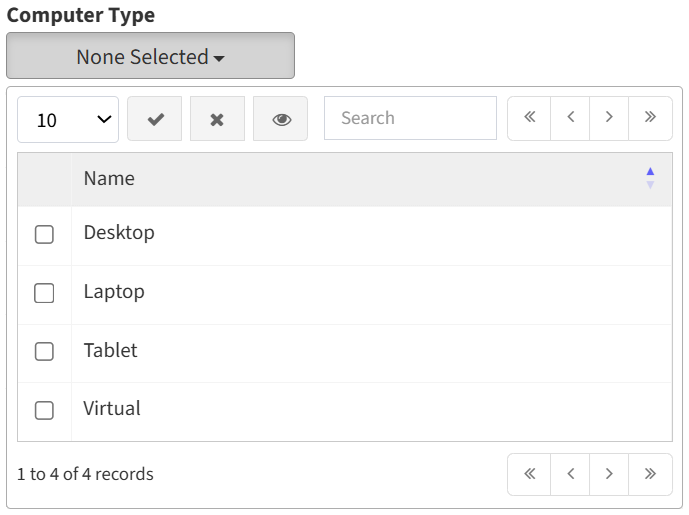
- Field drop down menu
- Validate Bulk Edit before Save – Choose if bulk edit validates before savings
- Collapse Navigation on Bulk Edit – Choose if the navigation menu is collapsed when opening the bulk editor. This setting only applies for the Inline bulk editor.
- Reset Bulk Edit settings to default – Reset bulk edit settings to the default values
Update Bulk Edit Settings
From the Bulk Edit setting page, you can update the bulk edit settings. To update:
- Enter or select a value for each bulk edit setting
- Click the Update button to save your bulk edit settings