The Wave Calendar visually displays wave tasks on a calendar.
Available operations:
- View the wave and wave tasks visually on the calendar by month, week, or day
- Move wave tasks on the calendar
- Navigate to a wave task by double clicking on the task
Wave Calendar Colors
| Workflow Element | Color |
| Waves |  | Dark Gray |
| Not Started Task |  | Light Gray |
| In Progress Task |  | Blue |
| Overdue Task |  | Red |
| Complete Task |  | Green |
| Cancelled Task |  | Light Blue |
| Failed Task | | Red |
| Paused Task |  | Orange |
Month View
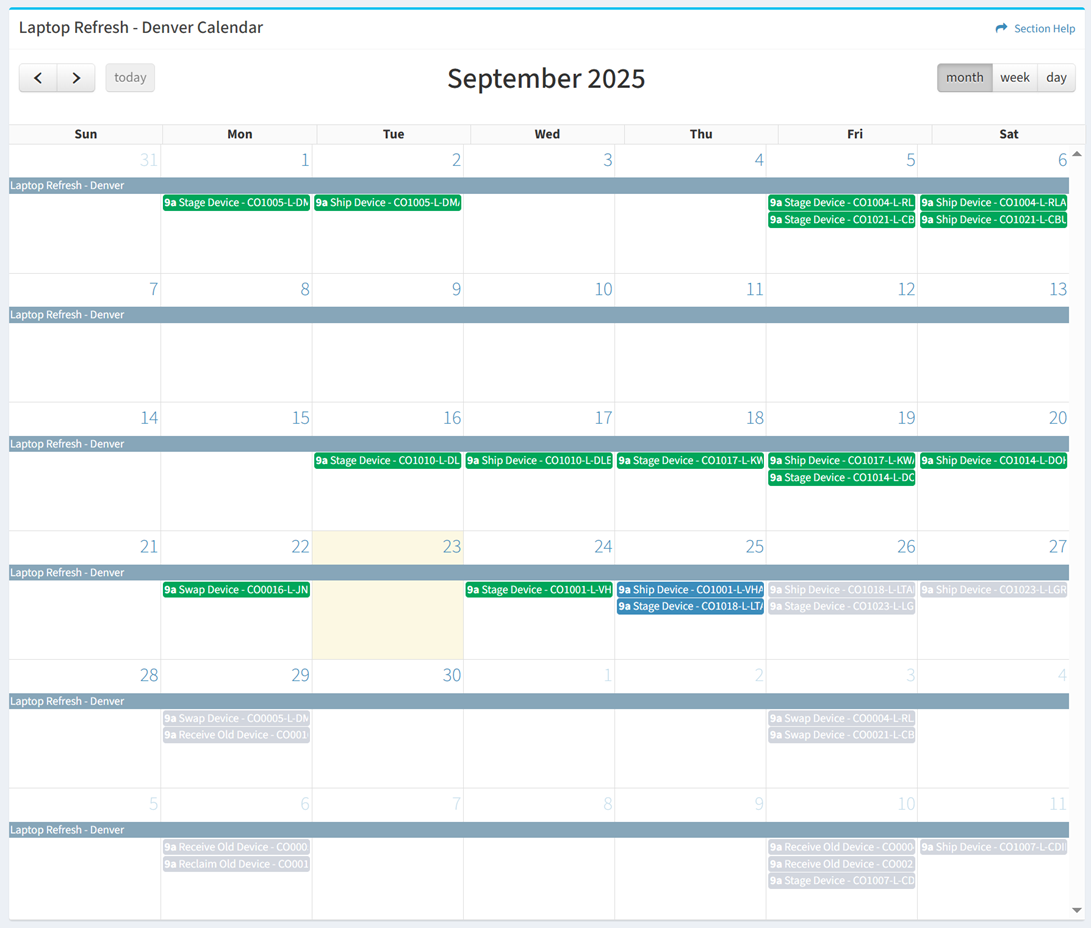
Available operations
- Hover over a wave or task to see additional details
- Move tasks on the calendar by dragging a task
- The move task function is only available to users in the Administrator and Regular User security groups
- Navigate to a task by double clicking on the task
- Move back and forth through the calendar by using the arrows
- Navigate to the current month by clicking on the today button; the button will be grayed out when viewing the current month
- The current day is highlighted on the calendar
Week View
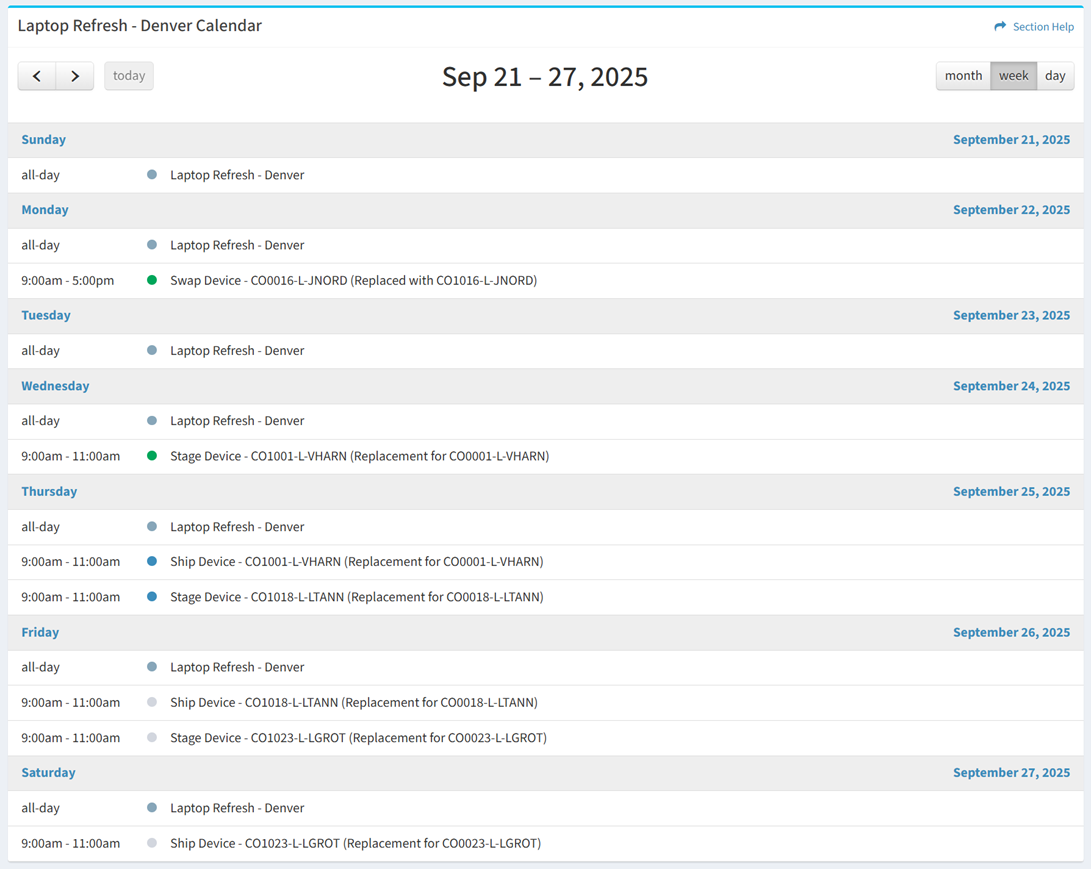
Available operations
- Hover over a wave or task to see additional details
- Navigate to a task by double clicking on the task
- Move back and forth through the calendar by using the arrows
- Navigate to the current week by clicking on the today button; the button will be grayed out when viewing the current week
Day View
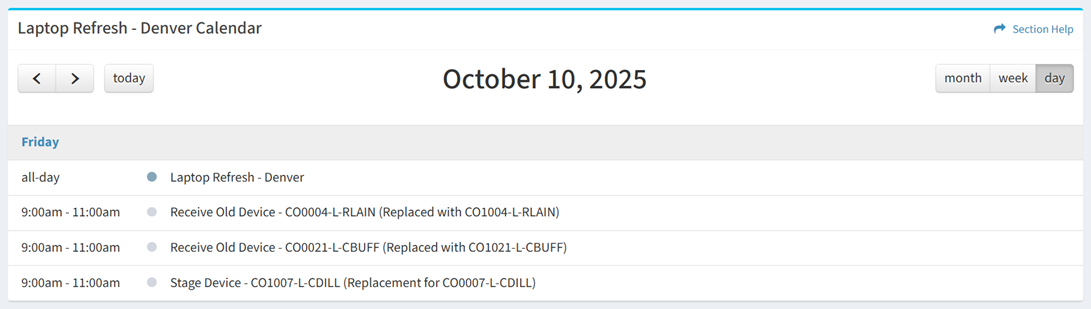
Available operations
- Hover over a wave or task to see additional details
- Navigate to a task by double clicking on the task
- Move back and forth through the calendar by using the arrows
- Navigate to the current day by clicking on the today button; the button will be grayed out when viewing the current day