The General Settings tab on the Options page provides the ability to view and configure general settings.
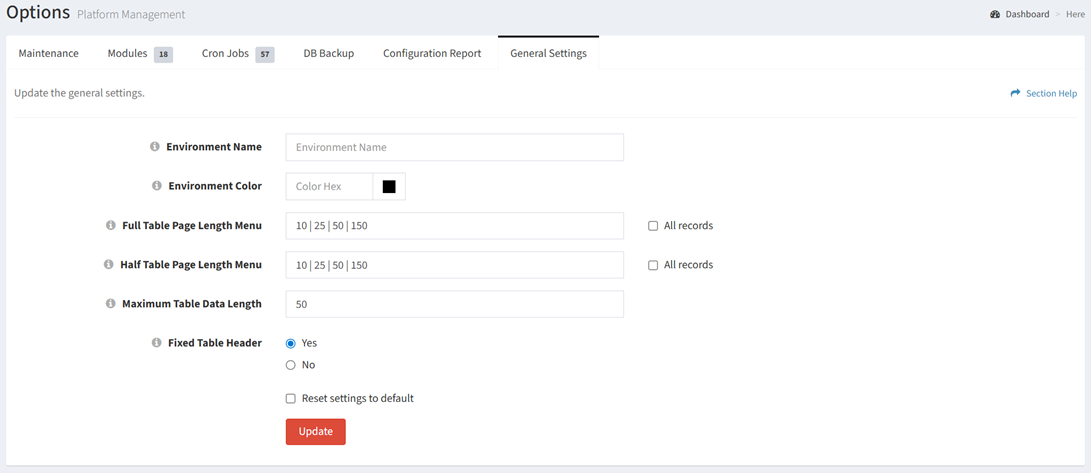
Available operations:
- View and update the general settings
- Fields available
- Environment Name – Set the name of the environment (e.g. PROD, TEST) displayed in the top left corner of the Settings Menu. The default value is NEW.

- Environment Color – Set the color of the environment name displayed in the top left corner of the Settings Menu. The default color is green if none is specified. Enter a hex color code to change the color. The hex color code #da4c3d is shown below.

- Full Table Page Length Menu – Set the page length menu options for full tables. Page length is the number of rows to display on a single page when using pagination. Enter a pipe separated list. Check All records to add an option to display all records on one page. The default value is 10|25|50|150.
- Half Table Page Length Menu – Set the page length menu options for full tables. Page length is the number of rows to display on a single page when using pagination. Enter a pipe separated list. Check All records to add an option to display all records on one page. The default value is 10|25|50|150.
- Maximum Table Data Length – Set the maximum length (number of characters) of data to display in a table. The default value if 50.
- Fixed Table Header – Choose if the table header is fixed when scrolling. This works best with Modern data table layout selected.
- Reset settings to default – Reset general settings to the default values
Update Environment Settings
From the General Settings tab, you can update the general settings. To update:
- Enter a value for each general setting
- Click the Update button to save your general settings