The Mappings tab provides the ability to manage data mappings. Data mappings are utilized to aggregate your data sources to a consolidated view in ReadyWorks.
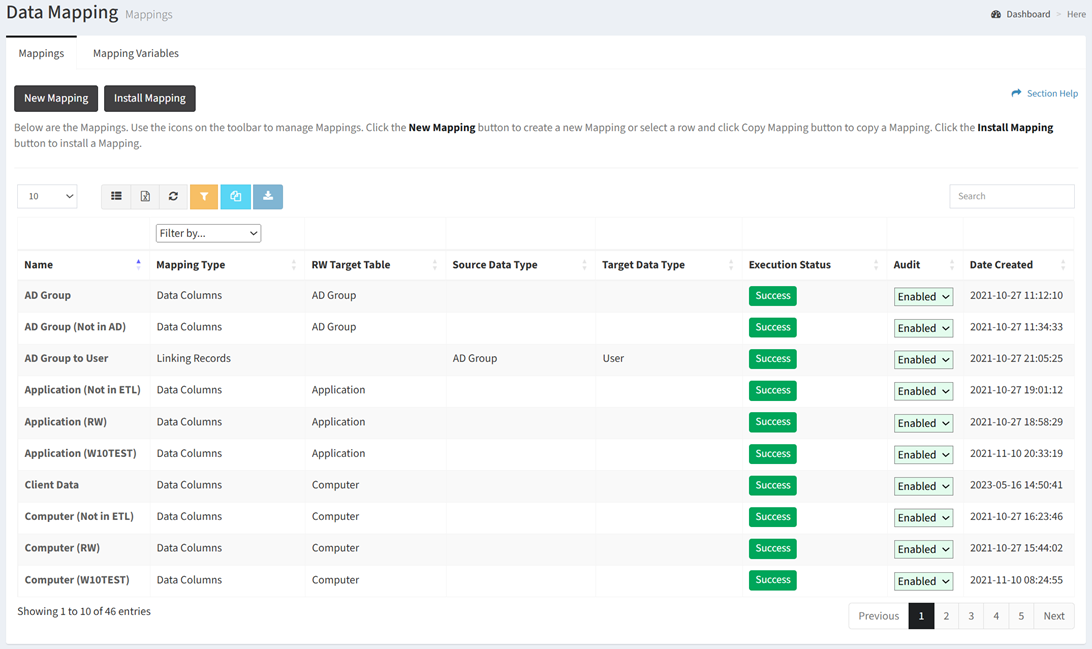
Available operations:
- Create new mappings by clicking on the New Mapping button
- Install new mappings by clicking on the Install Mapping button
- View a list of mappings
- Columns available
- Name – Name of the mapping
- Mapping Type – Type of the mapping
- Filter by Data Columns, Linking Records, Linking Waves, Unlinking Waves, Linking Tasks, Unlinking Tasks
- RW Target Table – ReadyWorks table that is the target of the mapping
- Source Data Type – Source data type for linking data records and linking/unlinking waves and tasks
- Target Data Type – Target data type for linking data records
- Execution Status – Status of the execution (Success, Error)
- Audit – Choose if auditing (logging) is enabled or disabled
- Date Created – Date the mapping was created
- View or edit a mapping by clicking the hyperlink of the Name field
- Enable or disable auditing (logging) by selecting Enabled or Disabled from the Audit drop down
- Copy mappings by selecting a mapping (row) and clicking the Copy Mapping button on the toolbar
- Download a mapping source ZIP by selecting a mapping (row) and clicking the Download Mapping button on the toolbar
- Delete mappings by selecting a mapping (row) and clicking the Delete Mapping button on the toolbar
- You can also change the number of visible rows in the table, export to CSV or Excel, refresh the table, and search for text
In this section