The Connector Library page provides the ability to manage connectors.
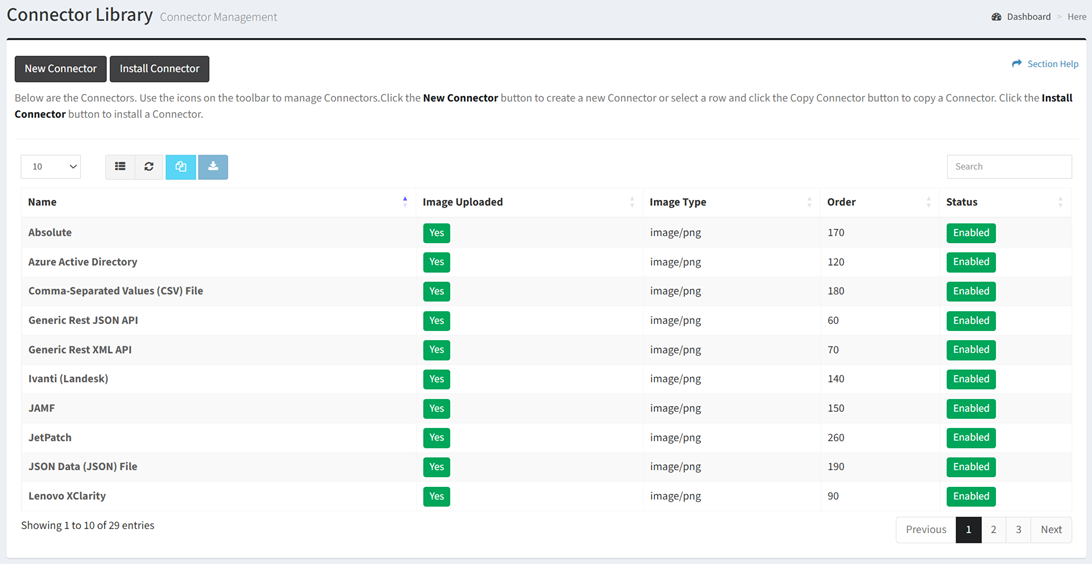
Available operations:
- Create new connectors by clicking on the New Connector button
- Install new connectors by clicking on the Install Connector button
- View a list of available connectors
- Columns available
- Id (hidden by default) – System Id of the connector
- Name – Name of the connector
- Description (hidden by default) – Description of the connector
- Help URL (hidden by default) – Help URL of the connector
- Image Uploaded – Whether an image has been uploaded for the connector (Yes, No)
- Image Type – Type of the image uploaded for the connector
- Order – Order the connector is displayed in the Connector Library
- Status – Whether the connector is enabled or disabled
- Locked (hidden by default) – Whether the connector can be modified
- Single Auth (hidden by default) – Whether the connector has only one authentication method
- Version (hidden by default) – Version of the connector can be modified
- View the properties of connectors by clicking the hyperlink of the Name field
- Copy connectors by selecting a connector (row) and clicking the Copy Connector button on the toolbar
- Download a connector source ZIP by selecting a connector (row) and clicking the Download Connector button on the toolbar
- Delete connectors by selecting a connector (row) and clicking the Delete Connector button on the toolbar
- You can also change the number of visible rows in the table, set column visibility, refresh the table, and search for text
In this section