The T-Comm Templates tab provides the ability to manage wave T-Comm Templates.
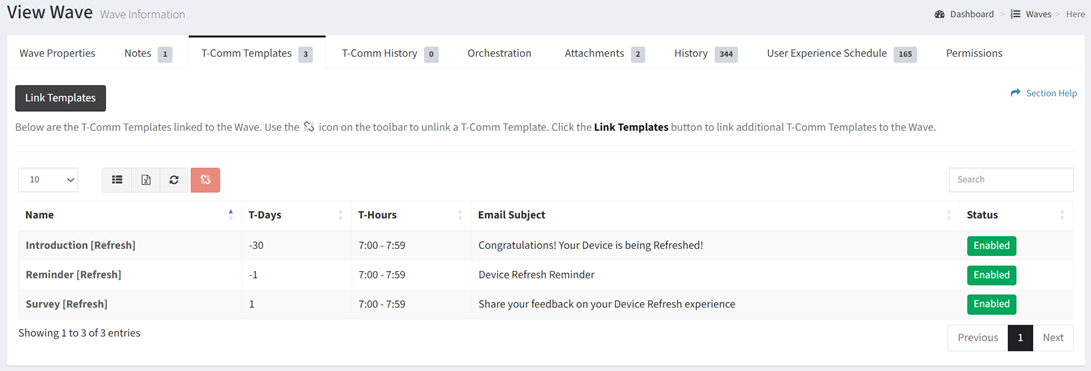
Available operations:
- View T-Comm templates linked to the wave
- Columns available
- Name – Name of the T-Comm template
- T-Days – Days before or after the start goal of the wave or task when the T-Comm template will be sent
- T-Hours – Hour of the day the T-Comm template will be sent (e.g. 11:00 – 11:59 equates to 11:00am through 11:59am, 23:00 – 23:59 equates to 11:00pm through 11:59pm)
- Email Subject – Subject of the T-Comm template email
- Status – Whether the T-Comm template is enabled or disabled
- View the properties of linked T-Comm templates by clicking the hyperlink of the Name field
- Link T-Comm templates to the wave
- Unlink T-Comm templates from the wave by selecting a T-Comm template (row) and clicking the Unlink Template button on the toolbar
- You can also change the number of visible rows in the table, set column visibility, export to CSV or Excel, refresh the table, and search for text
Link T-Comm Templates
From the T-Comm Templates tab, you can link T-Comm templates to the wave. To link:
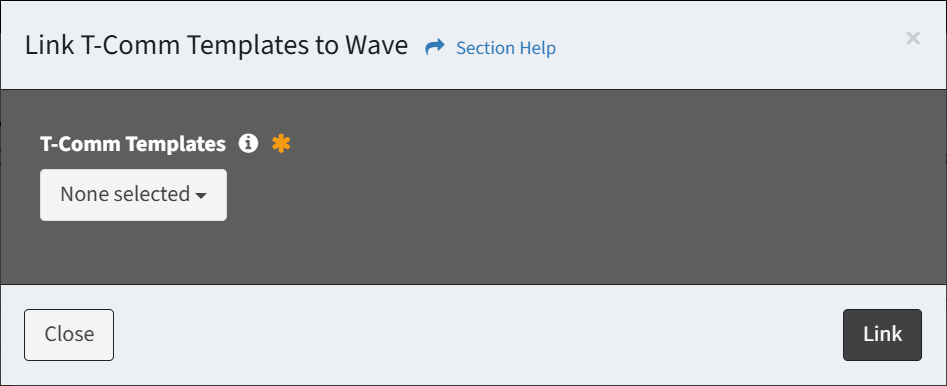
- Click the Link Templates button to bring up the Link T-Comm Templates to Wave dialog
- Select T-Comm templates from the T-Comm Templates drop down and then click the Link button. Click the Close button to cancel the operation.
- The link function is only available to users in the Administrator and Regular User security groups
Unlink T-Comm Templates
From the T-Comm Templates tab, you can unlink T-Comm templates from the wave. To unlink:
- Select a T-Comm template (row) to unlink. Only one T-Comm template can be unlinked at a time.
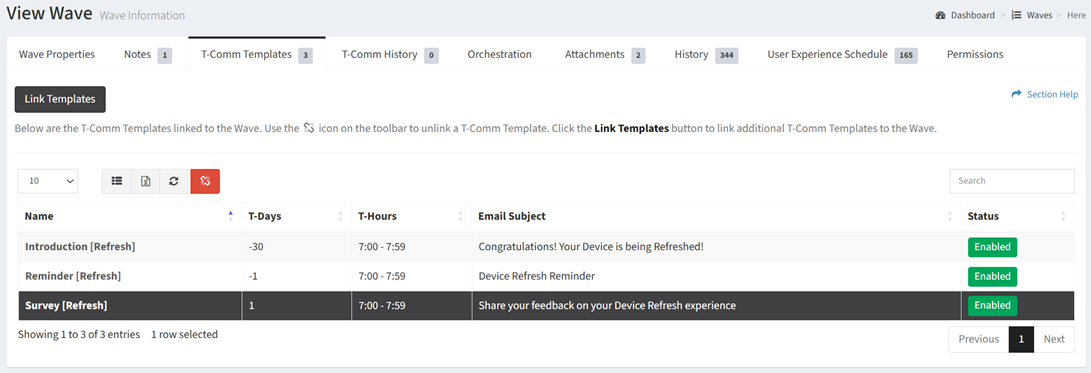
- Click the Unlink Template button on the toolbar

- The unlink button is grayed out unless a T-Comm template (row) is selected


- The unlink function is only available to users in the Administrator and Regular User security groups
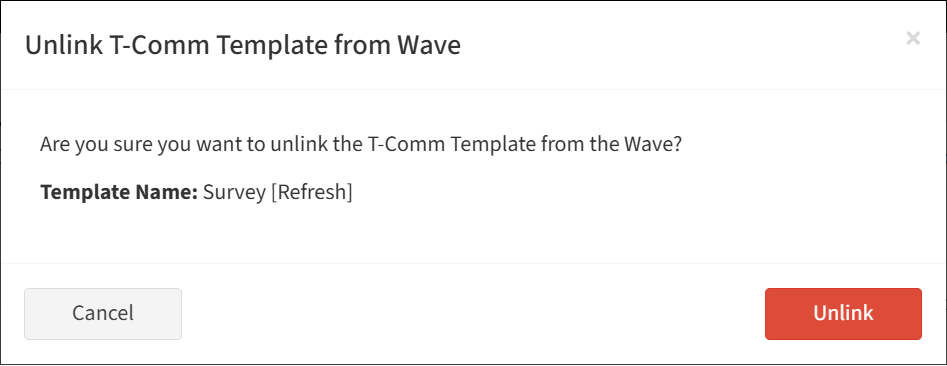
- Click the Unlink button to confirm the unlink operation. Click the Cancel button to cancel the operation.