The Data tab provides the ability to enable access to Data.
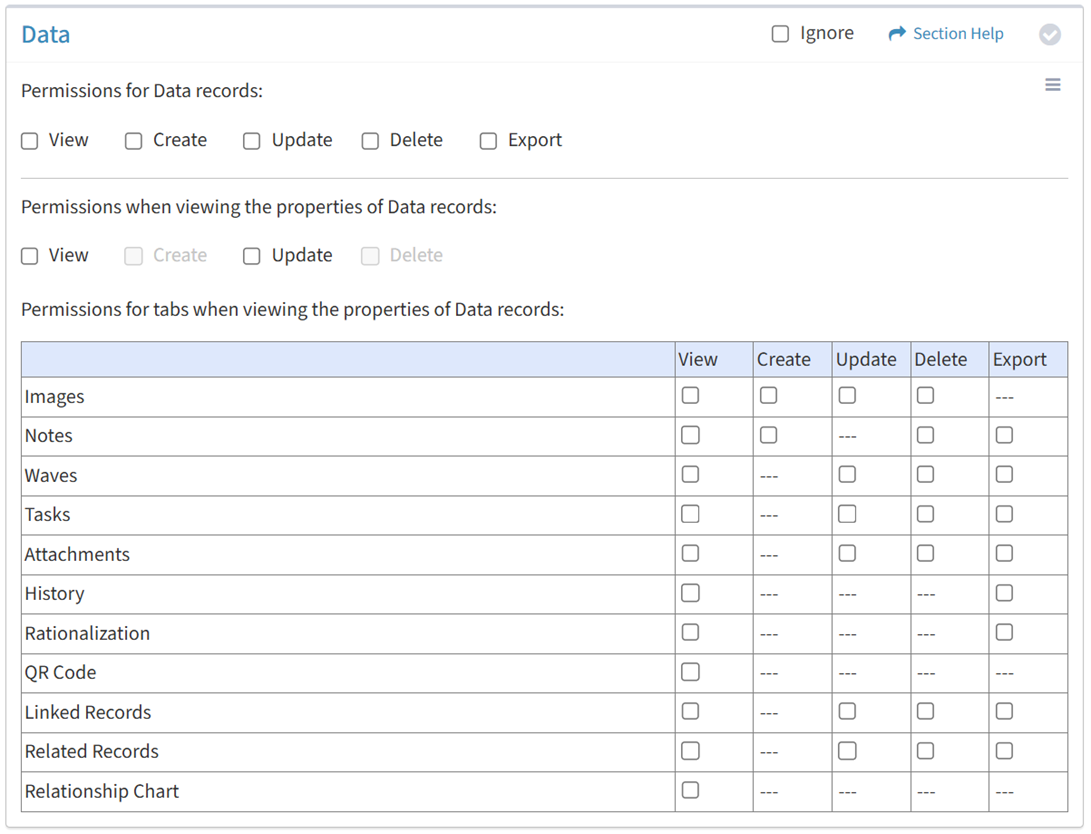
Available operations:
- Enable View, Create, Delete, or Export access for data records
- Enable View or Update access when viewing the properties of data records
- Enable View, Create, Update, or Delete access for the Images tab
- Enable View, Create, Delete, or Export access for the Notes tab
- Enable View, Update, Delete, or Export access for the Waves tab
- Enable View, Update, Delete, or Export access for the Tasks tab
- Enable View, Update, Delete, or Export access for the Attachments tab
- Enable View or Export access for the History tab
- Enable View or Export access for the Rationalization tab
- Enable View access for the QR Code tab
- Enable View, Update, Delete, or Export access for the Linked Records tab
- Enable View, Update, Delete, or Export access for the Related Records tab
- Enable View access for the Relationship Chart tab
- Enable access to specific data types
- Enable object level permissions to restrict access to specific data records
- Select all or deselect all permissions for data
- Ignore data permissions from this Security Group
View
From the Data tab, you can enable View access for data.
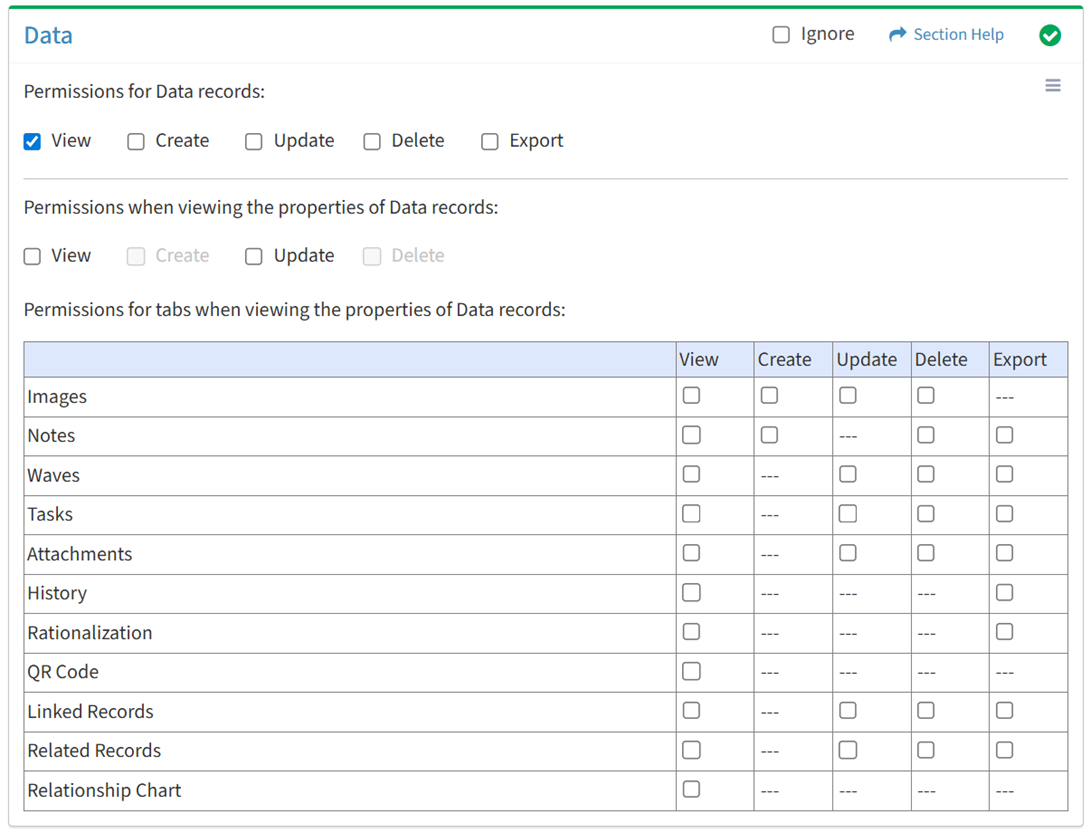
Available operations with View access:
Create
From the Data tab, you can enable Create access for data.
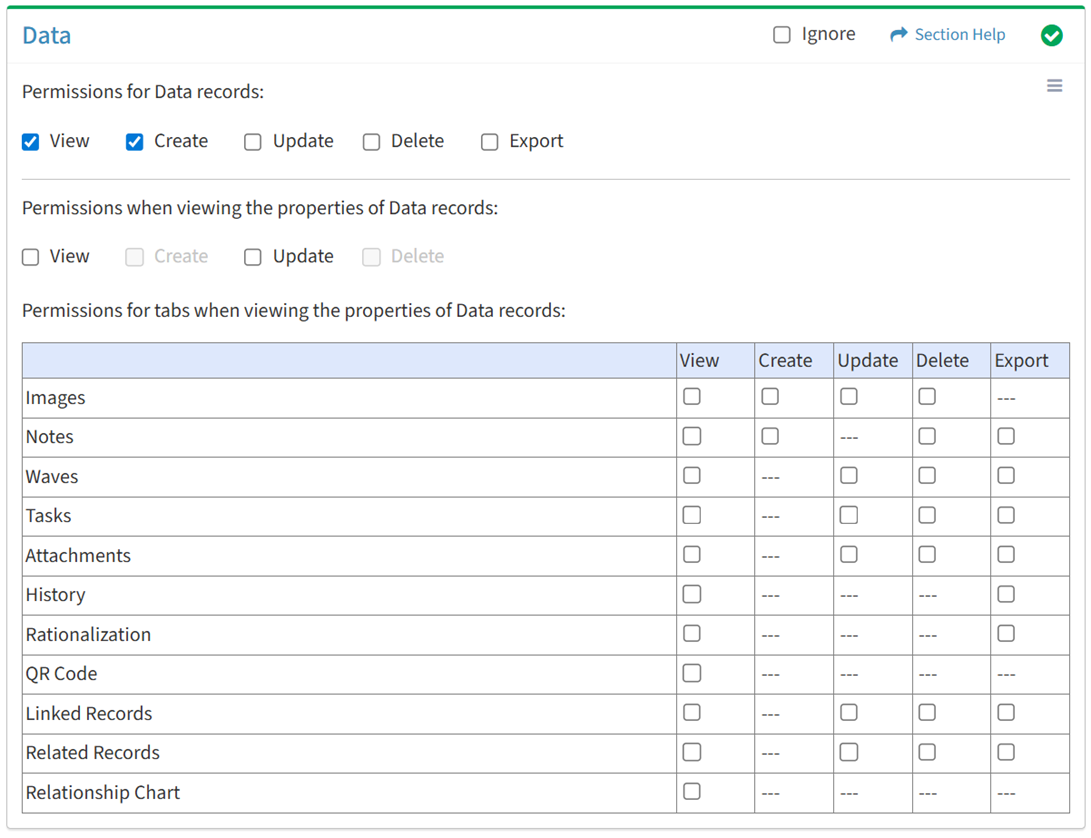
Available operations with Create access (requires View):
Update
From the Data tab, you can enable Update access for data.
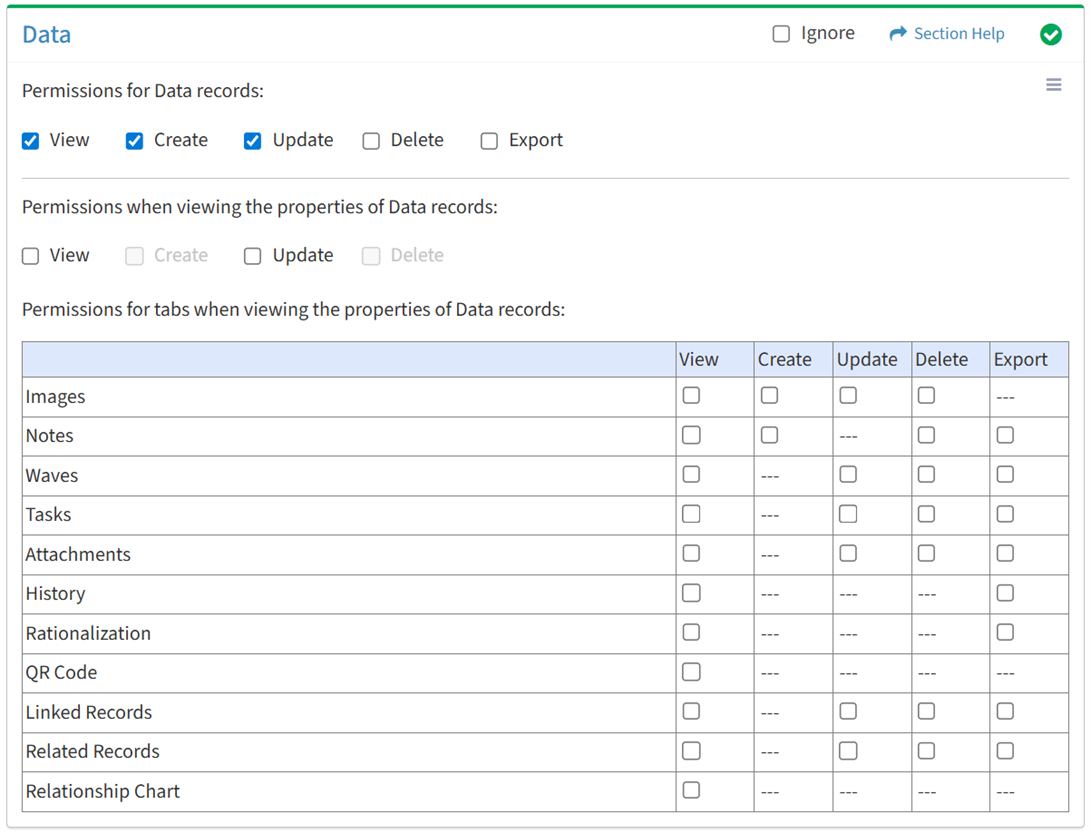
Available operations with Update access (requires View):
Delete
From the Data tab, you can enable Delete access for data.
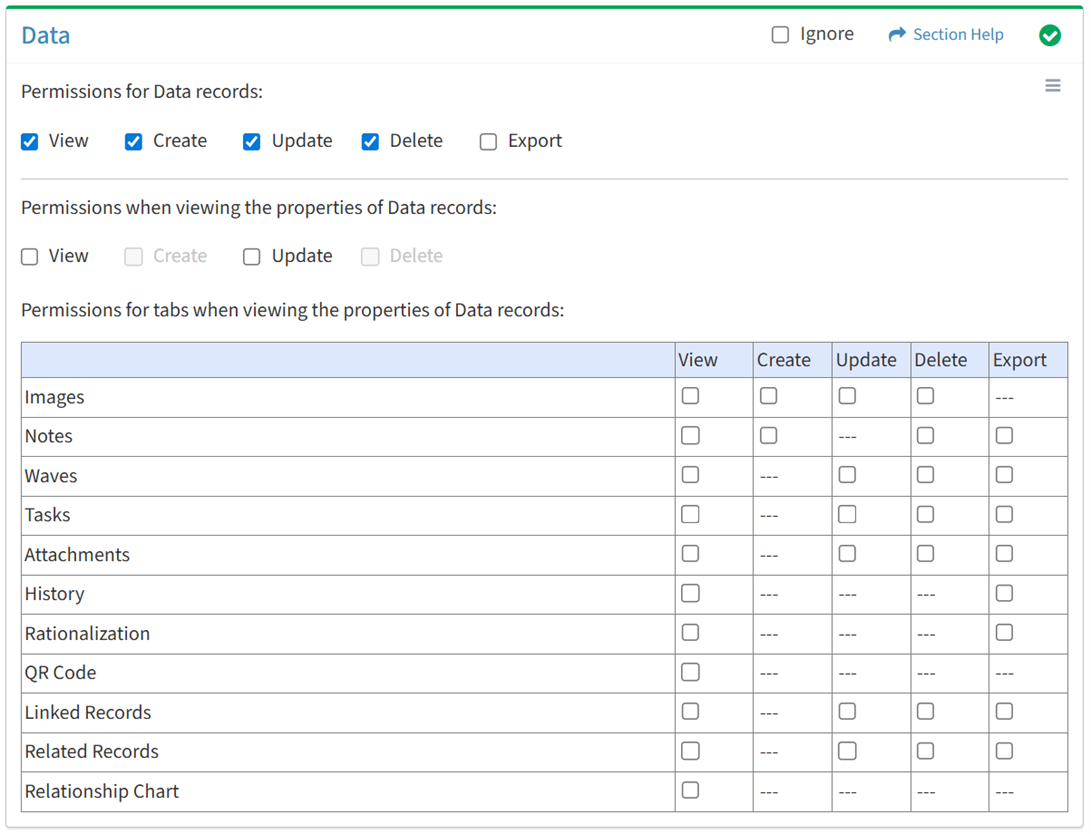
Available operations with Delete access (requires View):
Export
From the Data tab, you can enable Export access for data.
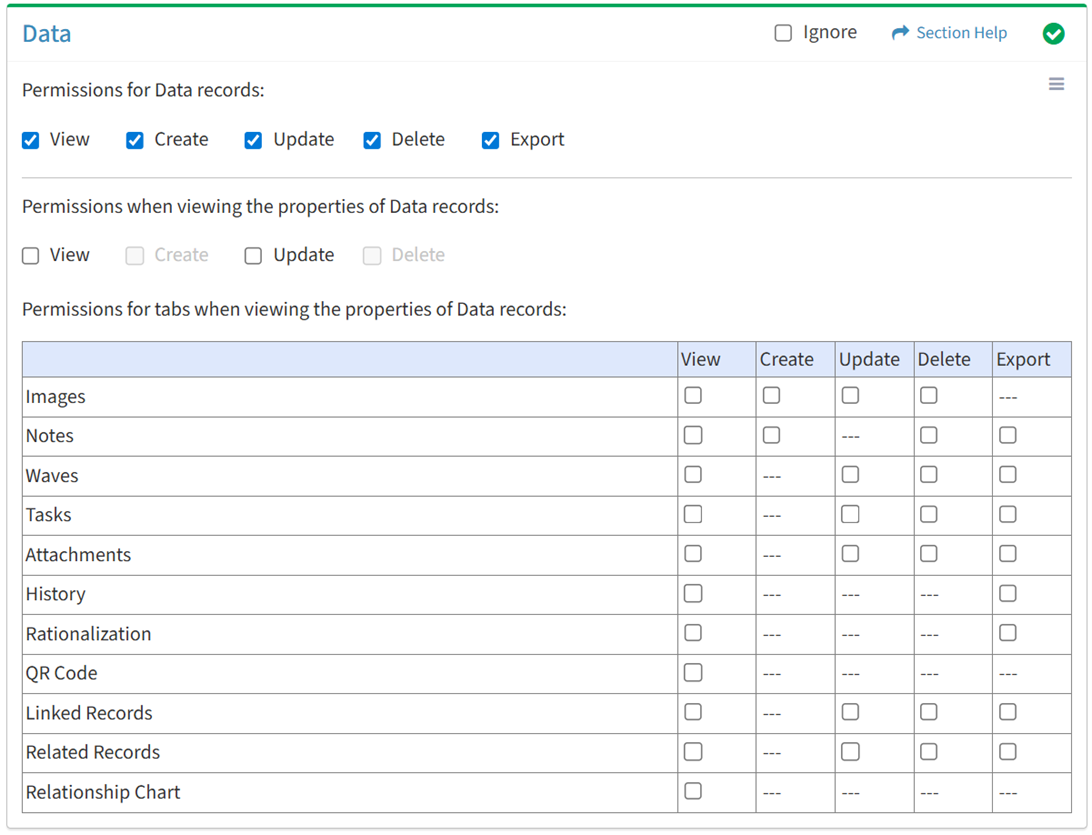
Available operations with Export access (requires View):
View Data
View
From the Data tab, you can enable View access when viewing the properties of data.
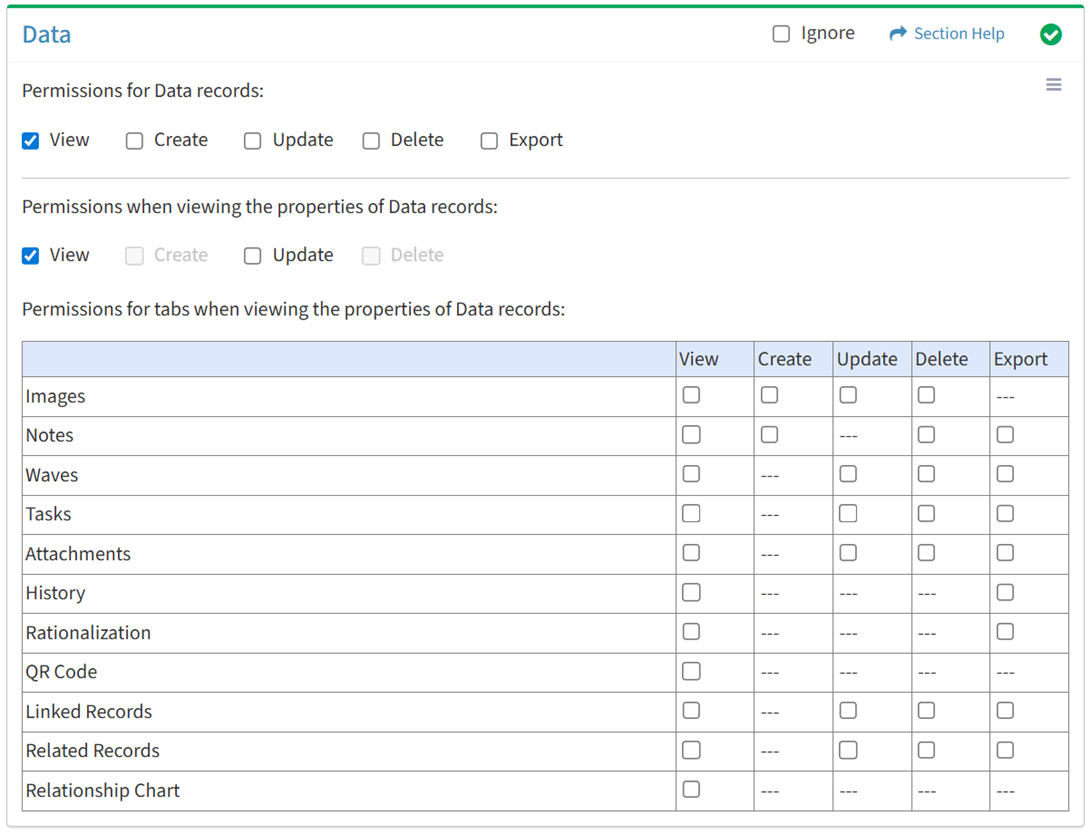
Available operations with View access (requires Data View):
Update
From the Data tab, you can enable Update access when viewing the properties of data.
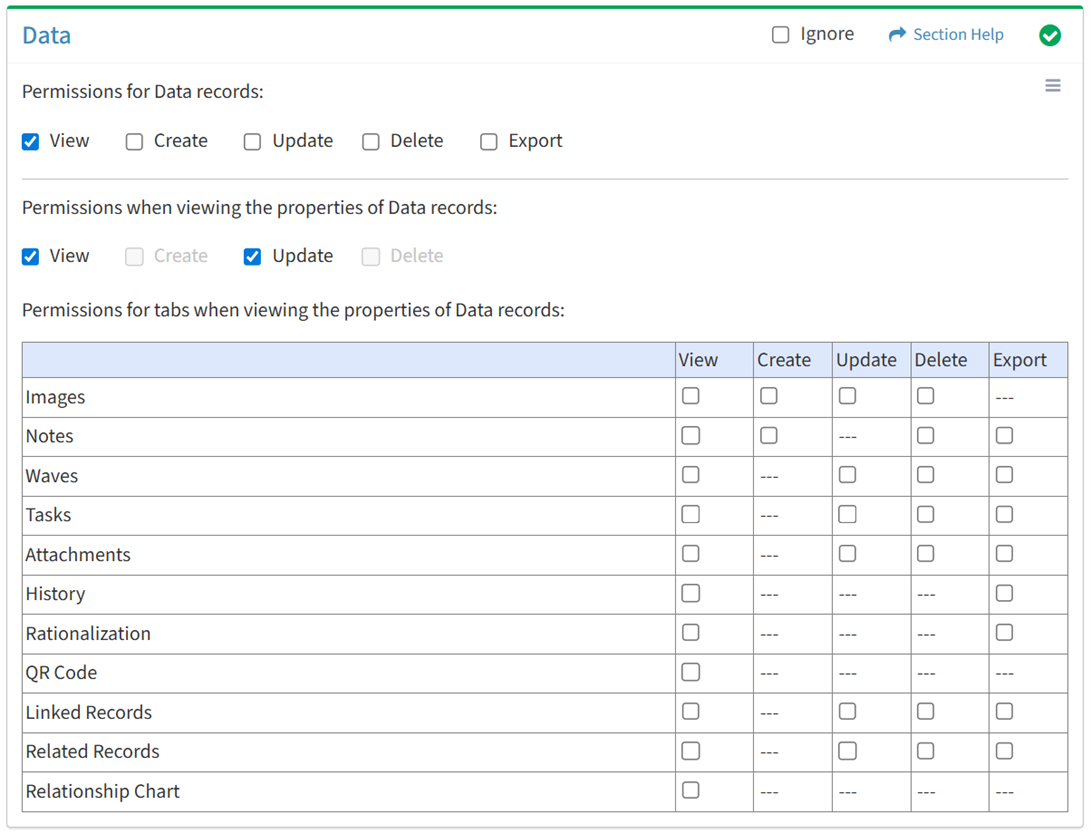
Available operations with Update access (requires View):
Images
View
From the Data tab, you can enable View access for images when viewing the properties of data.
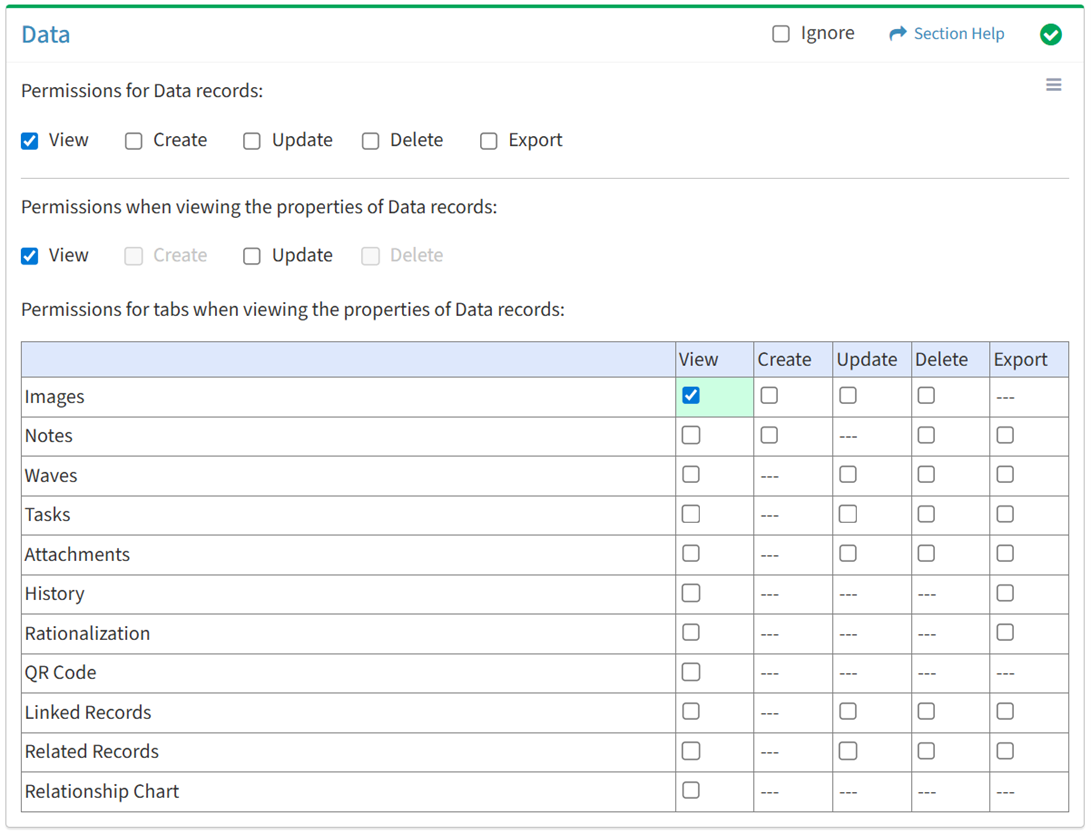
Available operations with View access (requires View Data View):
Create
From the Data tab, you can enable Create access for images when viewing the properties of data.
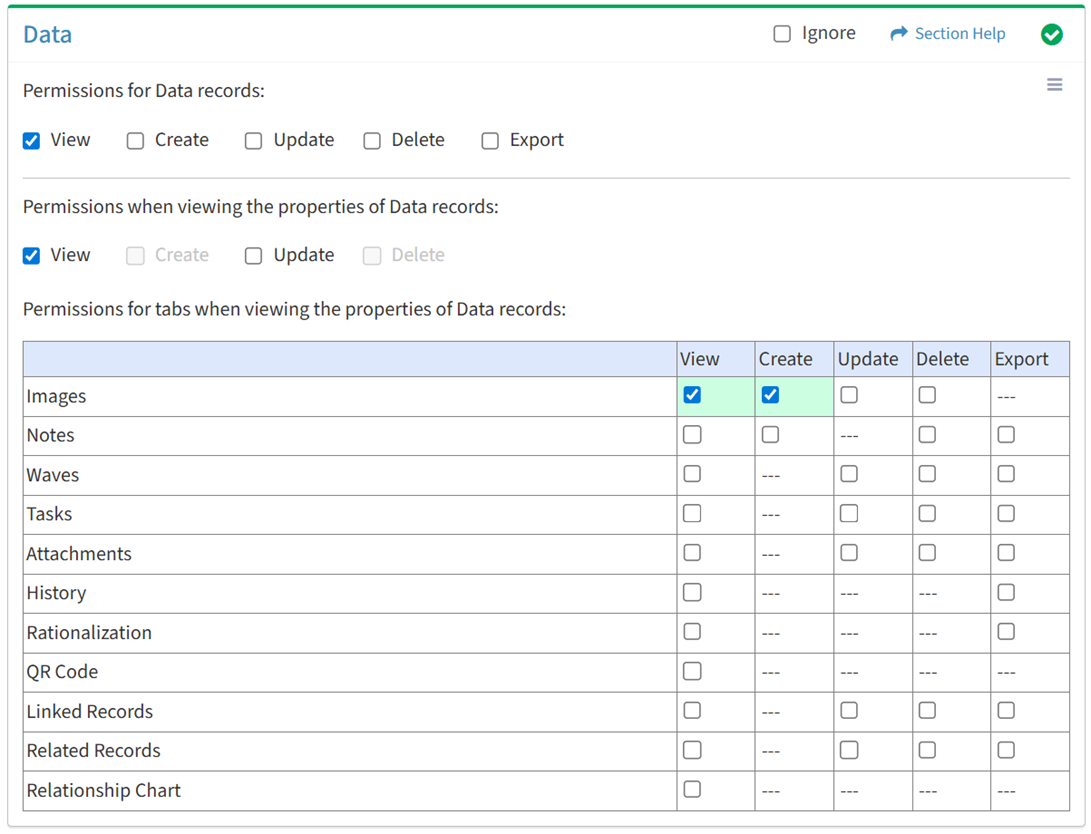
Available operations with Create access (requires View):
Update
From the Data tab, you can enable Update access for images when viewing the properties of data.
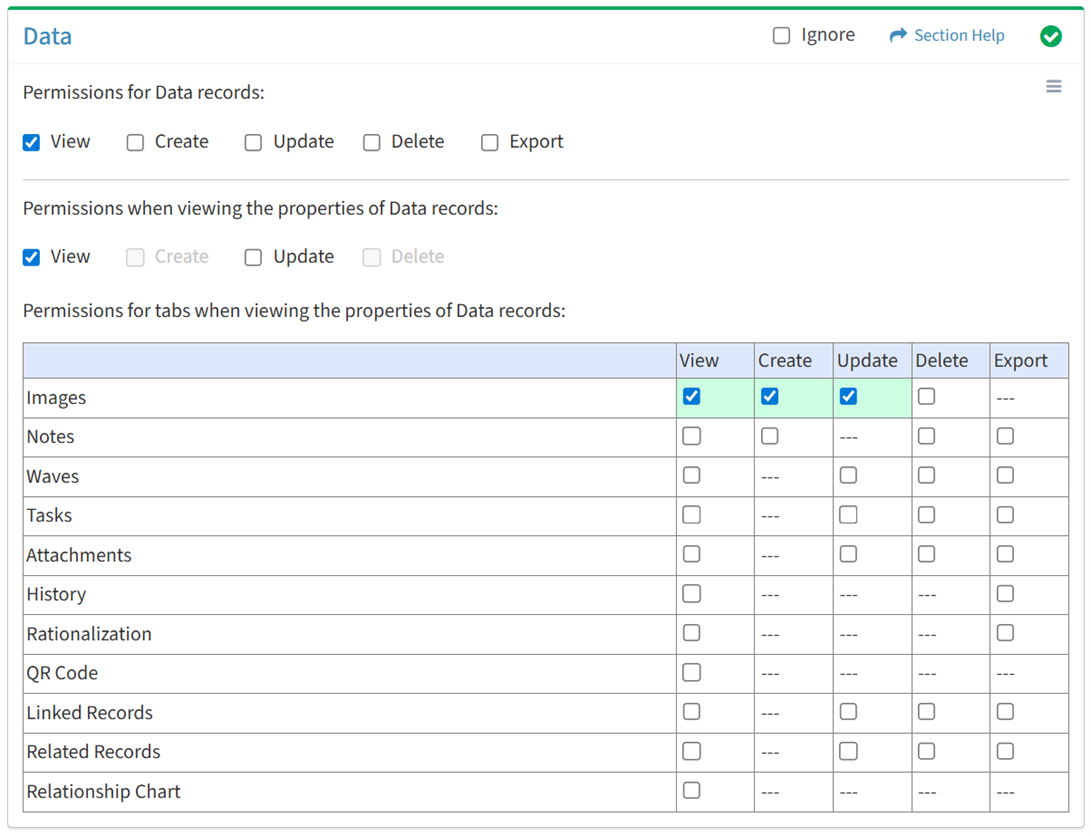
Available operations with Update access (requires View):
Delete
From the Data tab, you can enable Delete access for images when viewing the properties of data.
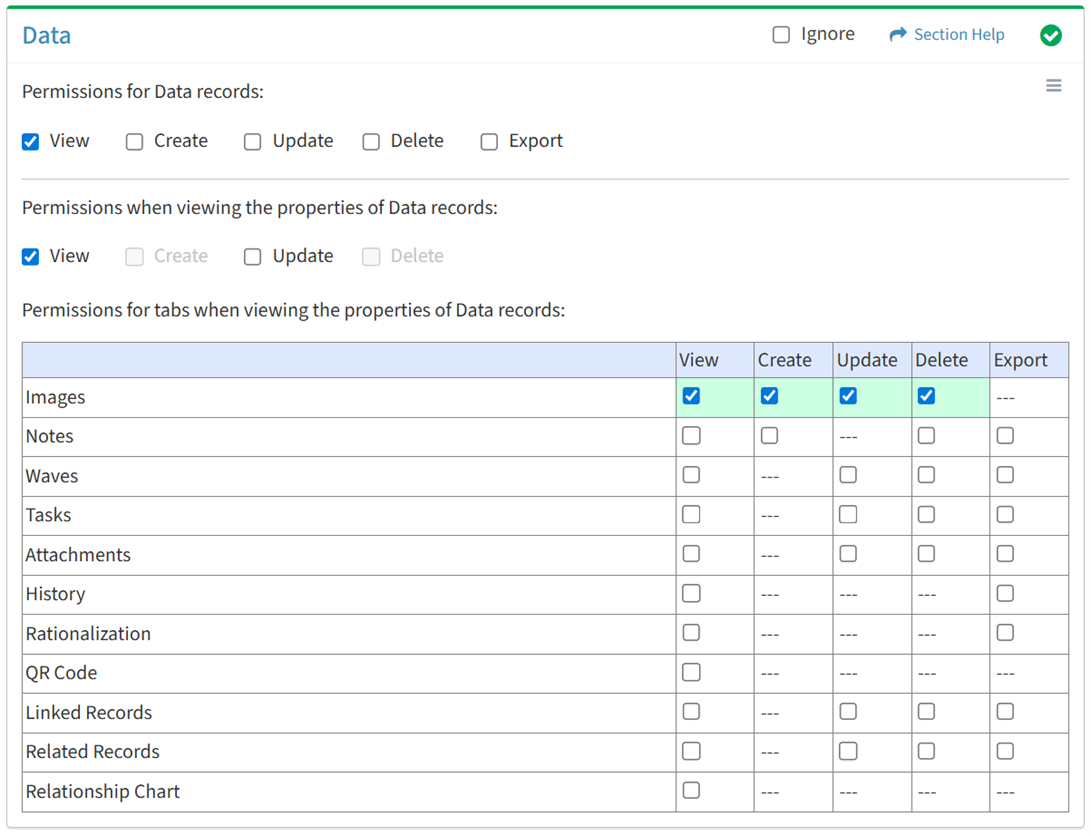
Available operations with Delete access (requires View):
Notes
View
From the Data tab, you can enable View access for notes when viewing the properties of data.
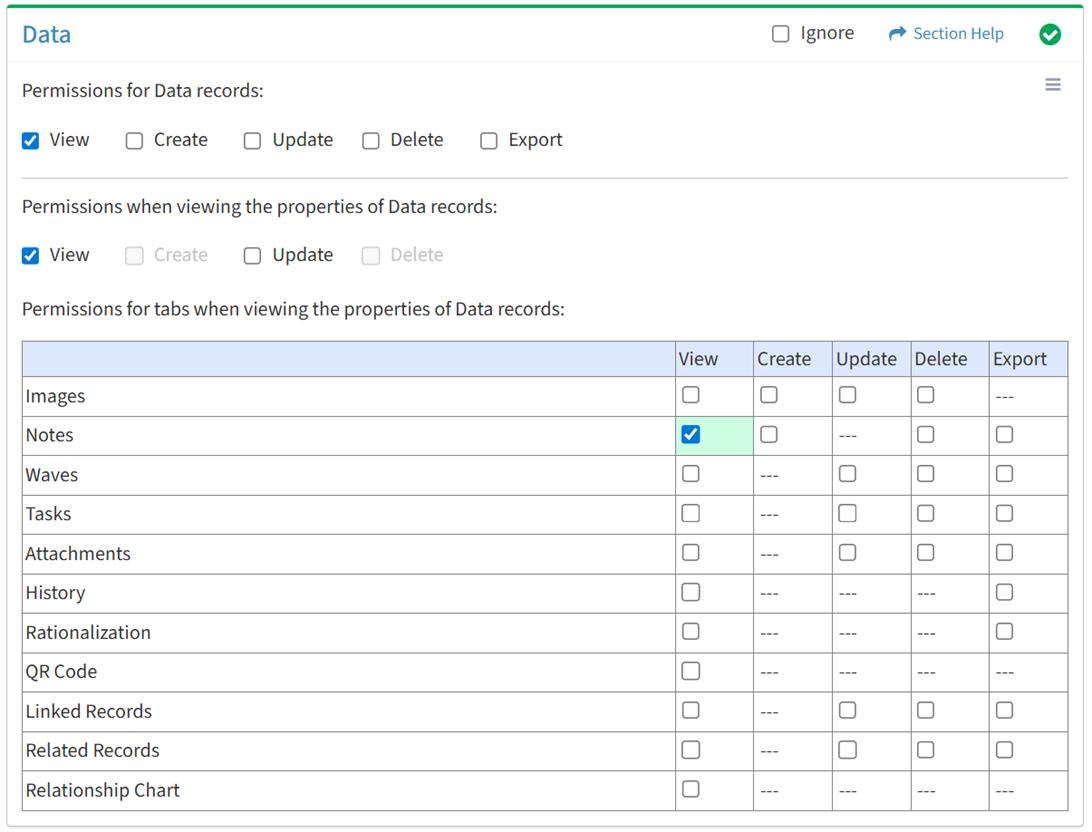
Available operations with View access (requires View Data View):
Create
From the Data tab, you can enable Create access for notes when viewing the properties of data.
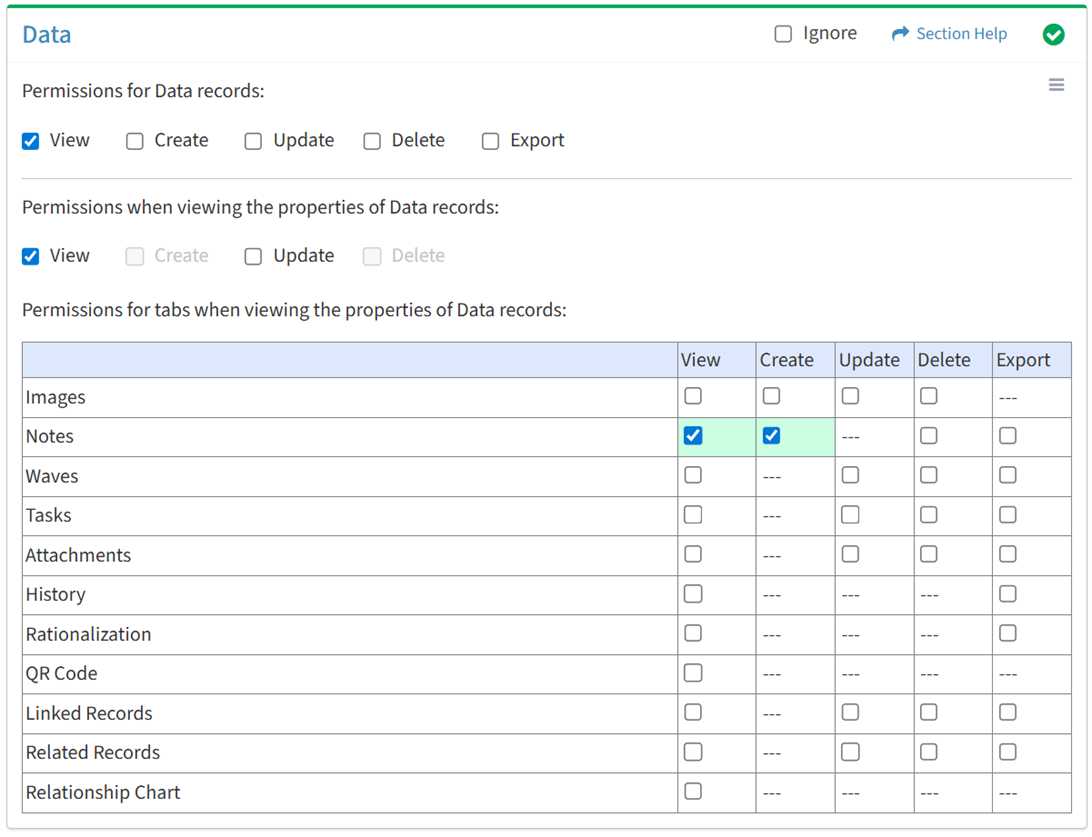
Available operations with Create access (requires View):
Delete
From the Data tab, you can enable Delete access for notes when viewing the properties of data.
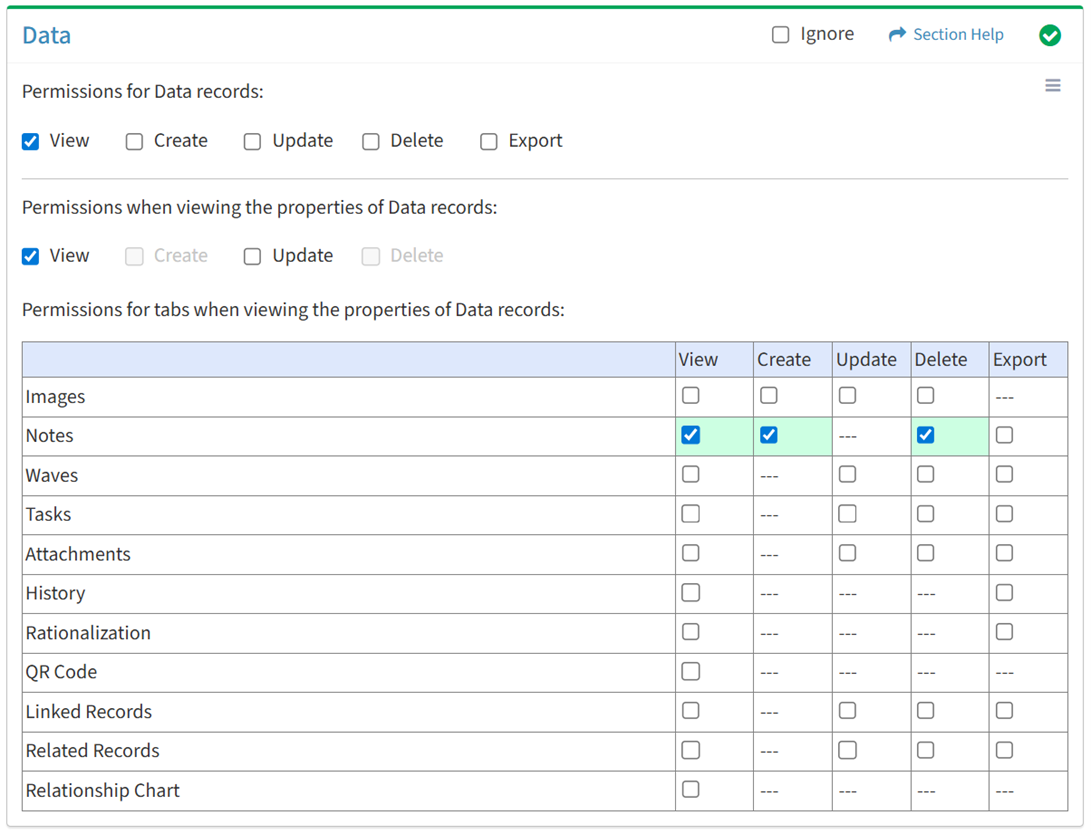
Available operations with Delete access (requires View):
Export
From the Data tab, you can enable Export access for notes when viewing the properties of data.
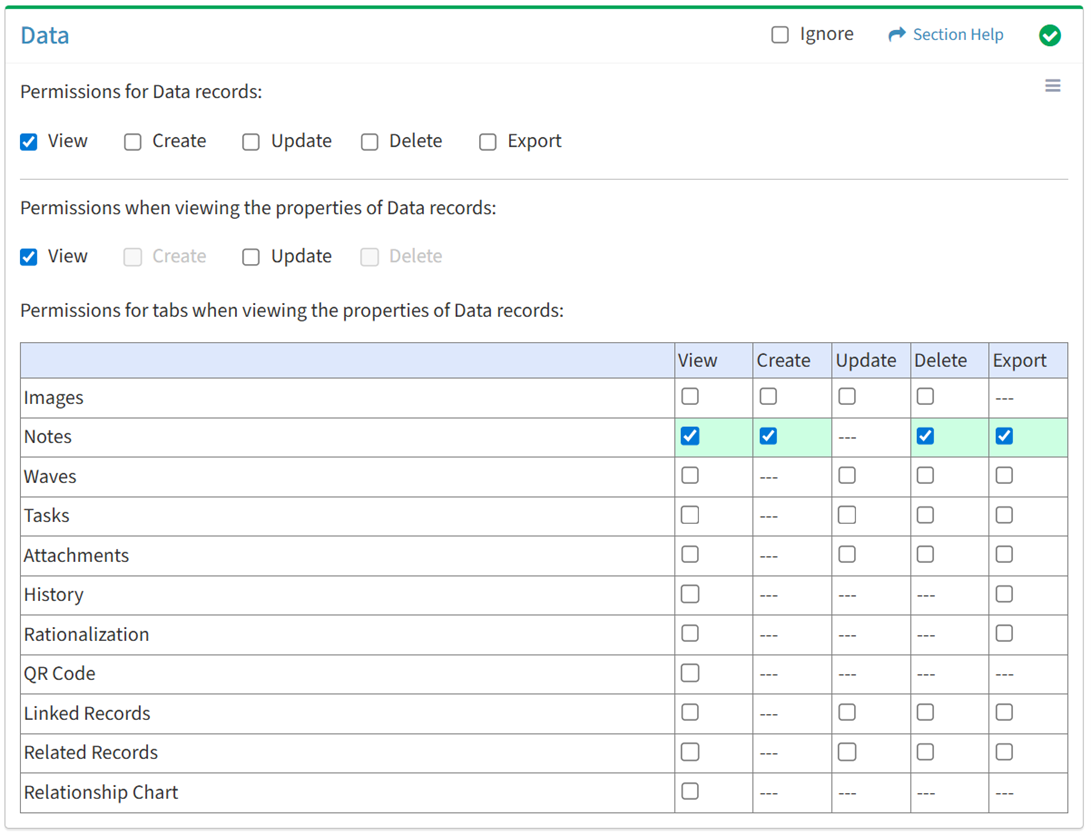
Available operations with Export access (requires View):
Waves
View
From the Data tab, you can enable View access for waves when viewing the properties of data.
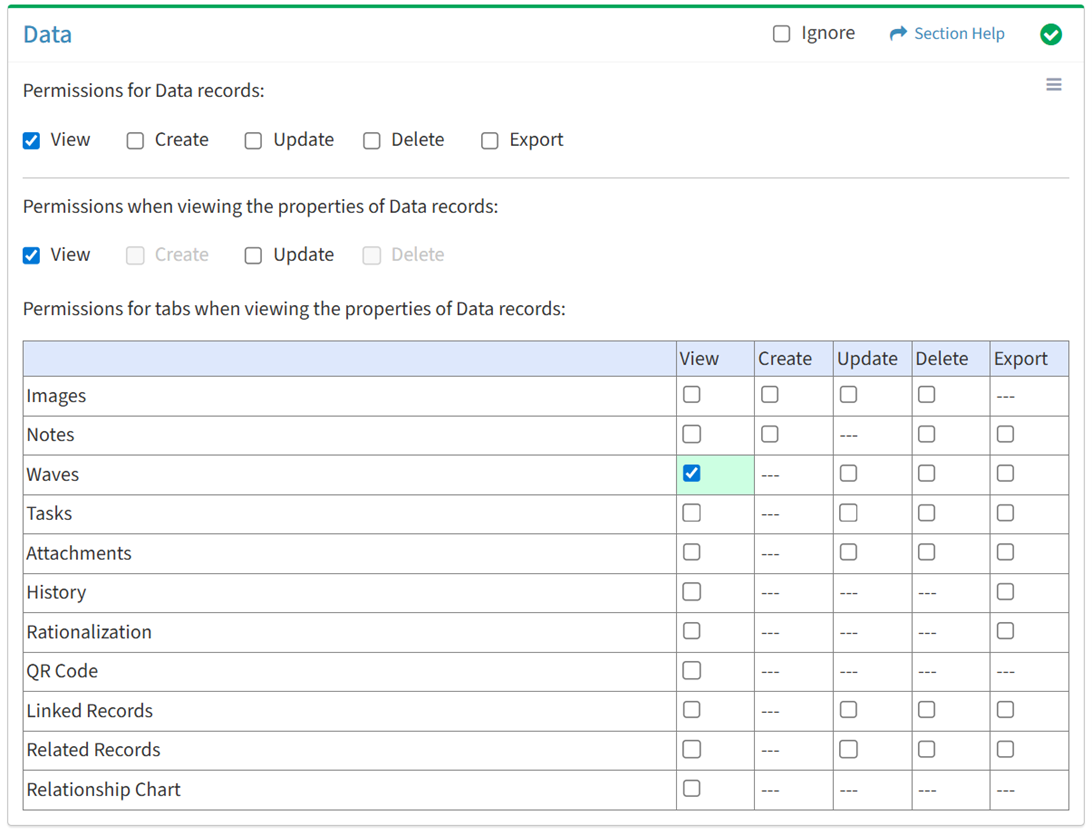
Available operations with View access (requires View Data View and Waves View):
Update
From the Data tab, you can enable Update access for waves when viewing the properties of data.
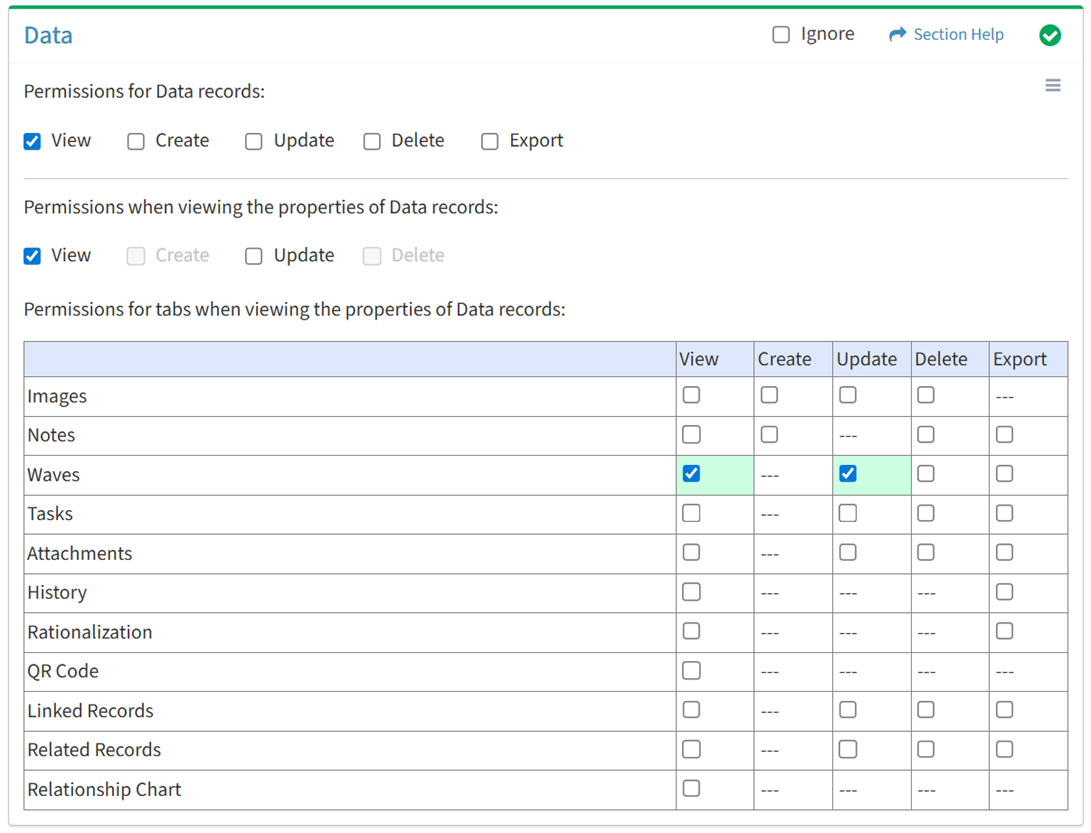
Available operations with Update access (requires View):
Delete
From the Data tab, you can enable Delete access for waves when viewing the properties of data.
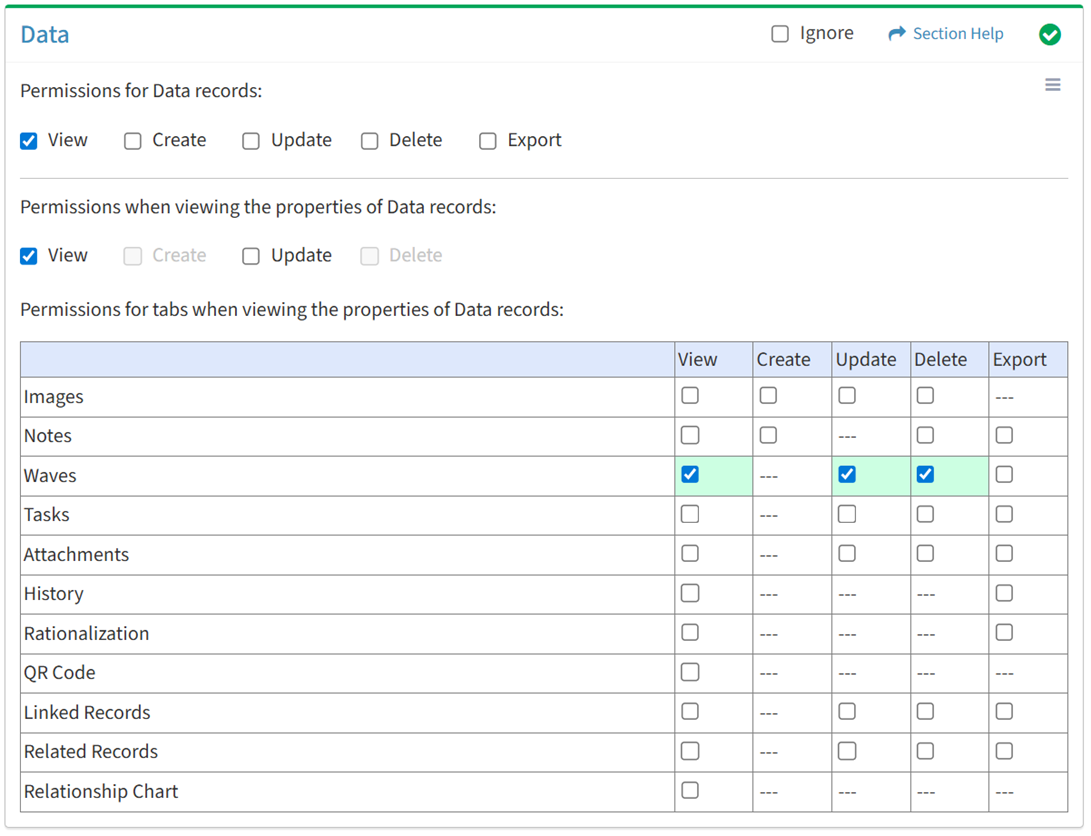
Available operations with Delete access (requires View):
Export
From the Data tab, you can enable Export access for waves when viewing the properties of data.
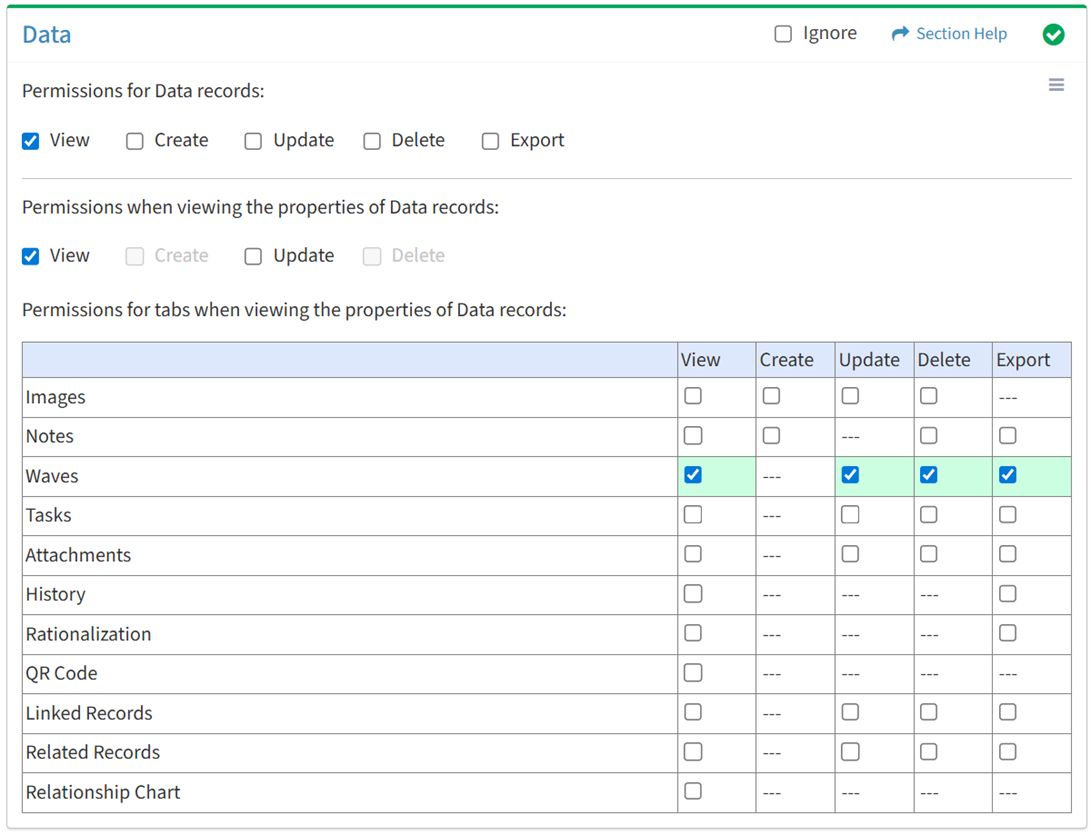
Available operations with Export access (requires View):
Tasks
View
From the Data tab, you can enable View access for tasks when viewing the properties of data.
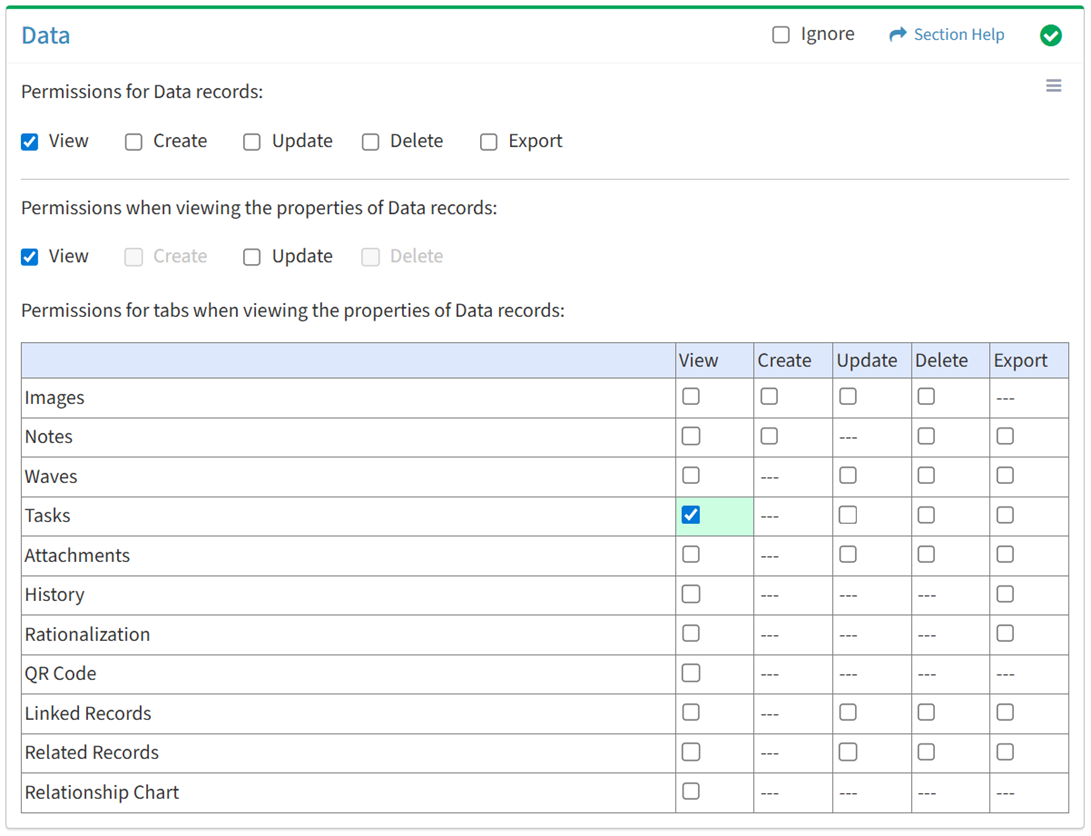
Available operations with View access (requires View Data View and Tasks View):
Update
From the Data tab, you can enable Update access for tasks when viewing the properties of data.
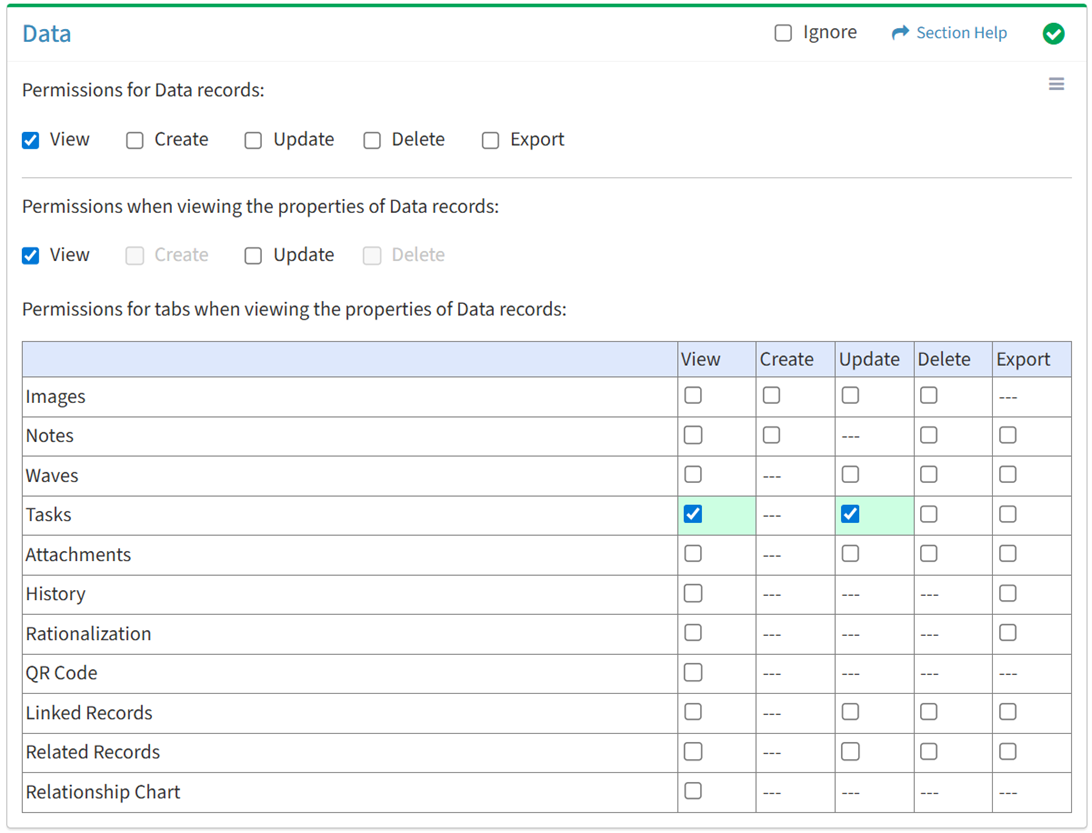
Available operations with Update access (requires View):
Delete
From the Data tab, you can enable Delete access for tasks when viewing the properties of data.
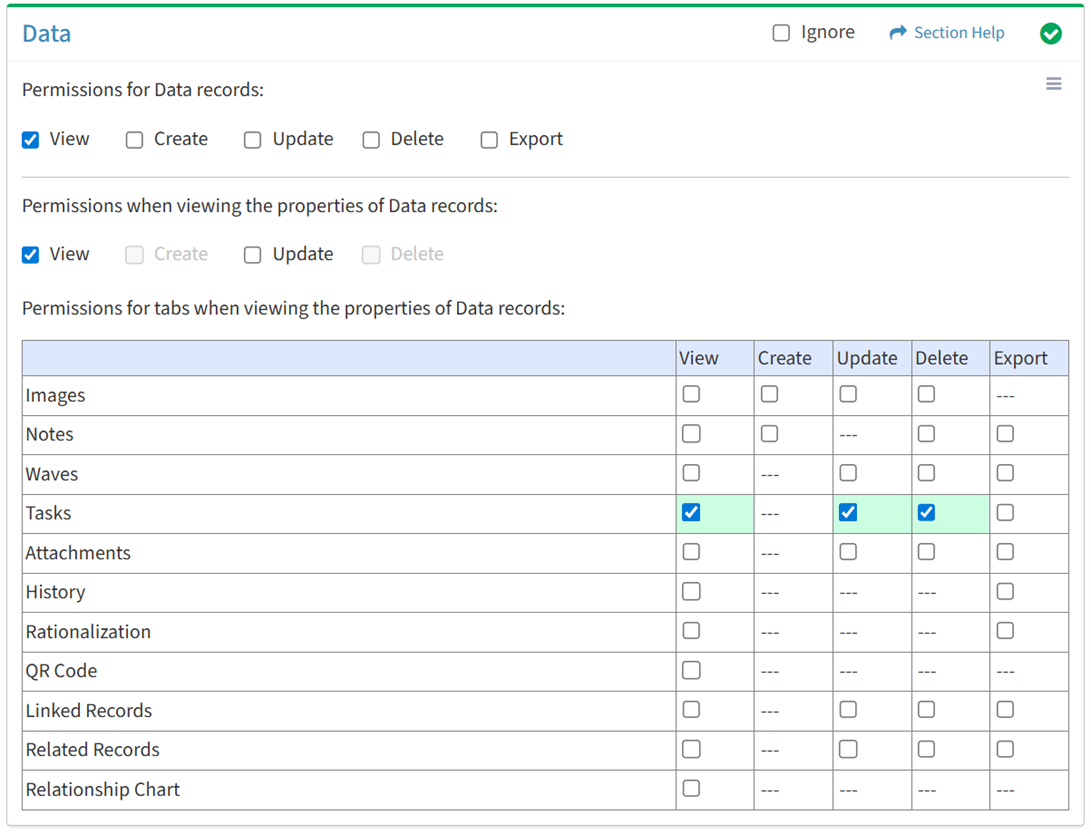
Available operations with Delete access (requires View):
Export
From the Data tab, you can enable Export access for tasks when viewing the properties of data.
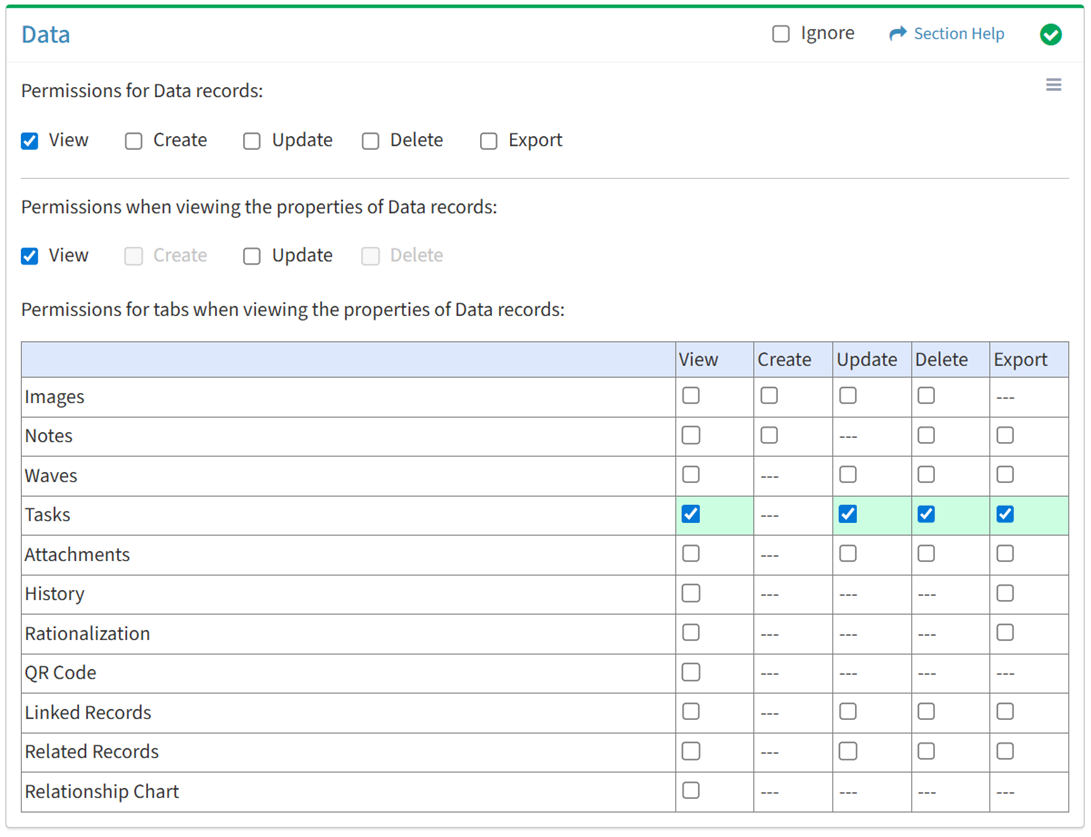
Available operations with Export access (requires View):
Attachments
View
From the Data tab, you can enable View access for attachments when viewing the properties of data.
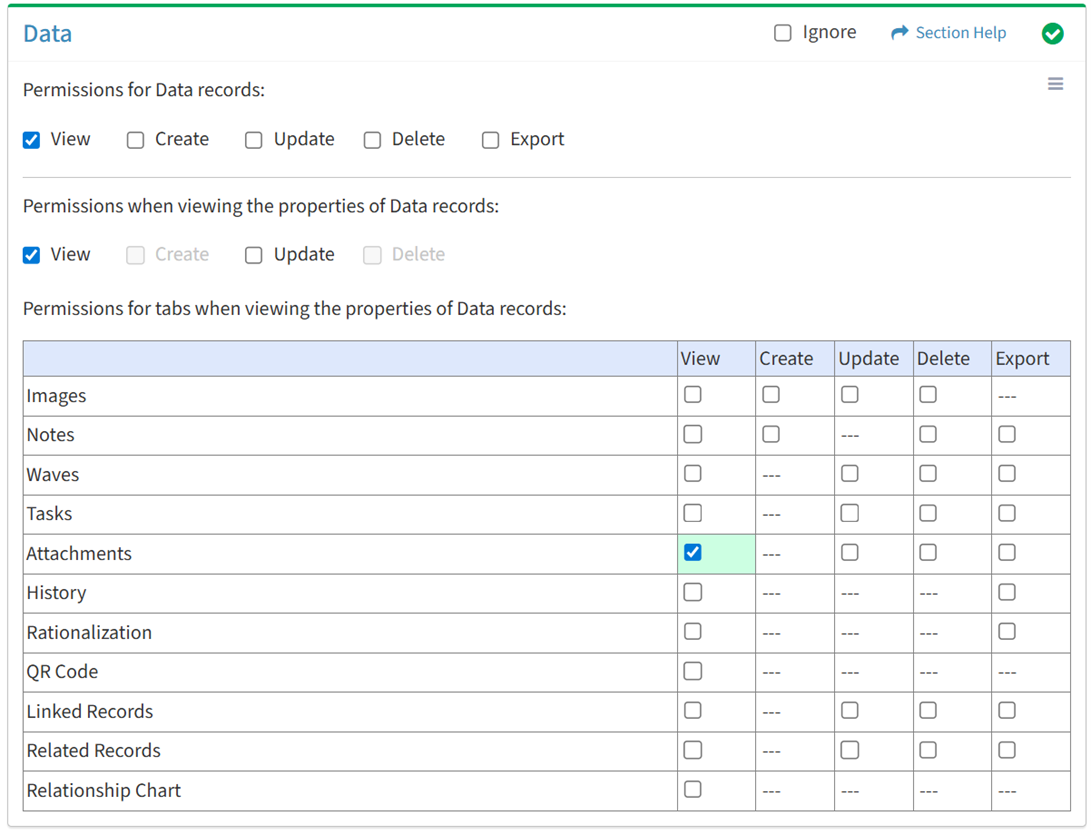
Available operations with View access (requires View Data View and Attachments View):
Update
From the Data tab, you can enable Update access for attachments when viewing the properties of data.
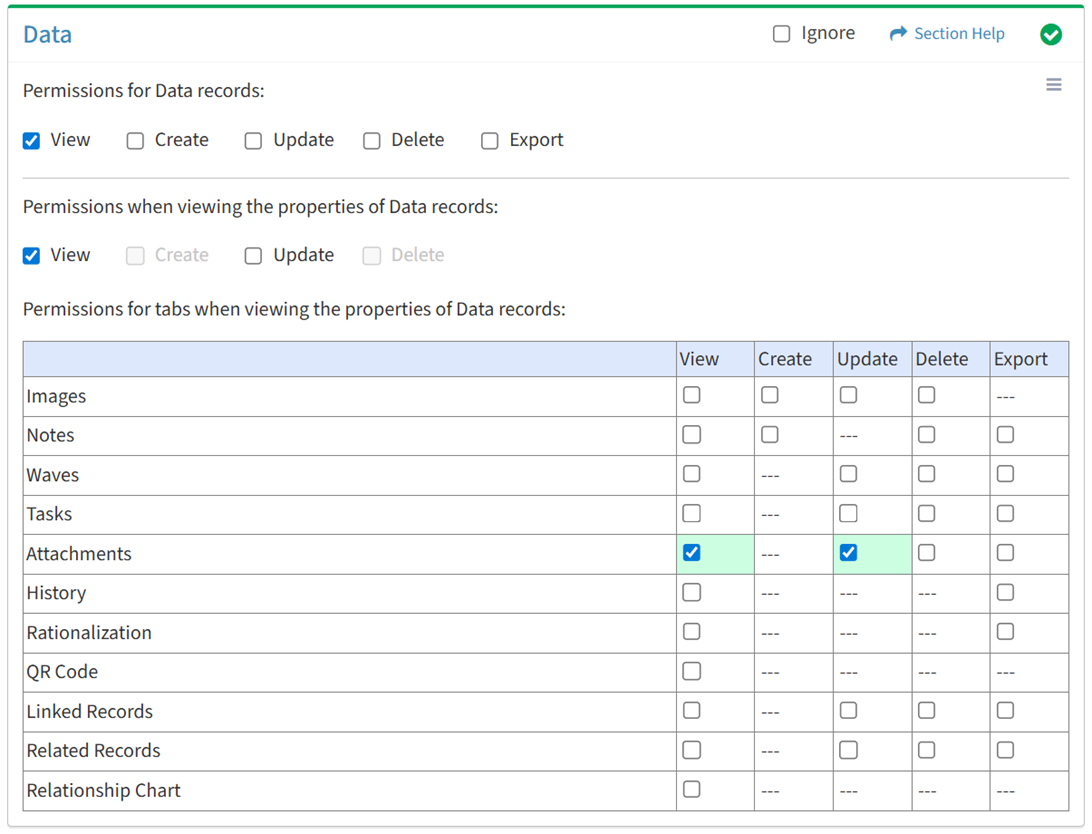
Available operations with Update access (requires View):
Delete
From the Data tab, you can enable Delete access for attachments when viewing the properties of data.
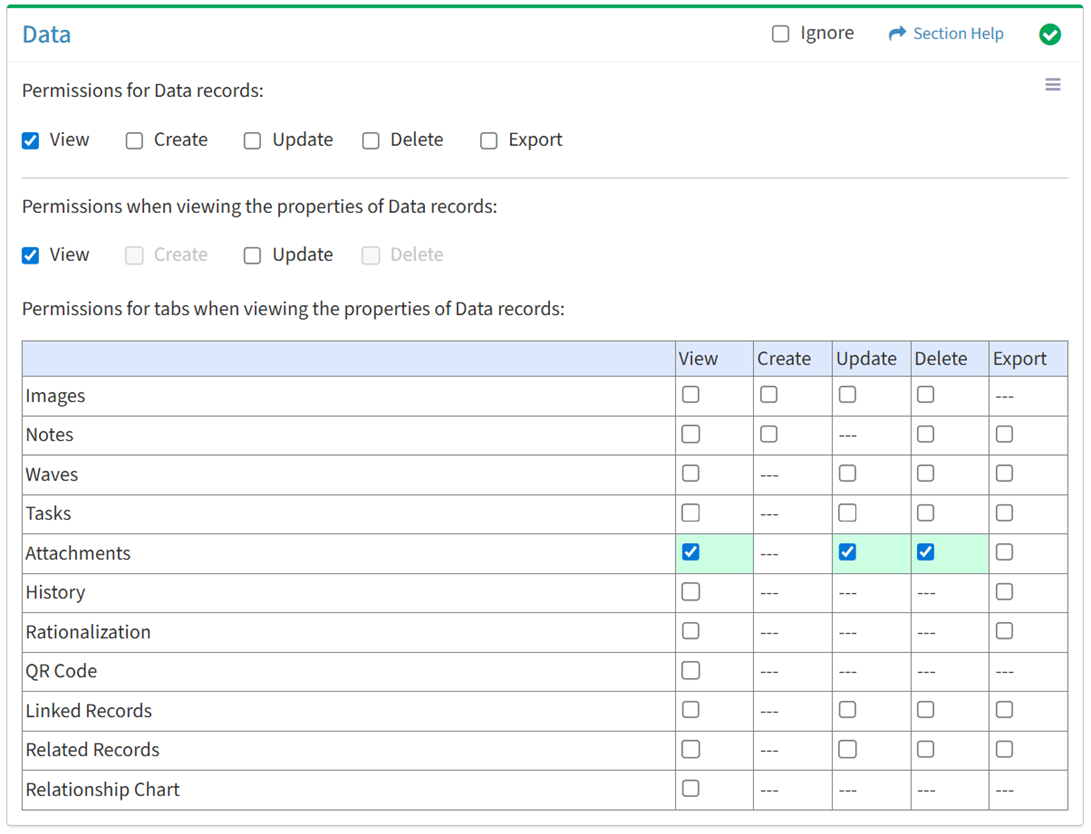
Available operations with Delete access (requires View):
Export
From the Data tab, you can enable Export access for attachments when viewing the properties of data.
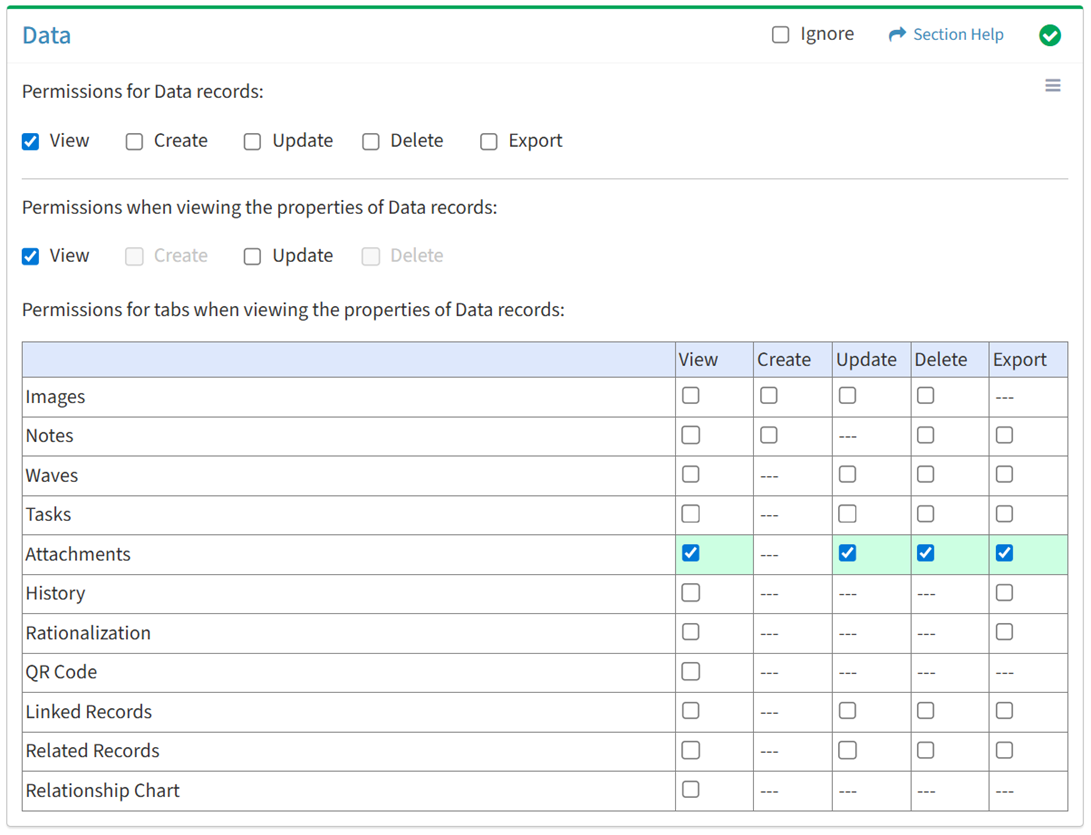
Available operations with Export access (requires View):
History
View
From the Data tab, you can enable View access for the history when viewing the properties of data.
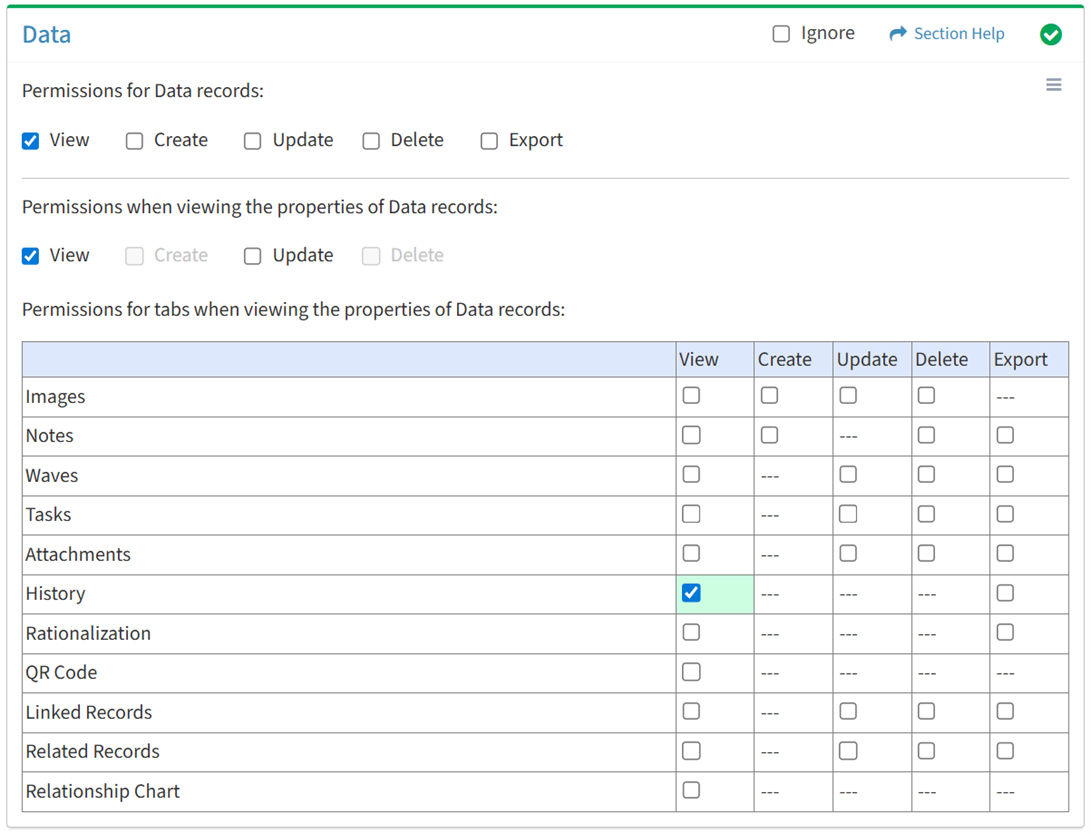
Available operations with View access (requires View Data View):
Export
From the Data tab, you can enable Export access for the history when viewing the properties of data.
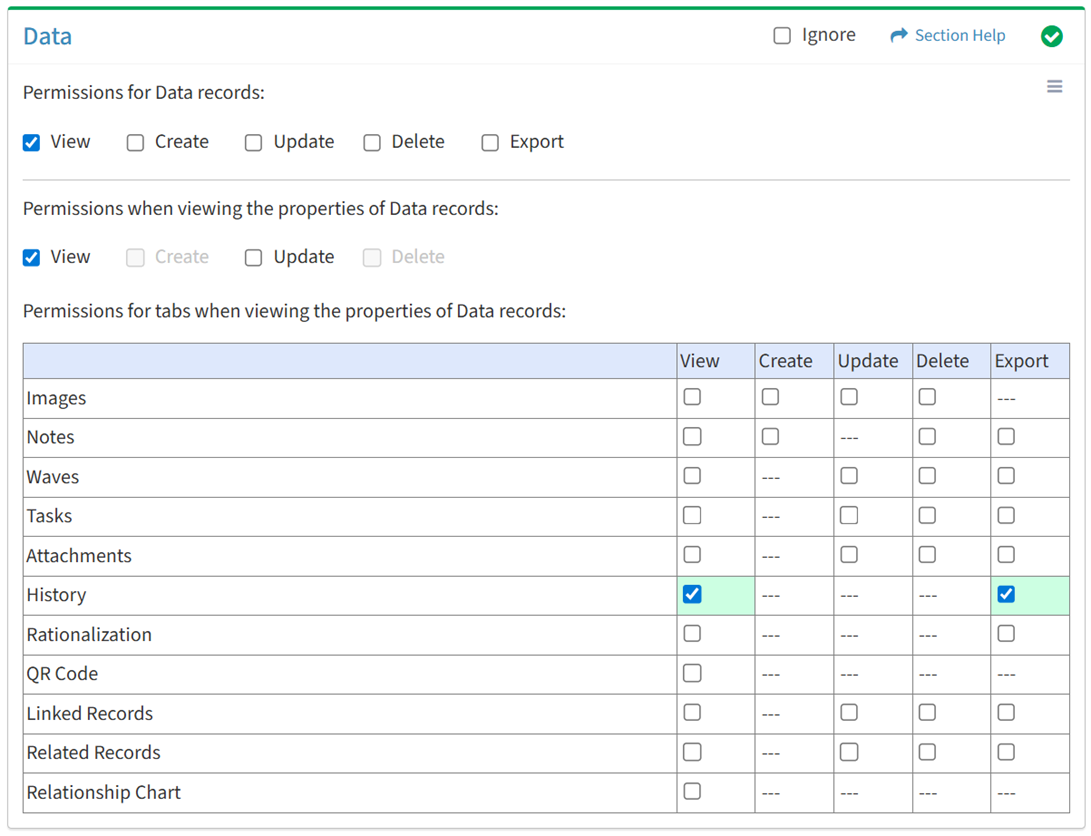
Available operations with Export access (requires View):
Rationalization
View
From the Data tab, you can enable View access for rationalization when viewing the properties of data.
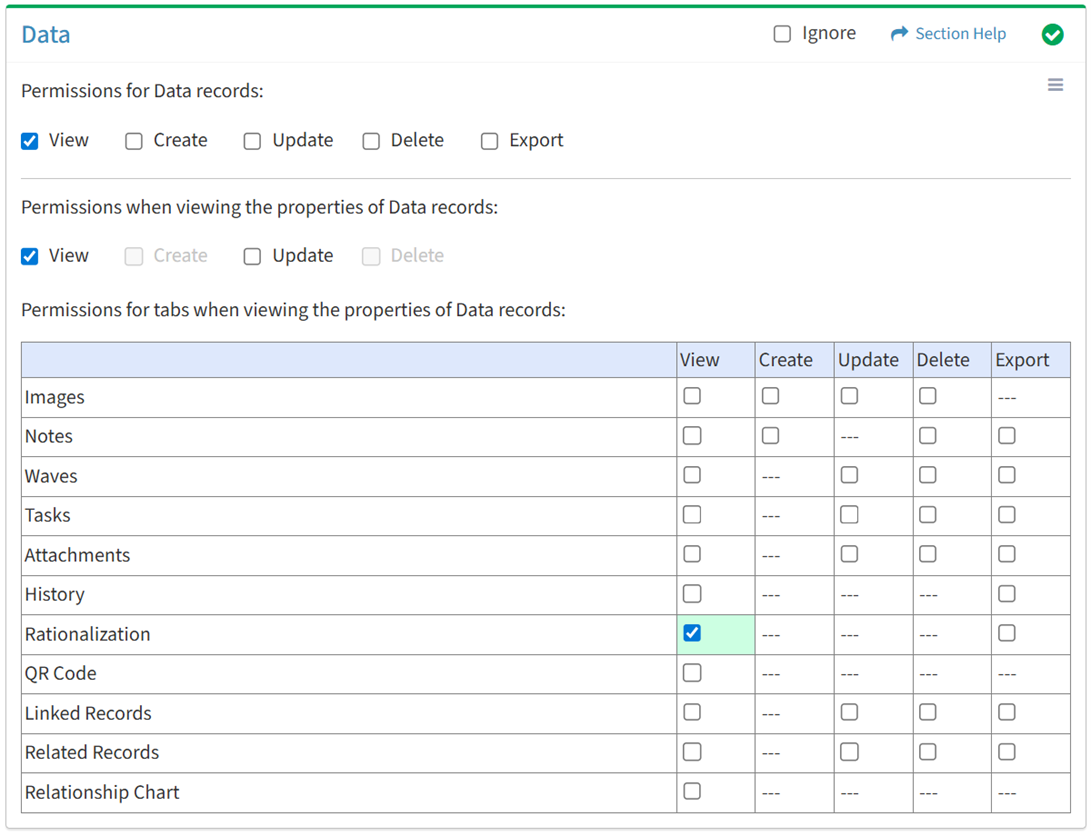
Available operations with View access (requires View Data View):
Export
From the Data tab, you can enable Export access for rationalization when viewing the properties of data.
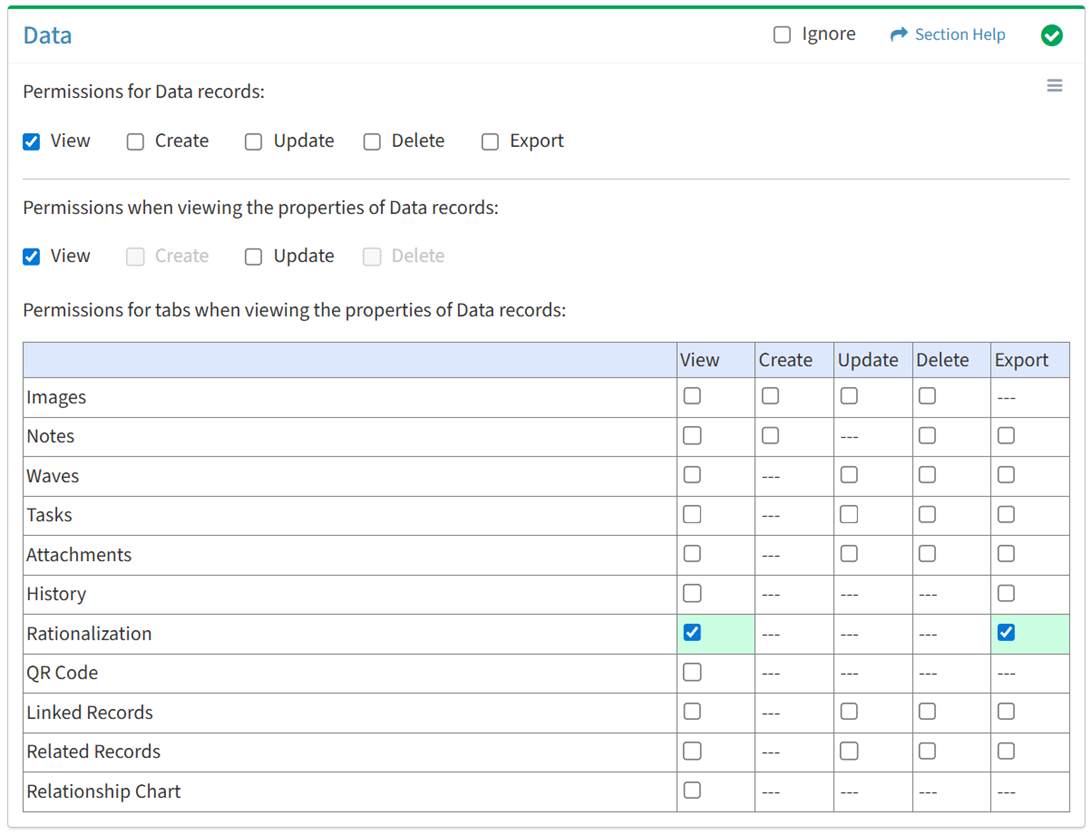
Available operations with Export access (requires View):
QR Code
View
From the Data tab, you can enable View access for the QR code when viewing the properties of data.
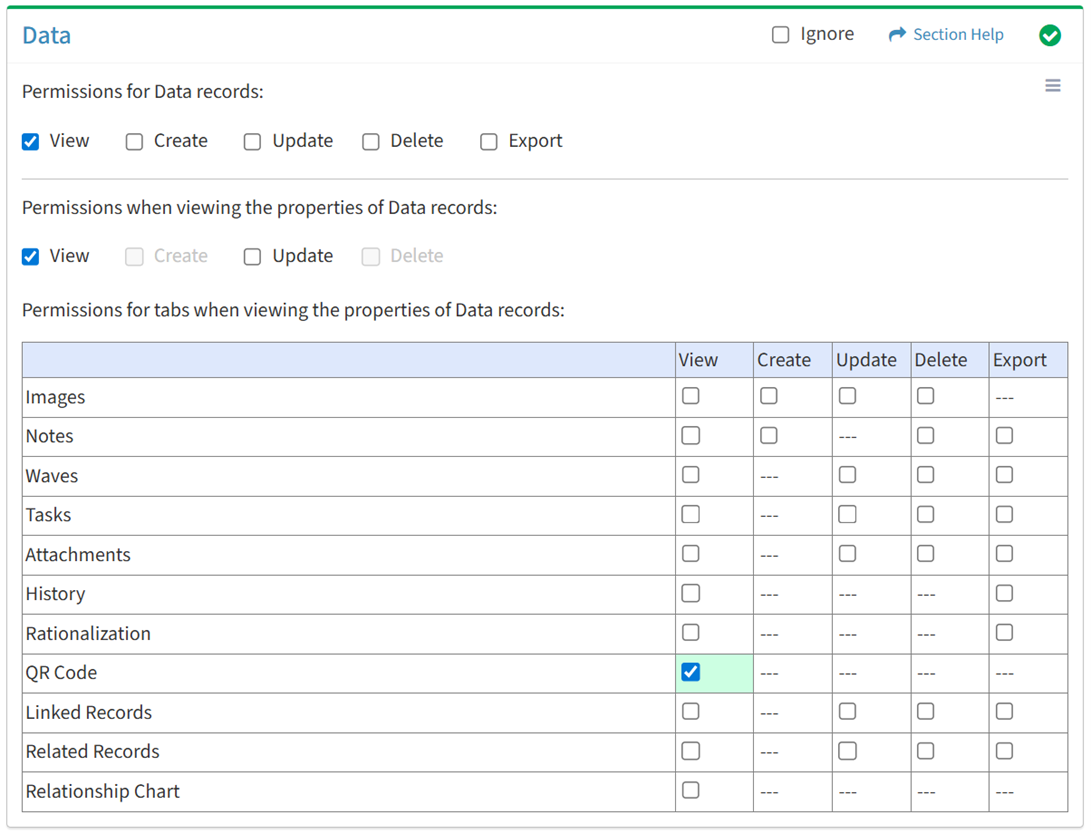
Available operations with View access (requires View Data View):
- View the QR code of primary data records
- View the QR code of secondary data records
Linked Records
View
From the Data tab, you can enable View access for linked records when viewing the properties of data.
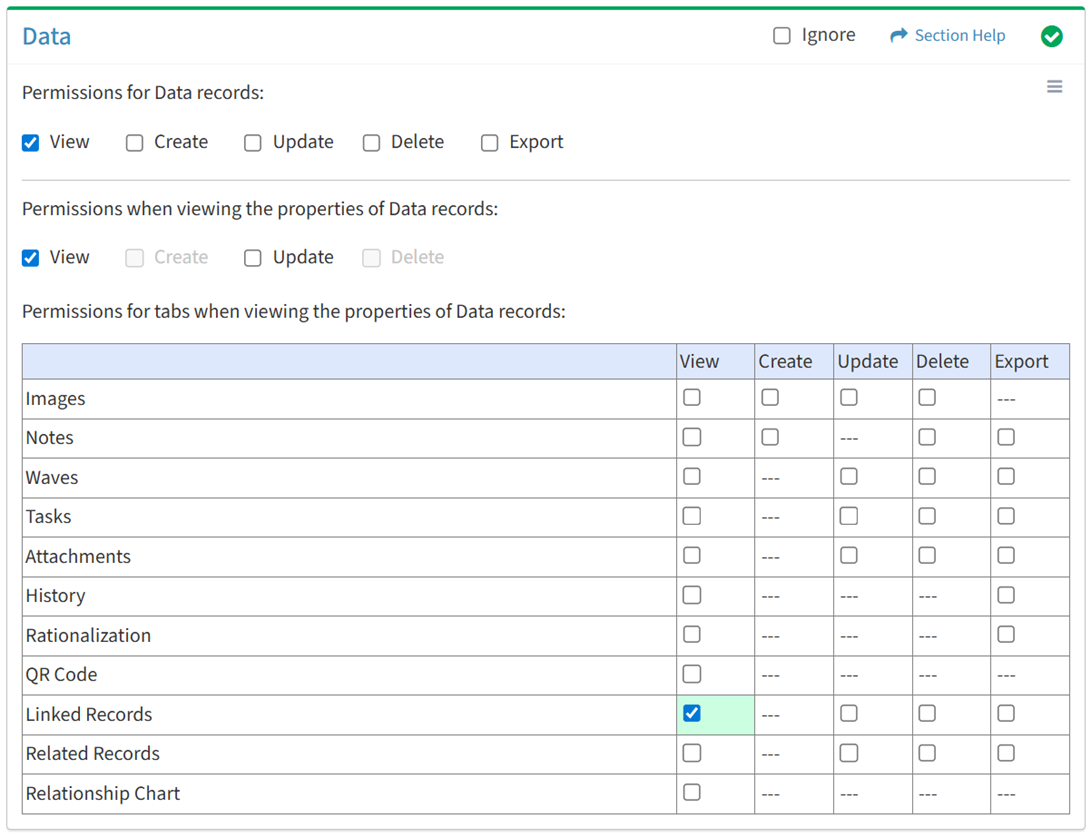
Available operations with View access (requires View Data View and Data View):
Update
From the Data tab, you can enable Update access for linked records when viewing the properties of data.
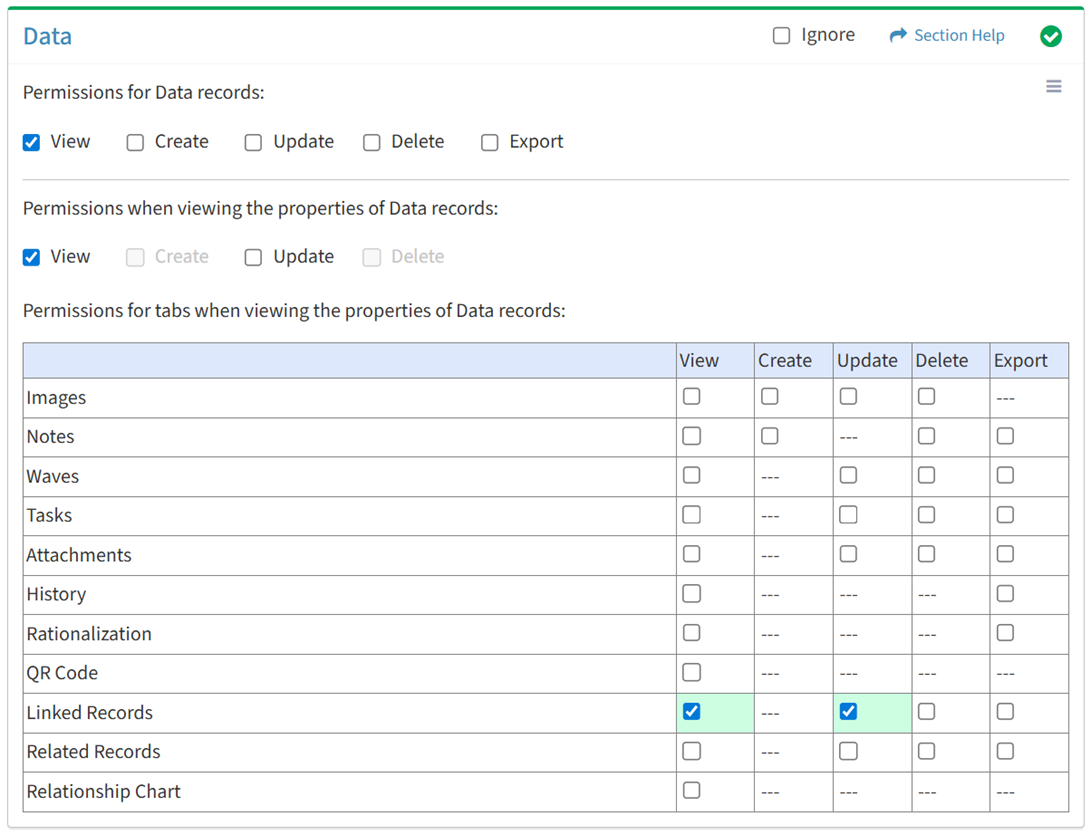
Available operations with Update access (requires View):
Delete
From the Data tab, you can enable Delete access for linked records when viewing the properties of data.
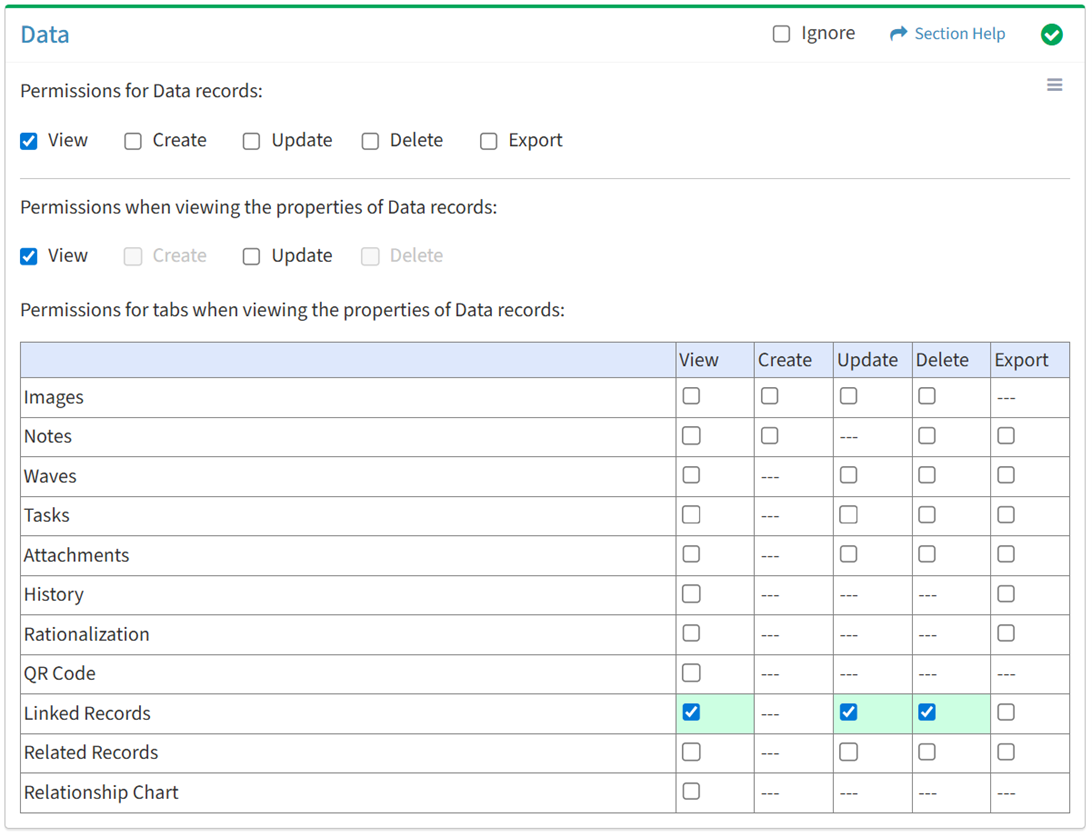
Available operations with Delete access (requires View):
Export
From the Data tab, you can enable Export access for linked records when viewing the properties of data.
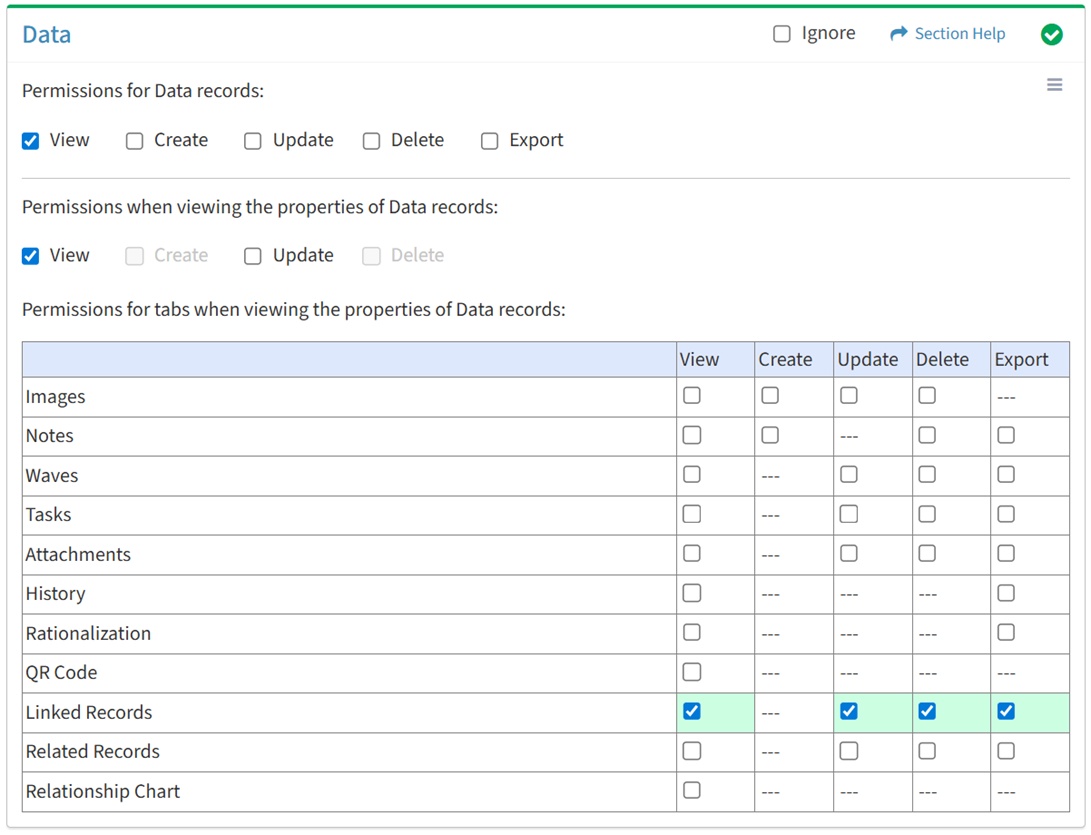
Available operations with Export access (requires View):
From the Data tab, you can enable View access for related records when viewing the properties of data.
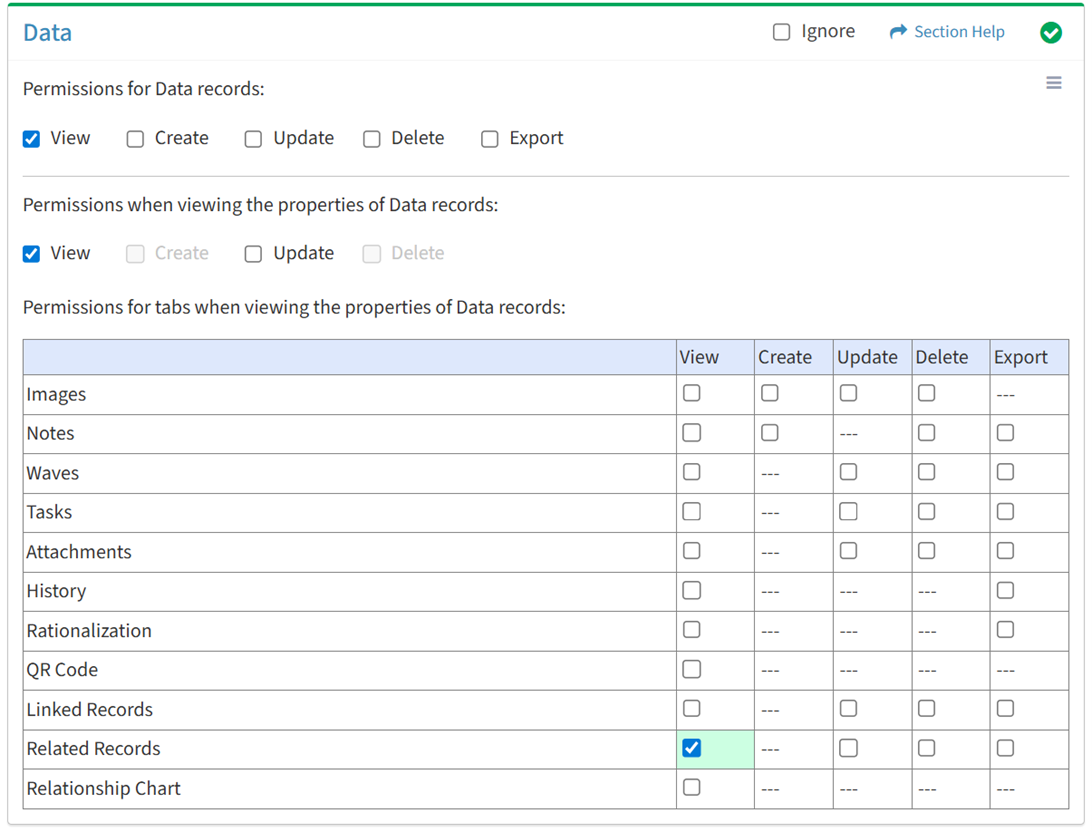
Available operations with View access (requires View Data View and Data View):
From the Data tab, you can enable Update access for related records when viewing the properties of data.
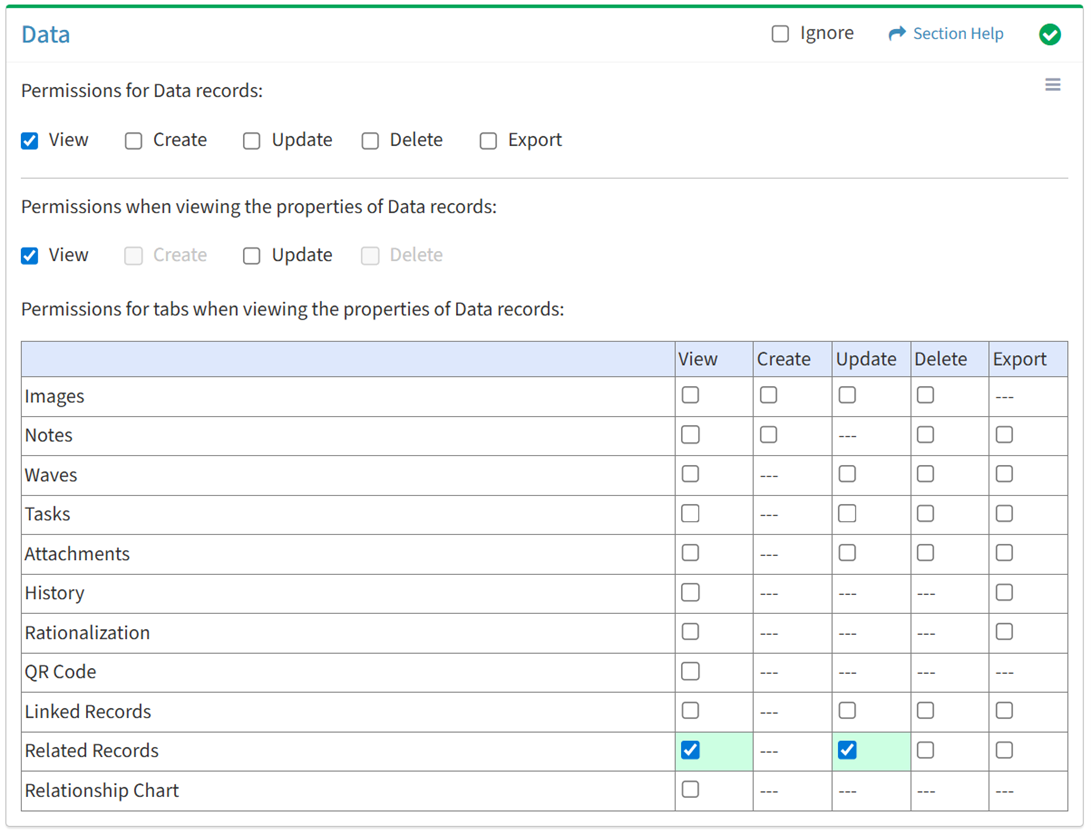
Available operations with Update access (requires View):
From the Data tab, you can enable Delete access for related records when viewing the properties of data.
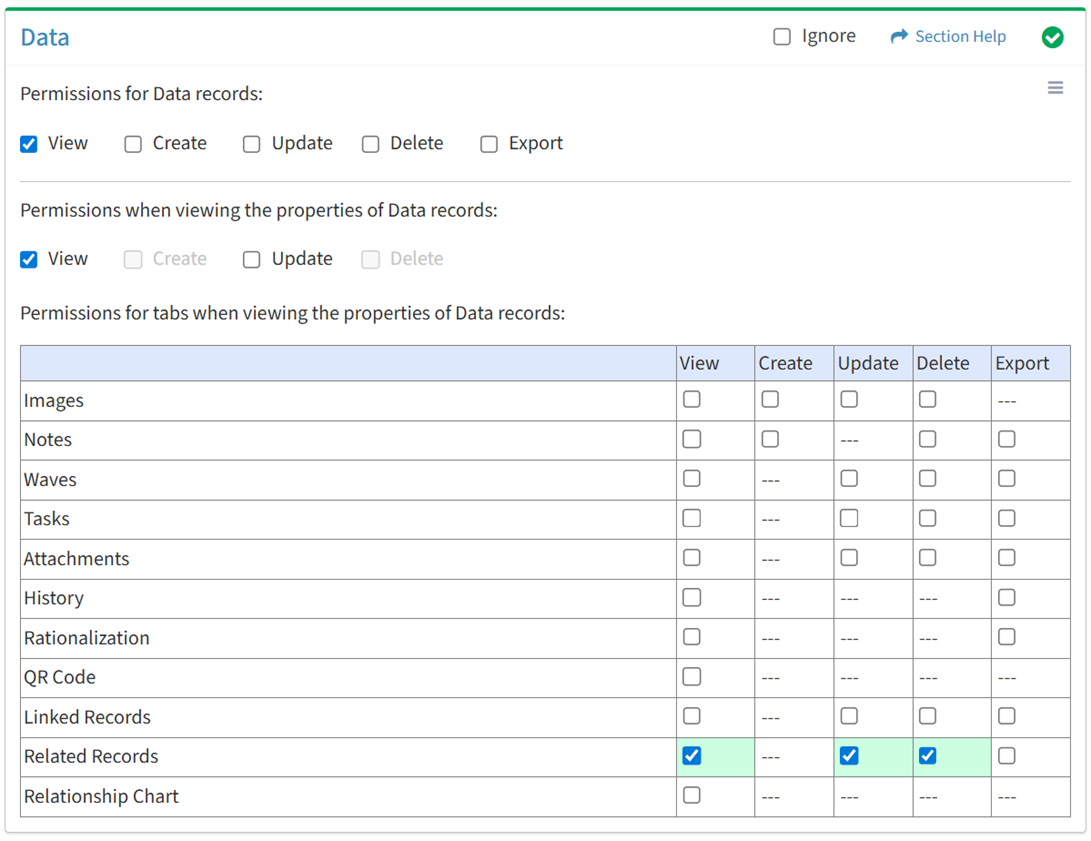
Available operations with Delete access (requires View):
From the Data tab, you can enable Export access for related records when viewing the properties of data.
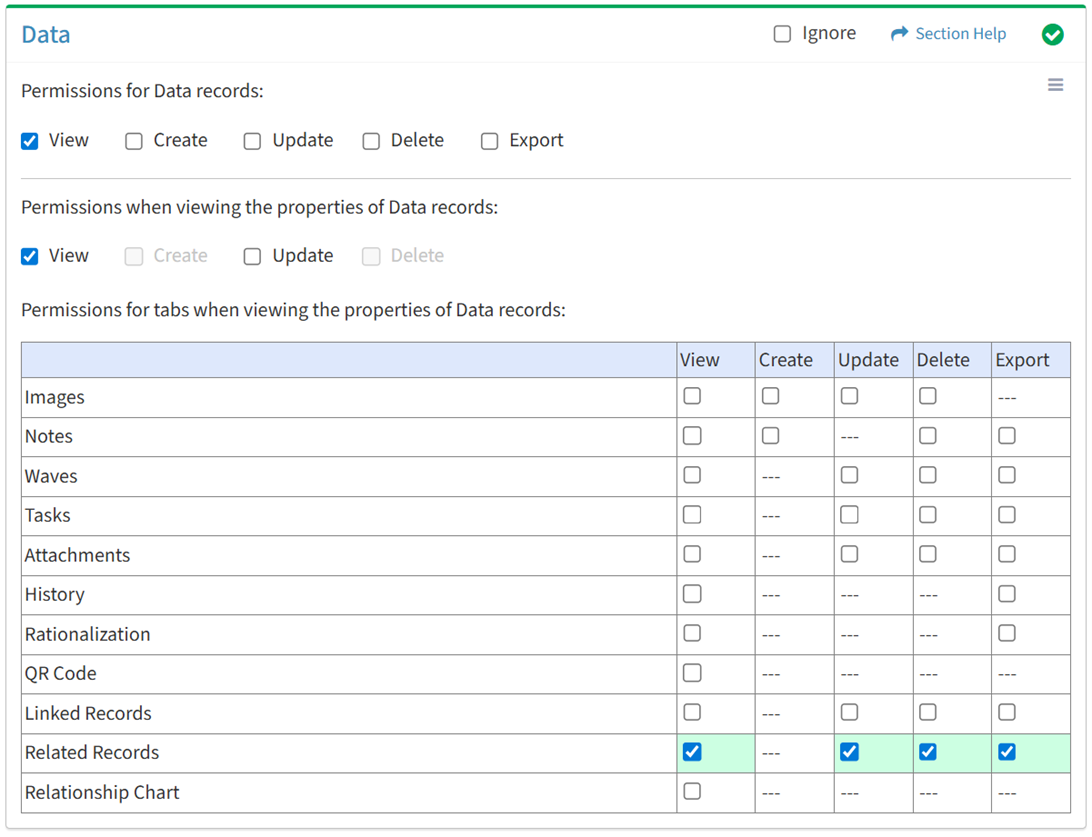
Available operations with Export access (requires View):
Relationship Chart
View
From the Data tab, you can enable View access for the relationship chart when viewing the properties of data.
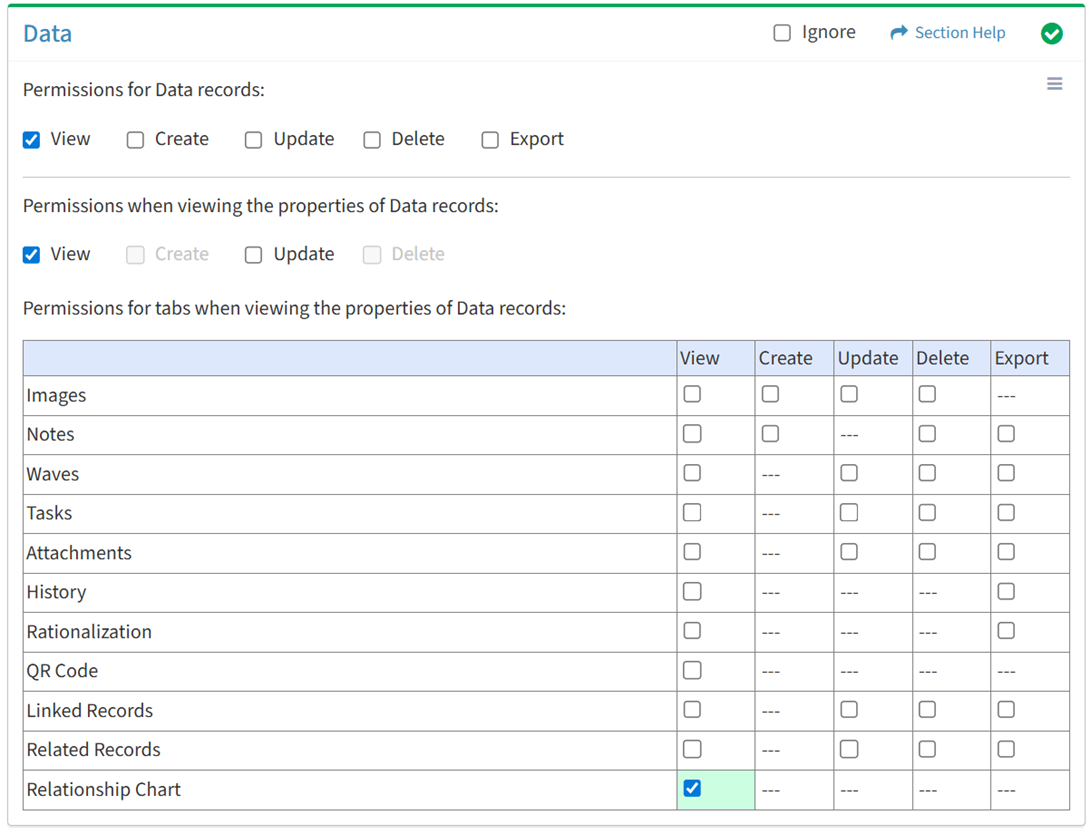
Available operations with View access (requires View Data View):
Data Types
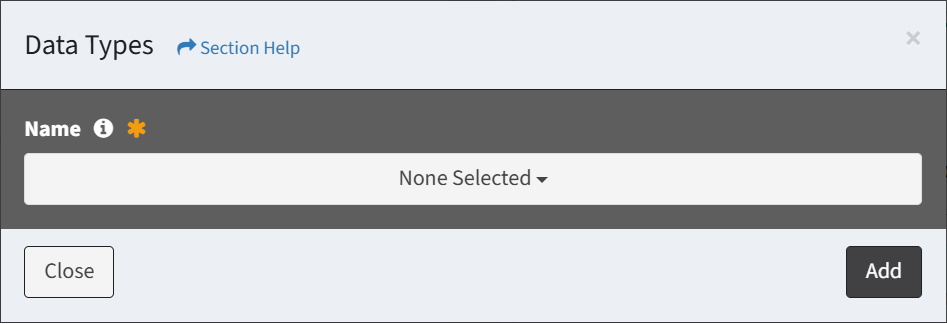
From the Data tab, you can enable access to specific data types. To enable access:
- Add data types
- Click the
 button to bring up the Data Types dialog
- Select data types from the Name drop down and then click the Add button. Click the Close button to cancel the operation.
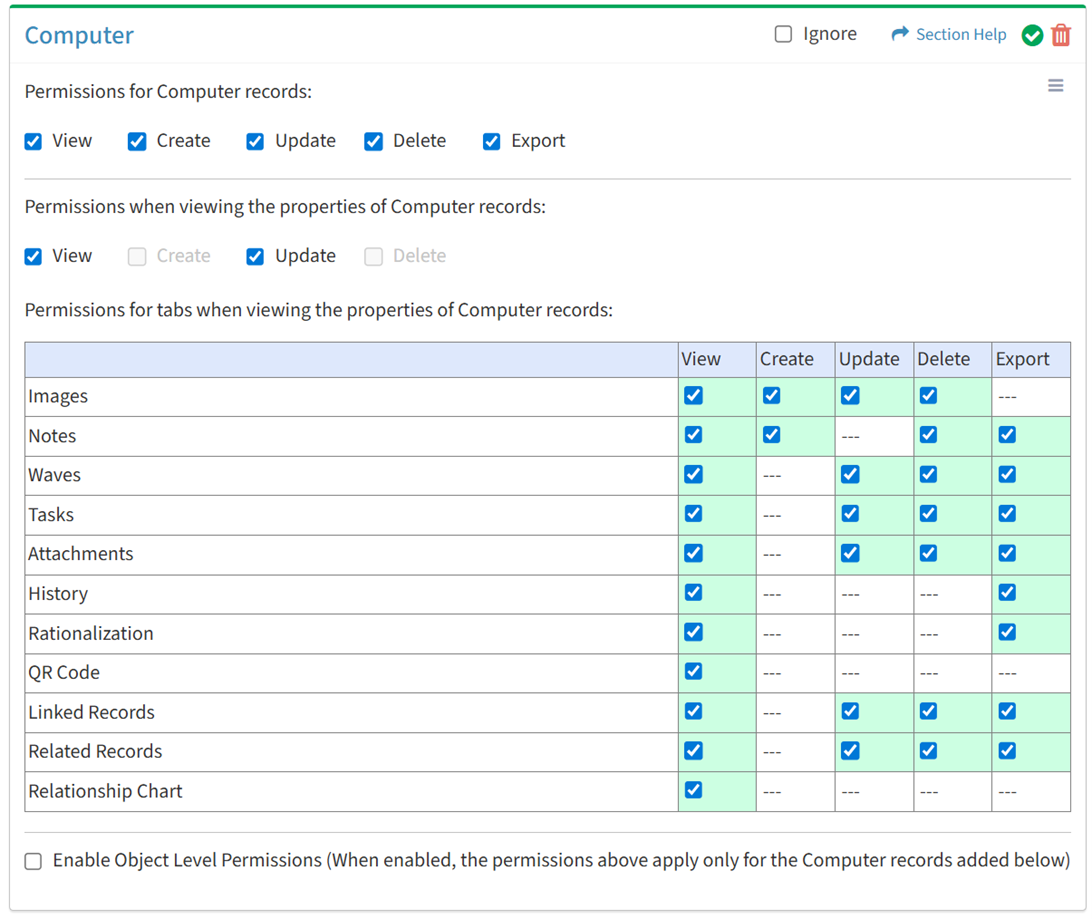
- Added data types are displayed below the button in a new tab

NOTE: The security group cannot be created or updated until all referenced data types (lookups) are also added.
- Set permissions for the added data types (View is required at minimum to access the Data module)
- Click the
 button to delete a data type
Object Level
From the Data Type tab (e.g. Computer), you can enable object level permissions and restrict access to specific data records. To restrict access:
- Enable access to specific data types
- Click the Enable Object Level Permissions checkbox to enable object level permissions
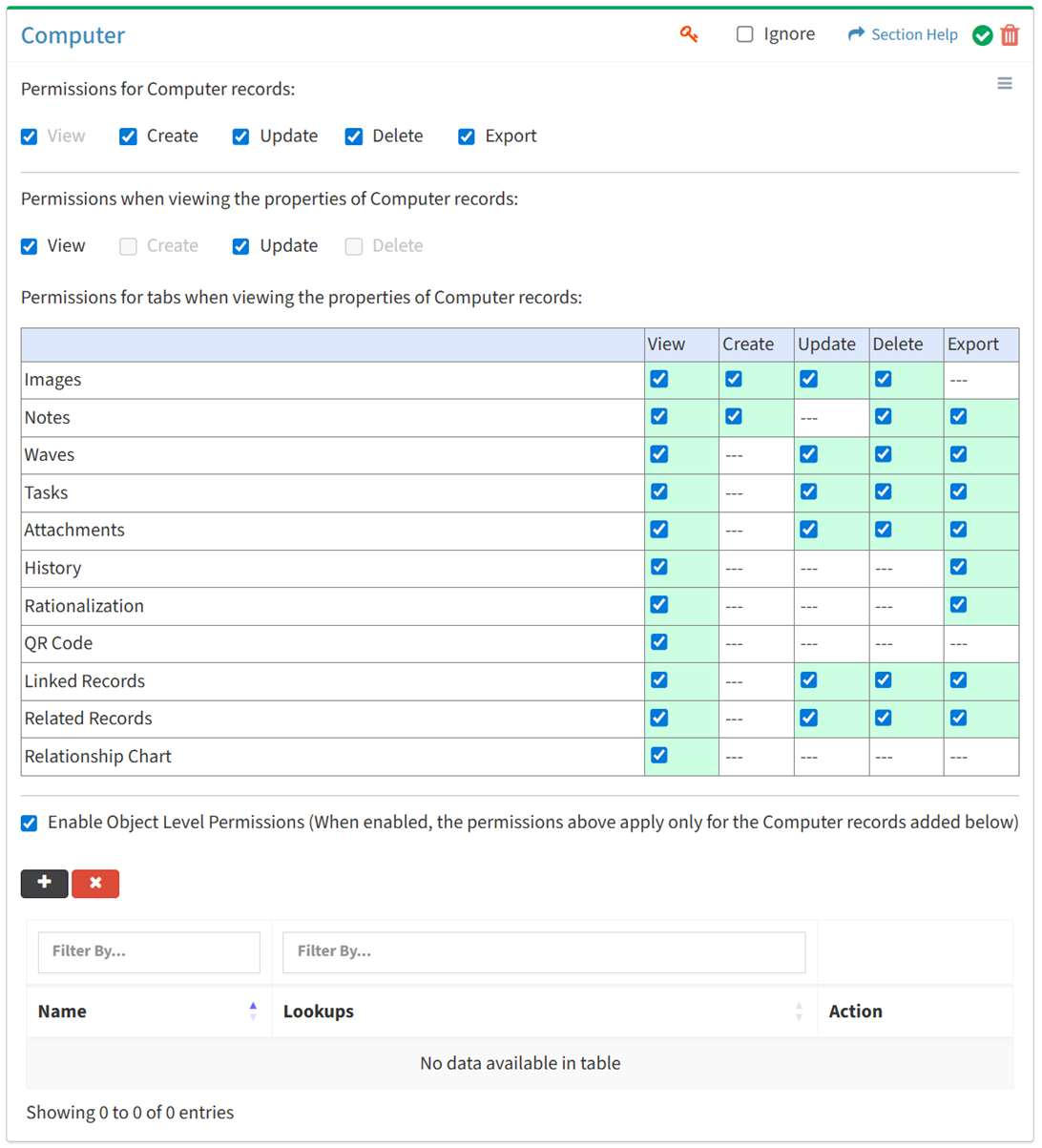
NOTE: A  icon is displayed when Object Level Permissions is enabled.
- Add data records of the selected data type
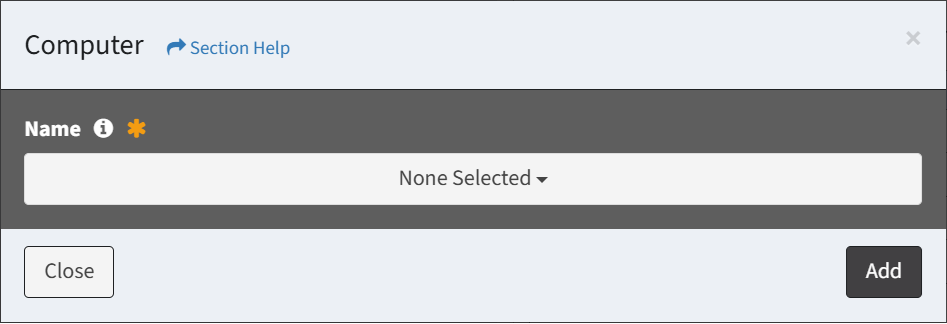
- Click the button to bring up the Data Type dialog (e.g. Computer)
- Select data records from the Name drop down and then click the Add button. Click the Close button to cancel the operation.
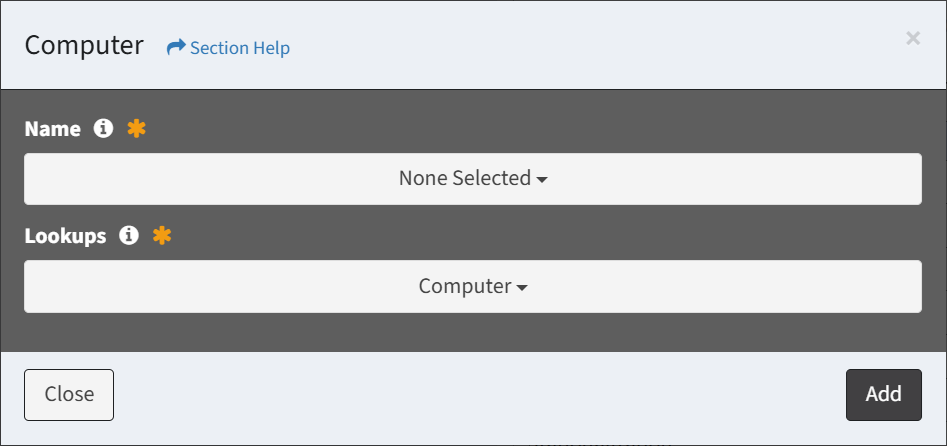
- If the data type is instantiated more than once (e.g. lookup and alias, multiple aliases), select lookups from the Lookup drop down and select data records from the Name drop down, and then click the Add button.
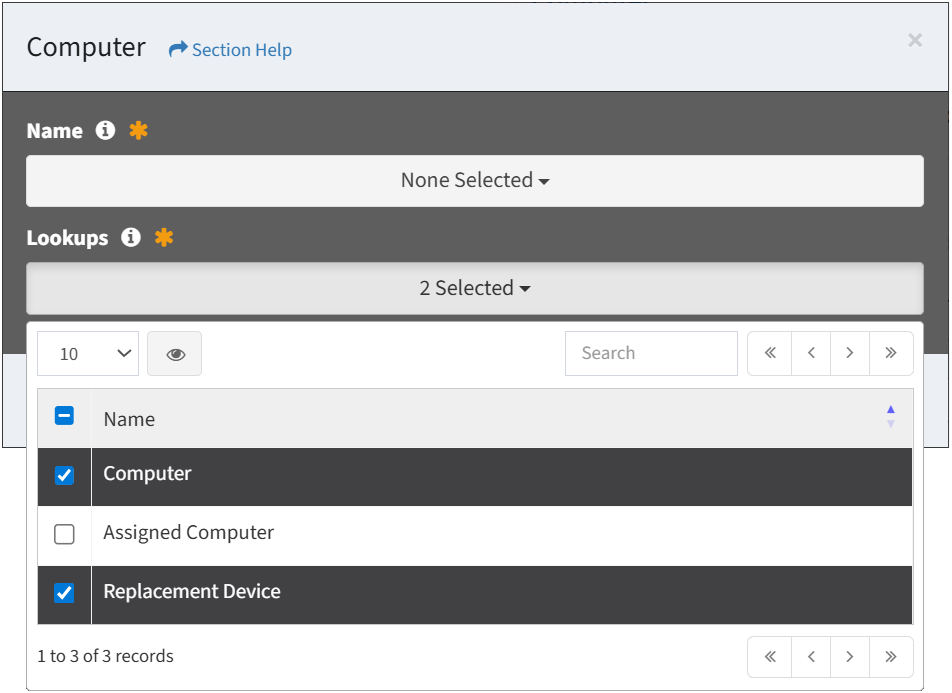
- The primary lookup is selected by default (and hidden when no aliases are instantiated). Selected lookups will filter data types by the selected name on each column. In the example below, the selected Computer data type will filter on both the Computer and Replacement Device columns of the data types where the lookups are instantiated (e.g. Computer).
- Added data records are displayed below the button
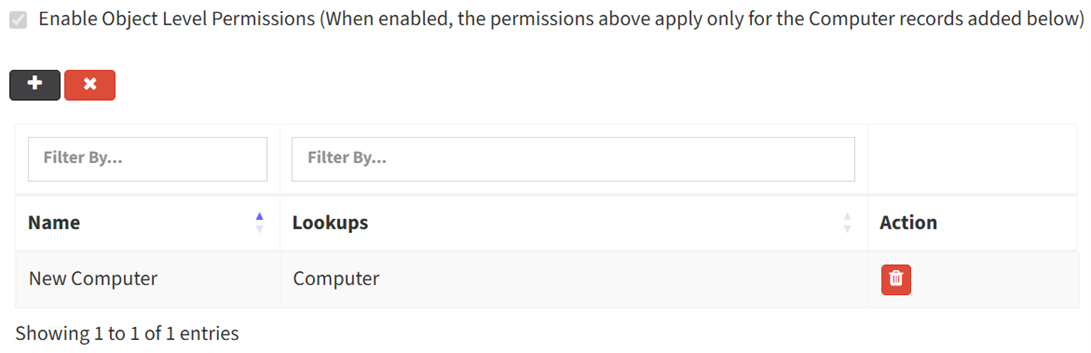
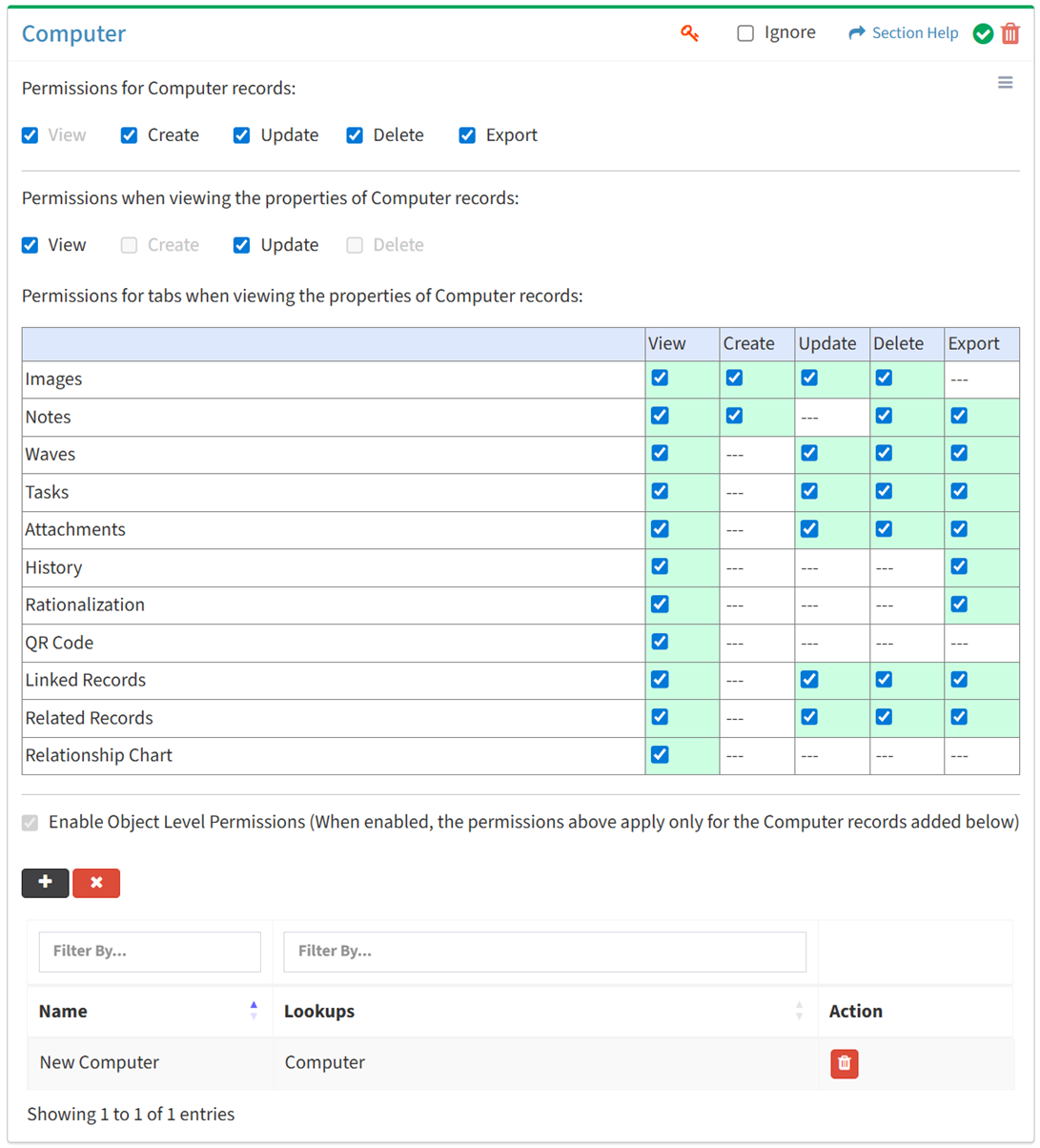
- Set permissions for the added data records (View is required at minimum to access the Data module)
NOTE: Object level permissions restricts access to the data records selected. Users cannot be assigned to more than one Security Group with the same module data type (e.g. Computer) if any of those data types include object level permissions.
- Click the
 button to delete a data record (row)
- Click the
 button to delete all data records of a data type
- Uncheck the Enable Object Level Permissions checkbox to disable object level permissions
NOTE: Deleting all data records of a data type (either from the Data Type tab (e.g. Computer) or the Data module) does not disable object level permissions and results in access to no data records of the data type.
Select All
From the Data tab, you can select all or deselect all permissions for data.
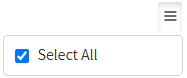
- From the
 menu in the upper right corner, check Select All to check (enable) all permissions on the tab.
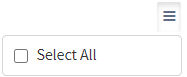
- Uncheck Select All to uncheck (remove) all permissions on the tab.
Ignore
From the Data tab, you can ignore data permissions from this security group by selecting Ignore. This option is used when overlaying multiple security groups and data permissions are set by a different security group. Not enabling permissions on the Data tab, without selecting Ignore, results in no access, as overlaid security groups assume the most restrictive permissions.


Add Data Types
From the Data tab, you can add data types to enable access to specific data types. To add data types:
- Click the button to bring up the Data Types dialog
- Select data types from the Name drop down and then click the Add button. Click the Close button to cancel the operation.
NOTE: Data types are listed alphabetically.
Add Records
From the DataType tab (e.g. Computer), you can add data records of a data type to restrict access to when enabling object level permissions. To add data records:
- Click the button to bring up the Data Type dialog (e.g. Computer)
- Select data records from the Name drop down and then click the Add button. Click the Close button to cancel the operation.
NOTE: Data records are listed alphabetically.- If the data type is instantiated more than once (e.g. lookup and alias, multiple aliases), select lookups from the Lookup drop down and select data records from the Name drop down, and then click the Add button.
- The primary lookup is selected by default (and hidden when no aliases are instantiated). Selected lookups will filter data types by the selected name on each column. In the example below, the selected Computer data type will filter on both the Computer and Replacement Device columns of the data types where the lookups are instantiated (e.g. Computer).
In this section