From the Data Quality Reports page, you can edit the properties of data quality reports. To edit:
- Select a data quality report (row) to edit
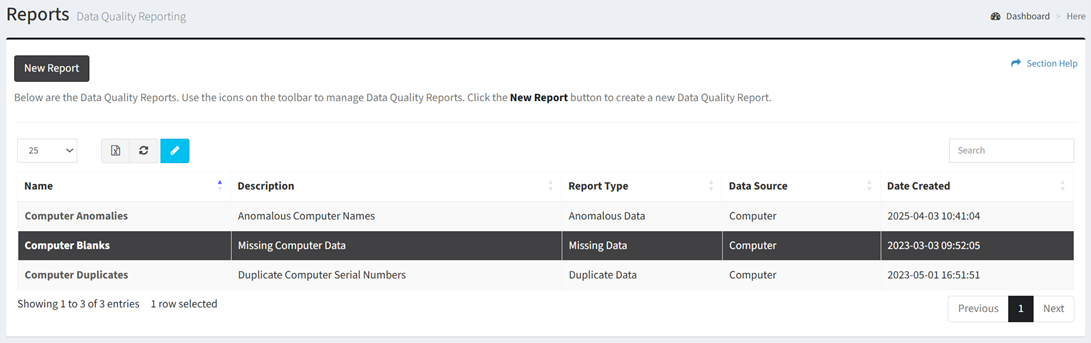
- Click the Edit Report button on the toolbar to bring up the Edit Report dialog

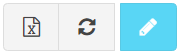
- The edit button is grayed out unless a data quality report (row) is selected
- The edit function is only available to users in the Administrator security group
- Edit the properties of the data quality report
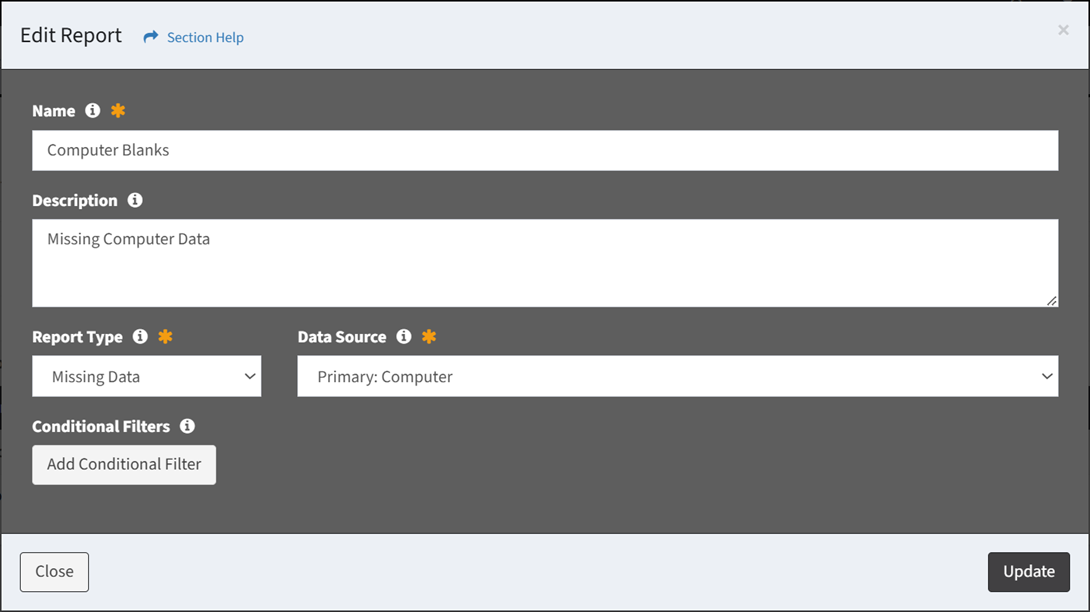
- Name – Name of the data quality report (required)
- Description – Description of the data quality report (optional)
- Report Type – Type of the data quality report (required)
- Anomalous Data
- Duplicate Data
- Missing Data
- Data Source – Data source for the data quality report (required)
- Data Types
- Query Reports (SQL Query Report Builder)
- ETL Jobs (only active ETL jobs are listed in the drop down)
- Conditional Filters – Apply conditional filters to limit data in the data quality report (required)
- Click the Add Conditional Filter button to add one or more conditional filters

- Data Column – Select the data column of the selected data source (e.g. Migration Status)
- Value – Select one or more values to apply the conditional filter to the data column (e.g. Migrated, Not Migrated)
- Delete – Delete a conditional filter
- Add Conditional Filter – Add new rows for additional conditional filters
- Click the Update button when finished to update the data quality report. Click the Close button to cancel the operation.