The Waves tab provides the ability to manage orchestration waves.
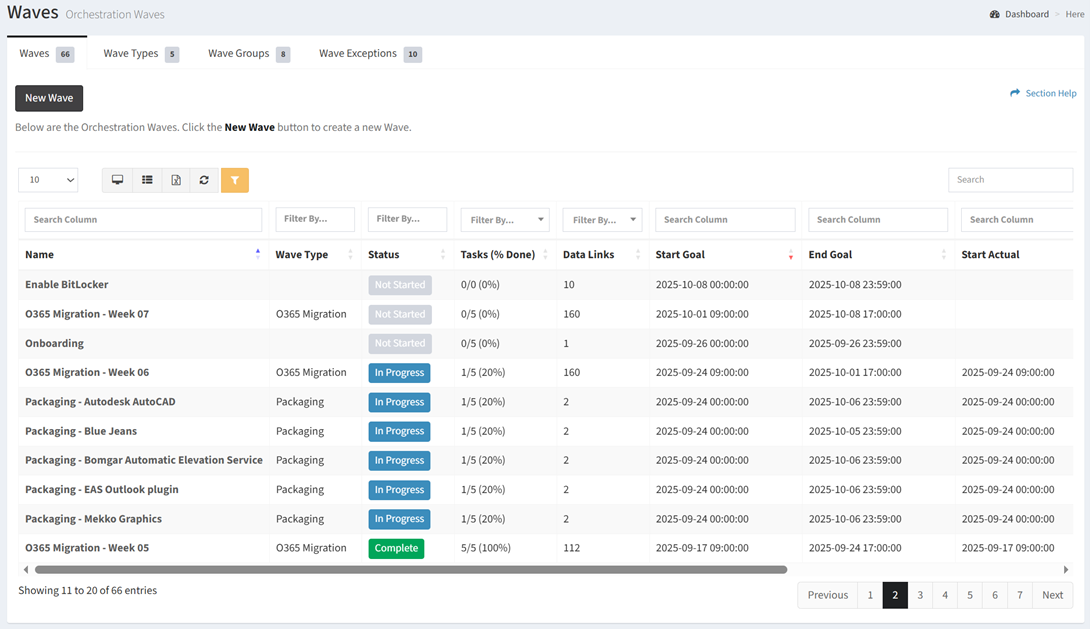
Available operations:
- Create new waves by clicking on the New Wave button
- View a list of waves in ReadyWorks
- Columns available
- Id (hidden by default) – System Id of the wave (used for Orchestration Import updates to existing waves – to match wave to be updated)
- Name – Name of the wave
- Description (hidden by default) – Description of the wave
- Wave Type – Type the wave was assigned (e.g. pilot, preview, broad deployment, etc.)
- Status – Status of the wave (Not Started, In Progress, Complete, Delayed, Failed, On Hold)
- Filter by Complete, Delayed, Failed, In Progress, Not Started, On Hold (multiselect)
- Task (% Done) – Total number of tasks complete divided by total number of tasks (also shown as a percentage)
- Data Links – Total number of data records linked to the wave
- Filter by equal to 0 or greater than 0
- Start Goal – Estimated start date and time of the wave
- End Goal – Estimated end date and time of the wave
- Start Actual – Actual start date and time of the wave (empty until a wave task has been started or completed)
- End Actual – Actual end date and time of the wave (empty until all wave tasks have been completed)
- Wave Group – Name of the wave group to which the wave is assigned
- Filter by wave group names or Undefined (no wave group assigned)
- T-Comm Links – Total number of T-Comm templates linked to the wave
- Filter by equal to 0 or greater than 0
- Date Created (hidden by default) – Date the wave was created
- View the properties of waves by clicking the hyperlink of the Name field
- Delete waves by selecting a wave (row) and clicking the Delete Wave button on the toolbar
- You can also change the number of visible rows in the table, view full screen, set column visibility, export to CSV or Excel, refresh the table, and search for text
In this section