The Virtual Machines tab provides the ability to manage VMs added to a migration.
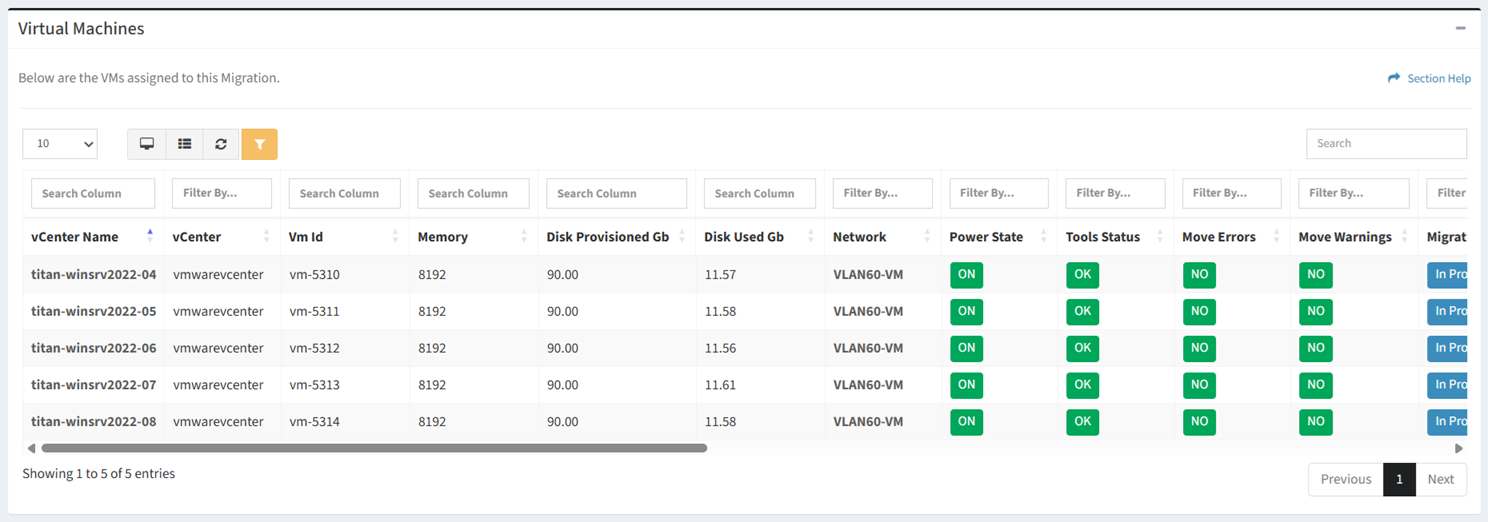
Available operations:
- View VMs added to the migration
- View the properties of VMs by clicking the hyperlink of the Name field
- Remove VMs from the migration by selecting one or more VMs (rows) and clicking the Remove VMs from Migration button on the toolbar
- You can also change the number of visible rows in the table, view full screen, set column visibility, refresh the table, and search for text
NOTE: Available filter values are based on the data in the table and other applied filters.
Remove VMs from Migration
From the Virtual Machines tab, you can remove VMs from a migration. To remove:
- Select one or more VMs (rows) to remove
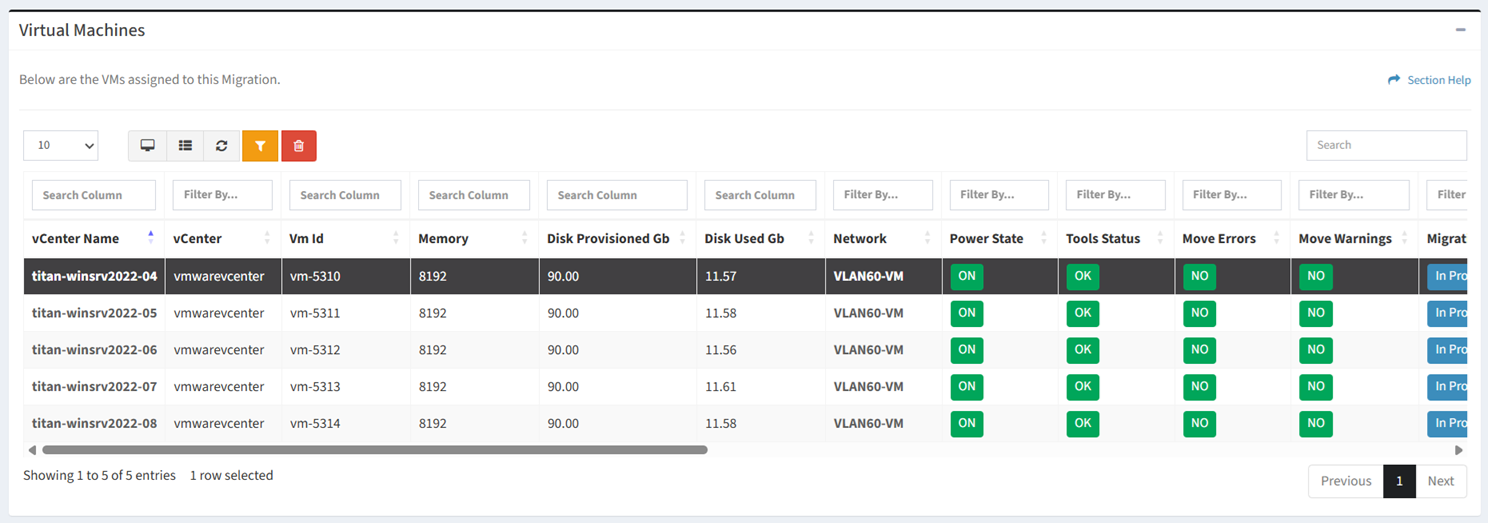
- Click the Remove VMs from Migration button on the toolbar

- The remove button is only visible when Enable Delete has been checked under Settings – Options (top right corner of the UI)


- The remove button is enabled (ungrayed out) when a VM (row) is selected

- The remove function is only available to users in the Administrator security group
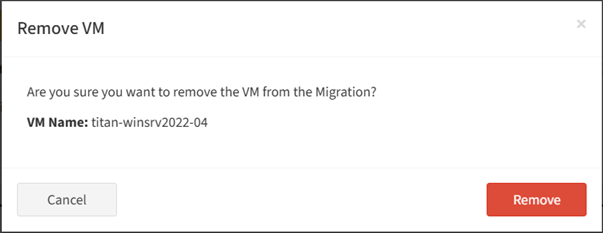
- Click the Remove button to confirm the remove operation. Click the Cancel button to cancel the operation.