The Waves & Tasks tab provides a mechanism to create or update waves and tasks in bulk.
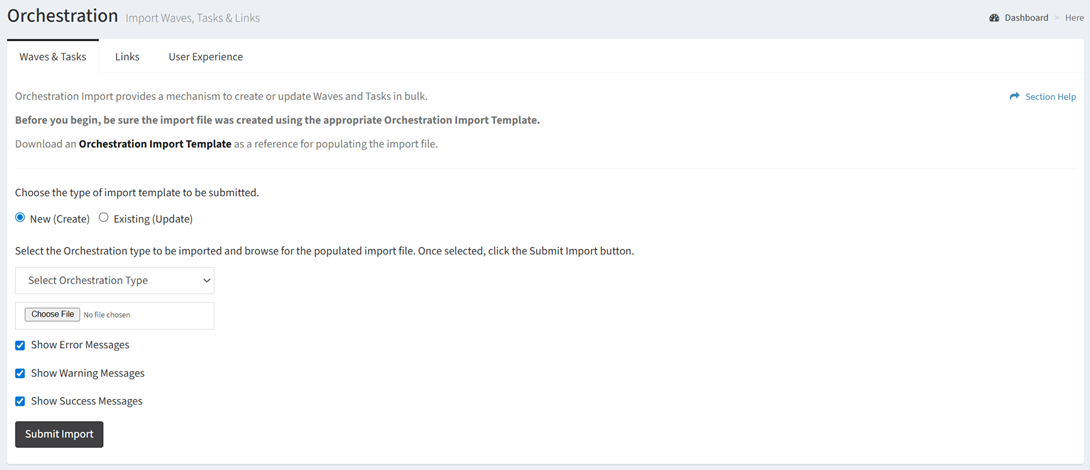
Import New (Create)
From the Waves & Tasks tab, you can create new waves and tasks. To import:
- Click the Orchestration Import Template hyperlink to bring up the Download Orchestration Import Template dialog
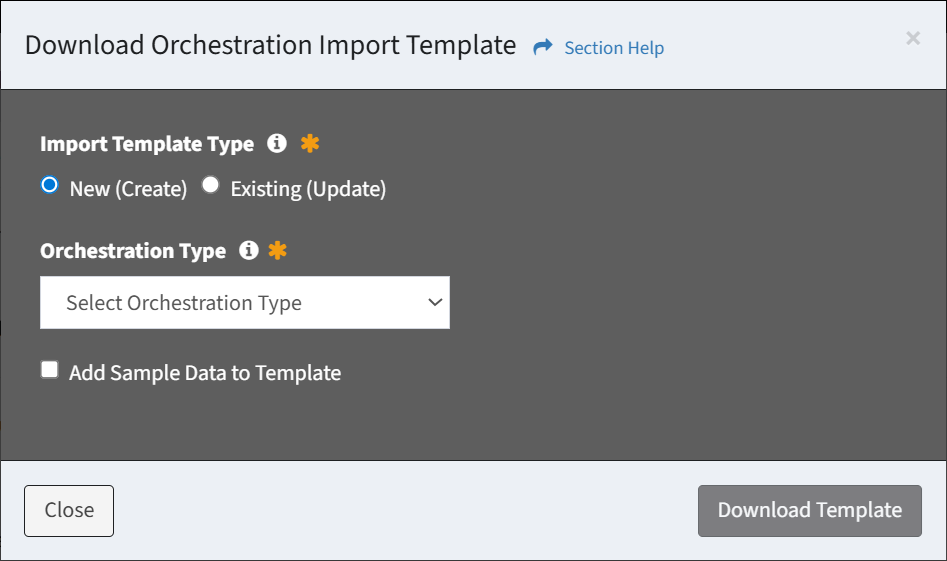
- Choose New (Create) from the Import Template Type radio button
- Select Waves or Tasks from the Orchestration Type drop down
- Check Add Sample Data to Template to populate the template with sample data
- Click the Download Template button to download the orchestration template to populate. Click the Close button to close out of the dialog. You will be redirected back to the Waves & Tasks tab.
- Once you have completed the template, browse for the orchestration import file
NOTE: Be sure to save your template in CSV UTF-8 (Comma delimited) (*.csv) to preserve any special characters and to format the date columns appropriately. - Choose New (Create) as the type of import template from the radio button
- Select Waves or Tasks as the orchestration type from the drop down
- Prefilter the results by error, warning or success messages by checking or unchecking any of the three checkboxes
- Click the SubmitImport button to import the new waves or tasks. Navigate to another page to cancel the operation.
- The import function is only available to users in the Administrator and Regular User security groups
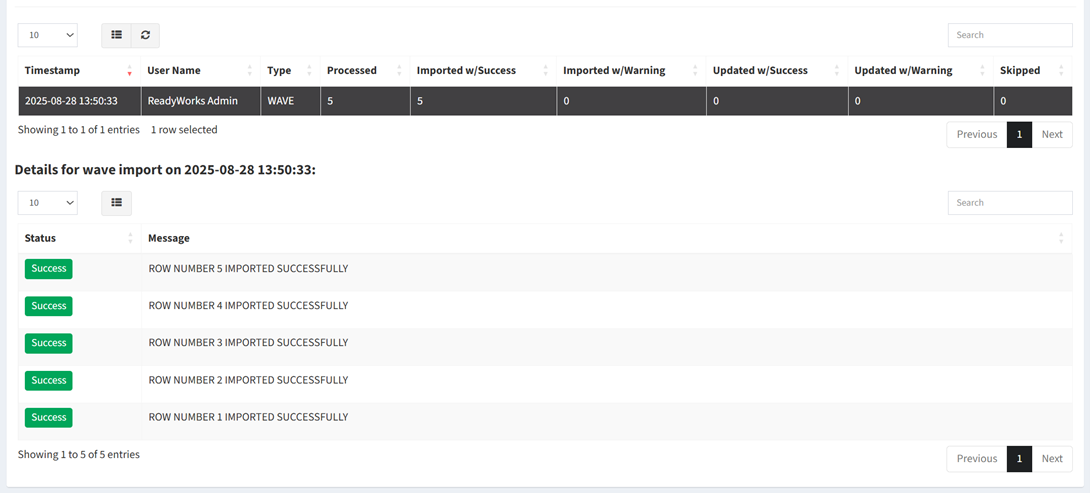
- The results of the import will be displayed at the bottom of the page

- You can view additional details by selecting an import (row)
Sample Wave Import
| Wave Name | Wave Type | Wave Description | Start Goal | End Goal | Wave Group | T-Comm Template |
| Wave 1 | Wave Type 1 | My Description | 8/1/2025 09:00 | 9/30/2025 17:00 | Wave Group 1 | T-Comm Template 1 |
Sample Task Import
| Task Name | Task Type | Task Description | Start Goal | End Goal | Assigned To | Action Template | Wave Name | T-Comm Template | Priority | Record Names |
| Task 1 | Task Type 1 | My Task Description | 8/1/2025 09:00 | 9/30/2020 17:00 | user1@test.com|user2@test.com | Action Template 1 | Wave 1 | T-Comm Template 1 | Low | Record 1|Record 2 |
Import Existing (Update)
From the Waves & Tasks tab, you can update existing waves and tasks. To import:
- Click the Orchestration Import Template hyperlink to bring up the Download Orchestration Import Template dialog
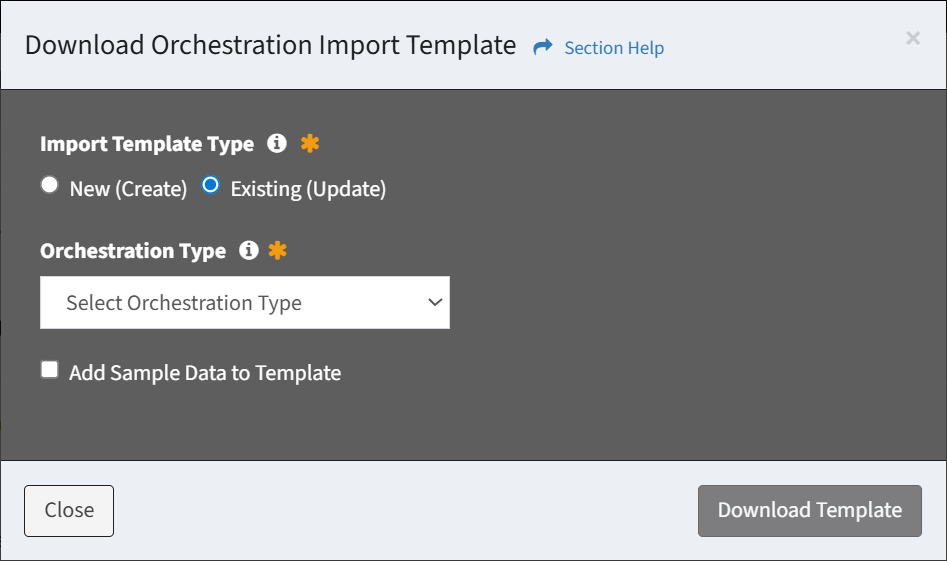
- Choose Existing (Update) from the Import Template Type radio button
- Select Waves or Tasks from the Orchestration Type drop down
- Check Add Sample Data to Template to populate the template with sample data
- Click the Download Template button to download the orchestration template to populate. Click the Close button to close out of the dialog. You will be redirected back to the Waves & Tasks tab.
- Once you have completed the template, browse for the orchestration import file
NOTE: Be sure to save your template in CSV UTF-8 (Comma delimited) (*.csv) to preserve any special characters and to format the date columns appropriately. - Choose Existing (Update) as the type of import template from the radio button
- Select Waves or Tasks as the orchestration type from the drop down
- If Tasks is selected, choose the method to load action templates to update tasks (append, overwrite)

- Prefilter the results by error, warning or success messages by checking or unchecking any of the three checkboxes
- Click the SubmitImport button to import the new waves or tasks. Navigate to another page to cancel the operation.
- The import function is only available to users in the Administrator and Regular User security groups
- The results of the import will be displayed at the bottom of the page

- You can view additional details by selecting an import (row)
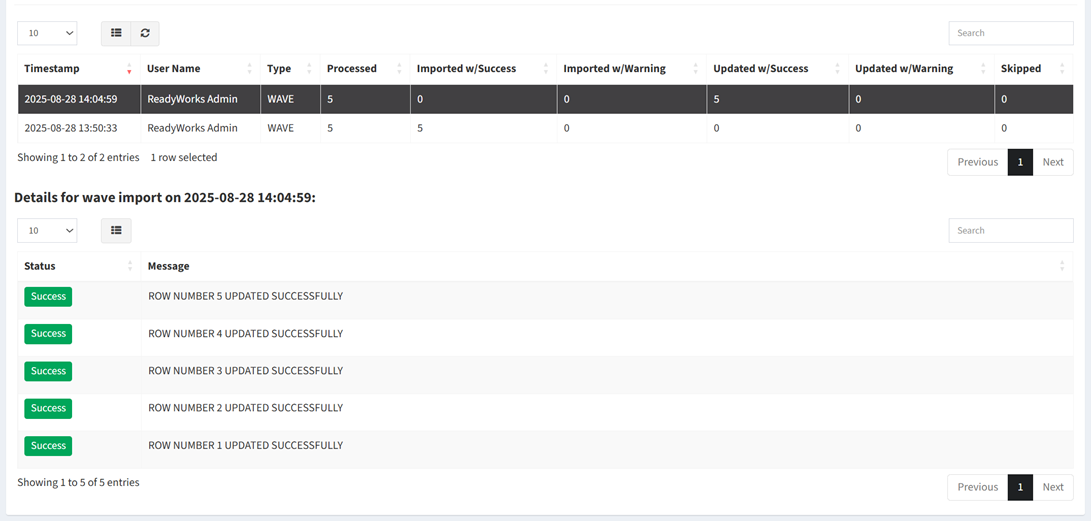
Sample Wave Import
| Wave Id | Wave Name | Wave Type | Wave Description | Start Goal | End Goal | Wave Group | T-Comm Template |
| 1 | Wave 1 | Wave Type 1 | My Description | 8/1/2025 09:00 | 9/30/2025 17:00 | Wave Group 1 | T-Comm Template 1 |
Sample Task Import
| Task Id | Task Name | Task Type | Task Description | Start Goal | End Goal | Assigned To | Action Template | Wave Name | T-Comm Template | Priority | Record Names |
| 1 | Task 1 | Task Type 1 | My Task Description | 8/1/2025 09:00 | 9/30/2025 17:00 | user1@test.com|user2@test.com | Action Template 1 | Wave 1 | T-Comm Template 1 | Priority | Record 1|Record 2 |
Download Template
From the Waves & Tasks tab, you can download a template used to create new or update existing waves and tasks. To download:
- Click the Orchestration Import Template hyperlink to bring up the Download Orchestration Import Template dialog
- Choose New (Create) or Existing (Update) from the Import Template Type radio button
- Select Waves or Tasks from the Orchestration Type drop down
- Check Add Sample Data to Template to populate the template with sample data
- Click the Download Template button to download the orchestration template to populate. Click the Close button to close out of the dialog. You will be redirected back to the Waves & Tasks tab.
Date columns must be formatted correctly for the import to succeed. To format:
- Select the Start Goal and End Goal columns in Excel, right click and select Format Cells
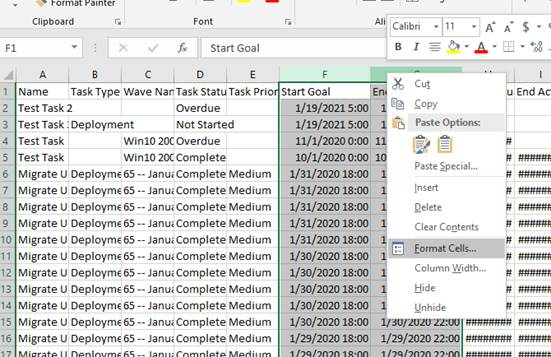
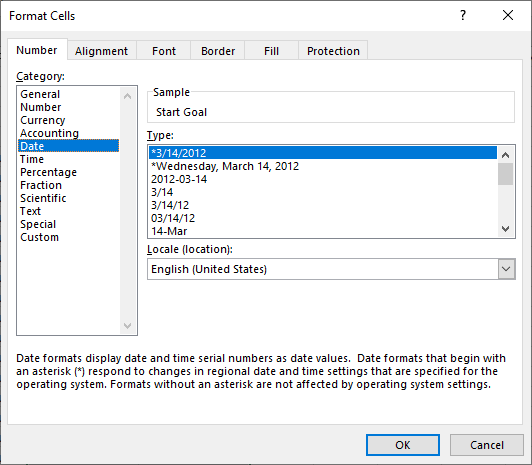
- In the Number tab, click on Date from the Category list, and then click on Custom
NOTE: The order of the clicks is required so the Custom tab will have date formatting populated into the Type field.
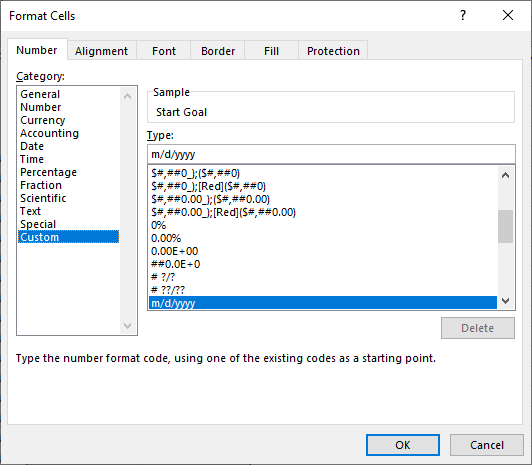
- In the Type field, enter the format code
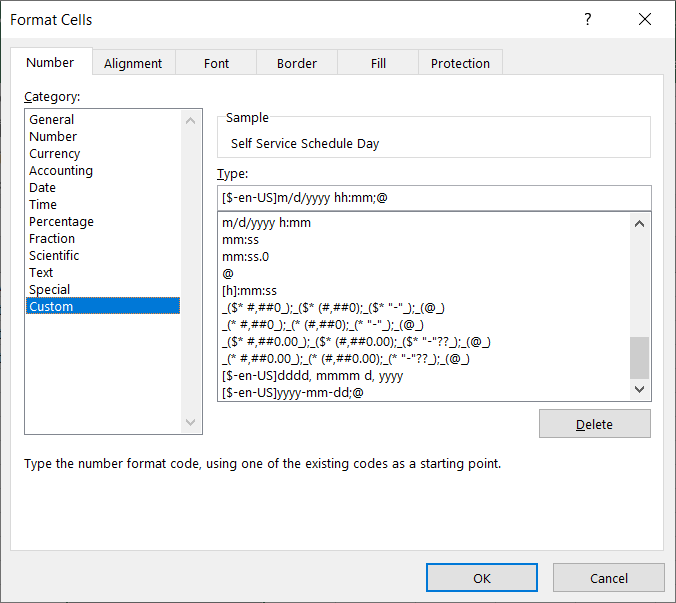
- The following date and time formats are supported:
| Date | Time |
| yyyy-mm-dd | hh:mm |
| mm/dd/yyyy | h:mm |
| m/dd/yyyy | hh:mm:ss |
| m/d/yyyy | h:mm:ss |
| dd/mm/yyyy | hh:mm AM/PM |
| dd.mm.yyyy | h:mm AM/PM |
NOTE: Be sure to use the locale identifier (e.g., [$-en-US], [$-en-GB]) so that the dates are interpreted correctly.
- Click OK and save the CSV
NOTE: Be sure to save your template in CSV UTF-8 (Comma delimited) (*.csv) to preserve any special characters.