The ETL Settings tab on the Settings page provides the ability to view and configure ETL error and system settings.
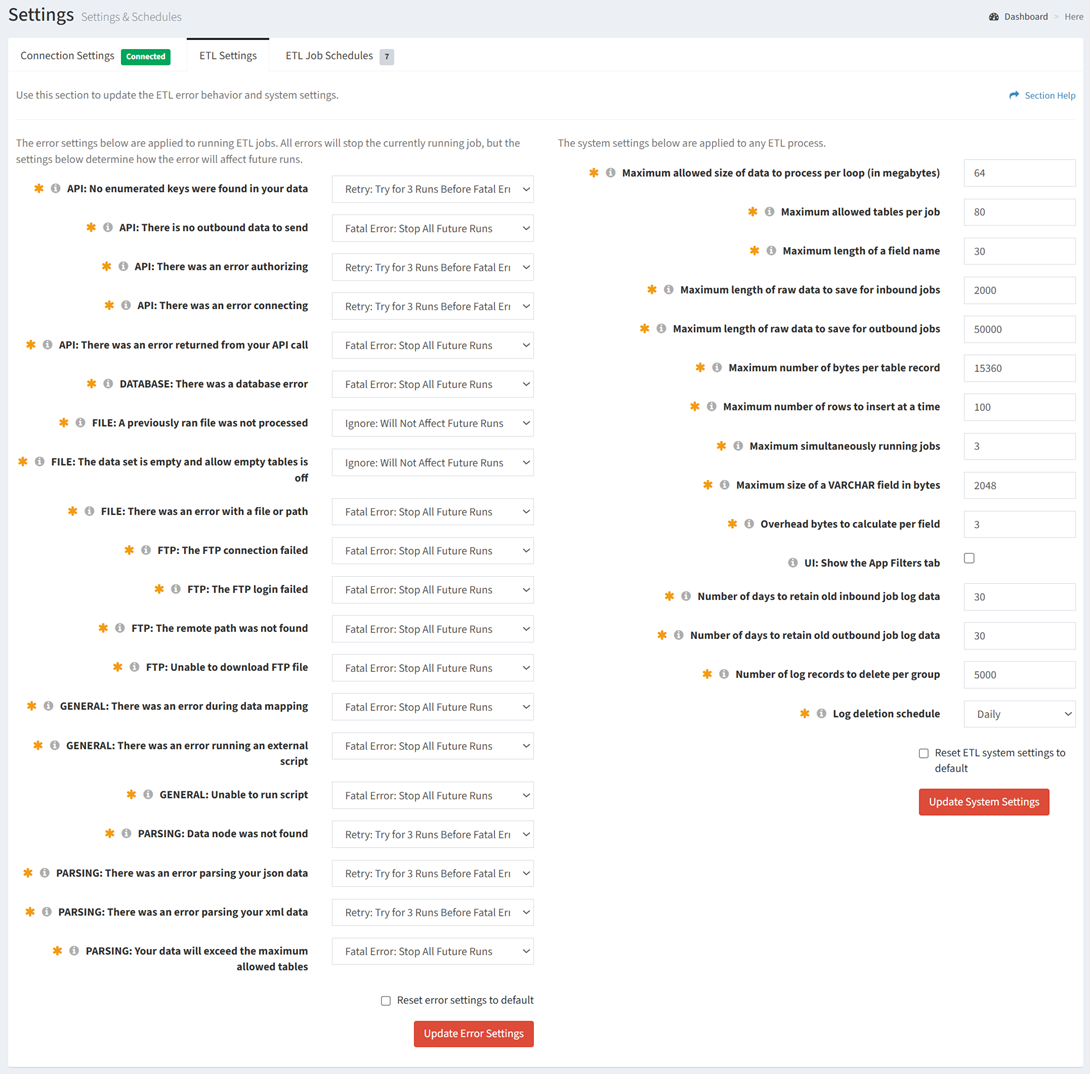
Available operations:
- View and update ETL error settings (Stop, Retry, or Ignore)
- Fields available
- API: No enumerated keys were found in your data – No enumerated keys were found in your data
- API: There is no outbound data to send – There is no outbound data to send
- API: There was an error authorizing – There was an error authorizing
- API: There was an error connecting – There was an error connecting
- API: There was an error returned from your API call – There was an error returned from your API call
- DATABASE: There was a database error – There was a database error
- FILE: A previously ran file was not processed – A previously ran file was not processed
- FILE: The data set is empty and allow empty tables is off – The data set is empty and allow empty tables is off
- FILE: There was an error with a file or path – There was an error with a file or path
- FTP: The FTP connection failed – There was a connection failure
- FTP: The FTP login failed – There was a login failure
- FTP: The remote path was not found – The remote path was not found
- FTP: Unable to download FTP file – Unable to download file
- GENERAL: There was an error during data mapping – There was an error during data mapping
- GENERAL: There was an error running an external script – There was an error running an external script
- GENERAL: Unable to run script – Unable to run script
- PARSING: Data node was not found – Data node was not found
- PARSING: There was an error parsing your json data – There was an error parsing your JSON data
- PARSING: There was an error parsing your xml data – There was an error parsing your XML data
- PARSING: Your data will exceed the maximum allowed tables – Your data will exceed the maximum allowed tables
- Reset ETL error settings to default – Reset ETL error settings to the default values
- View and update ETL system settings
- Fields available
- Maximum allowed size of data to process per loop (in megabytes) – Enter maximum allowed size of data to process per loop (in megabytes)
- Maximum allowed tables per job – Enter maximum number of tables allowed per job
- Maximum length of a field name – Enter maximum length of a field name
- Maximum length of raw data to save for inbound jobs – Enter maximum length of raw data to save for inbound jobs
- Maximum length of raw data to save for outbound jobs – Enter maximum length of raw data to save for outbound jobs
- Maximum number of bytes per table record – Enter maximum number of bytes per table record
- Maximum number of rows to insert at a time – Enter maximum number of rows to insert at a time
- Maximum simultaneously running jobs – Enter maximum number of simultaneously running jobs
- Maximum size of a VARCHAR field in bytes – Enter maximum size of a VARCHAR field (in bytes)
- Overhead bytes to calculate per field – Enter number of overhead bytes to calculate per field
- UI: Show the App Filters tab – Check to display the App Filters tab in the user interface
- Number of days to retain old inbound job log data – Enter number of days to retain old inbound job log data
- Number of days to retain old outbound job log data – Enter number of days to retain old outbound job log data
- Number of log records to delete per group – Enter number of log records to delete per group
- Log deletion schedule – Select frequency to delete logs
- Do Not Run
- Hourly
- Daily
- Weekly
- Every 5 Minutes
- Every 15 Minutes
- Every 30 Minutes
- Custom
- Reset ETL system settings to default – Reset ETL system settings to the default values
Update ETL Error Settings
From the ETL Settings tab, you can update the ETL error settings (left column). To update:
- Enter or select a value for each error setting
- Fatal Error: Stop All Future Runs
- Retry: Try for 3 Runs Before Fatal Error
- Ignore: Will Not Affect Future Runs
- Click the Update button to save your error settings
Update ETL System Settings
From the ETL Settings tab, you can update the ETL system settings (right column). To update:
- Enter or select a value for each system setting
- Click the Update button to save your system settings