From the Outbound Jobs tab, you can edit outbound jobs. To edit:
- Select an outbound job (row) to edit
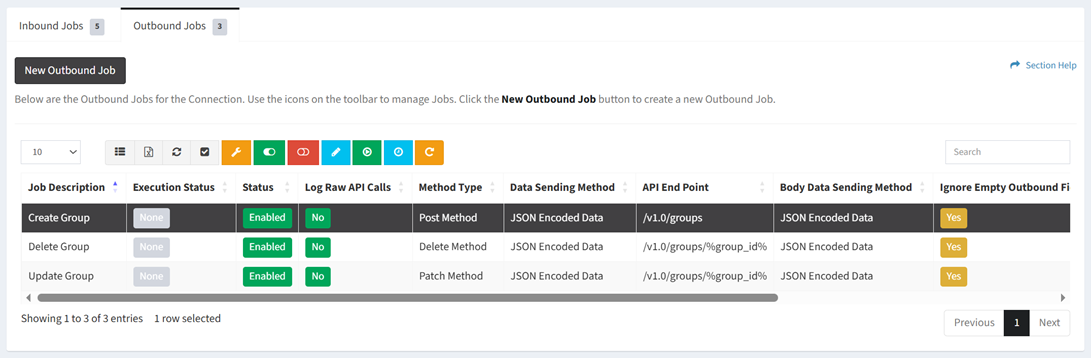
- Click the Edit Job button on the toolbar to bring up the Edit Outbound Job dialog

- The edit button is grayed out unless a job (row) is selected


- The edit function is only available to users in the Administrator security group
- Edit the properties of the outbound job (available job fields differ by connector)
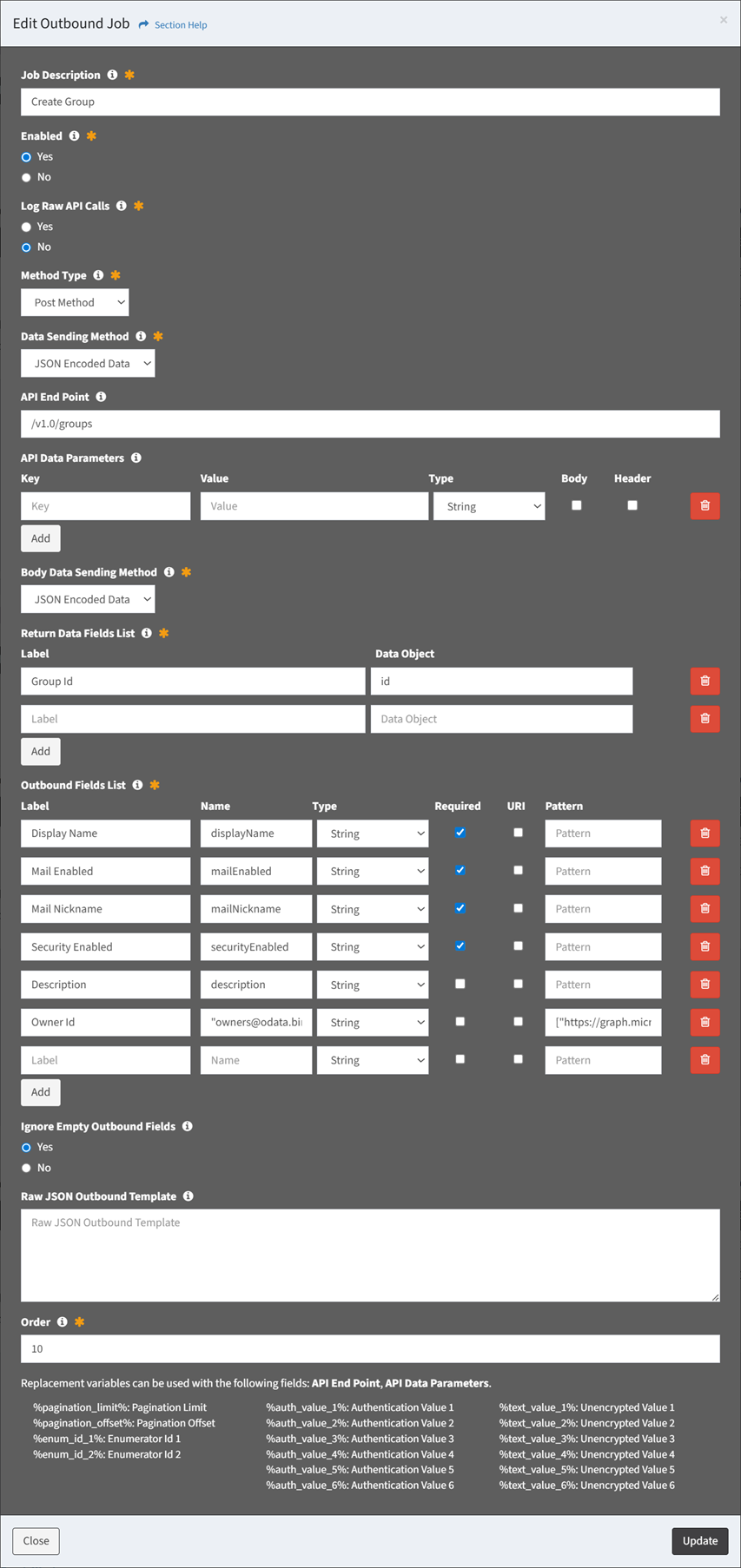
- Job Description – Description of the job (required)
- Enabled – Choose if the job is enabled (required)
- Log Raw API Calls – Choose if raw API calls are logged (required)
- Method Type – Method type of the job (GET, POST, PUT, PATCH, DELETE) (optional)
- Data Sending Method – Data sending method of the job (JSON Encoded Data, Form Data) (required)
- API End Point – API end point of the job (optional)
- API Data Parameters – API data parameters of the job (optional)
- Enter Key and Value and select Type (String, Numeric, Boolean) for each API data parameter
- Check Body if the API data parameter is passed through the body rather than the URI (Uniform Resource Identifier)
- Check Header if the API data parameter is passed through the header rather than the URI (Uniform Resource Identifier)
- Click the Add button to add API data parameters
- Click the Delete button to delete API data parameters
- Body Data Sending Method – Method for sending the body data of the job (JSON Encoded Data, Form Data) (required)
- Return Data Fields List – Return data fields of the job (required)
- Enter Label and Data Object pair for each return data field
- Click the Add button to add return data fields
- Click the Delete button to delete return data fields
- Outbound Fields List – Outbound fields of the job (required)
- Enter Label and Name and select Type (String, Numeric, Boolean) for each outbound field (required)
- Check Required if the outbound field is required (required)
- Check URI if the outbound field is passed through the URI (Uniform Resource Identifier) rather than the data packet (optional)
- Enter Pattern for each outbound field (optional)
- Click the Add button to add outbound fields
- Click the Delete button to delete outbound fields
- Ignore Empty Outbound Fields – Choose if empty outbound fields are ignored (optional)
- Raw JSON Outbound Template – JSON outbound template to send. This replaces any automated structures defined in the outbound fields. (optional)
- Order – Choose the order the job will run at the designated frequency (required)
- Click the Update button when finished to update the outbound job. You will be redirected back to the Outbound Jobs tab. Click the Close button to cancel the operation.
- The edit outbound job function is only available to users in the Administrator security group