From the Portal Users tab, you can provision portal access. To provision:
- Click the Provision Users button to bring up the Provision Portal Users dialog
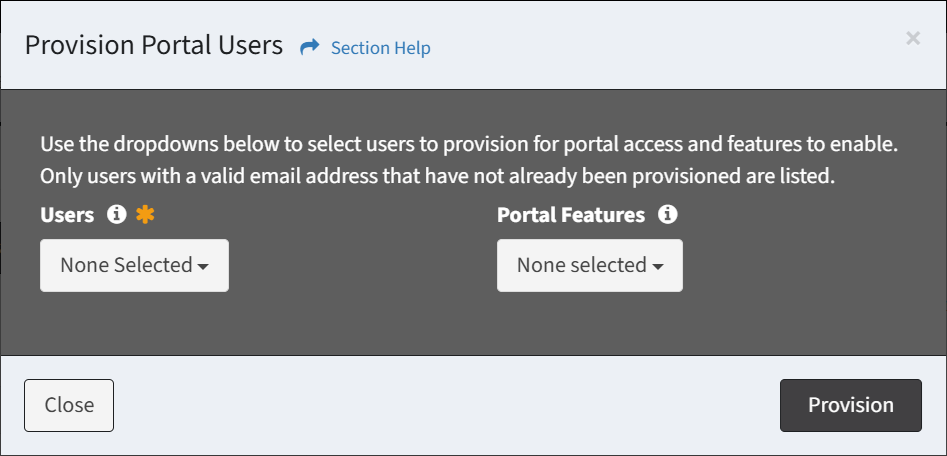
- Select users to provision from the Users drop down. Only users with a valid email address that have not already been provisioned are listed.
- Select the portal features to enable for the selected users from the Portal Features drop down
- User Information – Manage your user attributes
- Computers – View computers linked to your user profile
- Applications – Manage applications installed on your computers
- Scheduling – Schedule, reschedule, or cancel your appointment
NOTE:Custom Tabs to display reports or embedded forms in the portal can only be enabled when editing portal access.
- Click the Provision button when finished to provision the portal user. You will be redirected back to the Portal Users tab. Click the Close button to cancel the operation.
- The provision function is only available to users in the Administrator and Regular User security groups