The User Experience tab provides a mechanism to add user experience schedule days in bulk to waves.
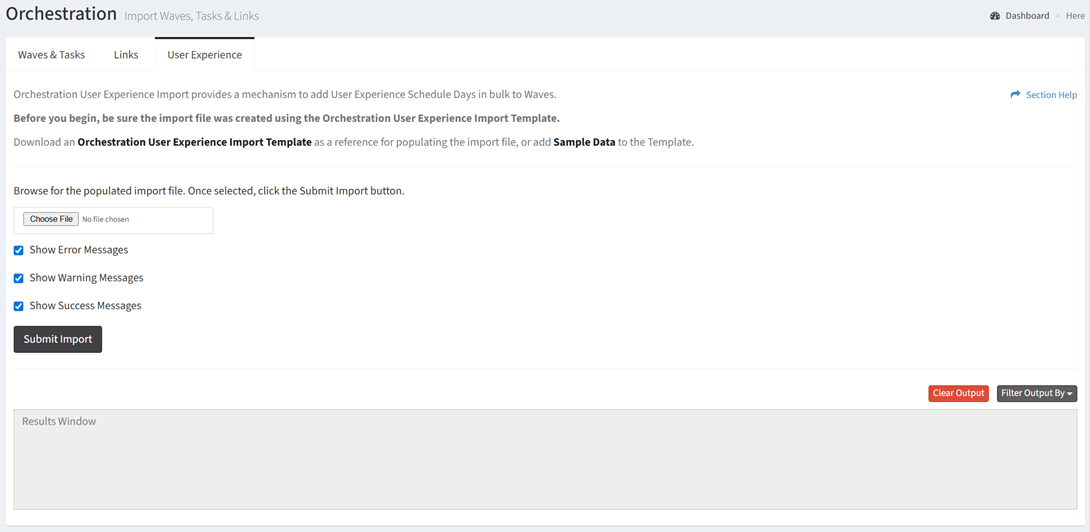
Add User Experience Schedule Days
From the User Experience tab, you can add user experience schedule days to waves. To add:
- Click the Orchestration User Experience Import Template hyperlink to download the user experience schedule days template to populate
- Once you have completed the template, browse for the user experience schedule days import file
NOTE: Be sure to format the date columns appropriately. - Prefilter the results by error, warning or success messages by checking or unchecking any of the three checkboxes
- Click the SubmitImport button to add self service schedule days. Navigate to another page to cancel the operation.
- The import function is only available to users in the Administrator and Regular User security groups
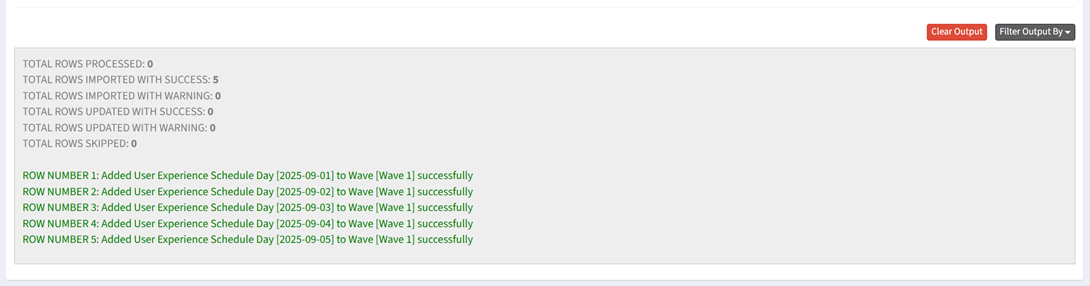
- The results of the import will be displayed in the results window. You can filter the results by error, warning or success messages using the Filter Output By button. You can clear the results by clicking the Clear Output button.
Download Template
From the Self Service tab, you can download a template used to add self service schedule days. To download:
- Click the Wave Self Service Import Template hyperlink to download the self service schedule days template to populate
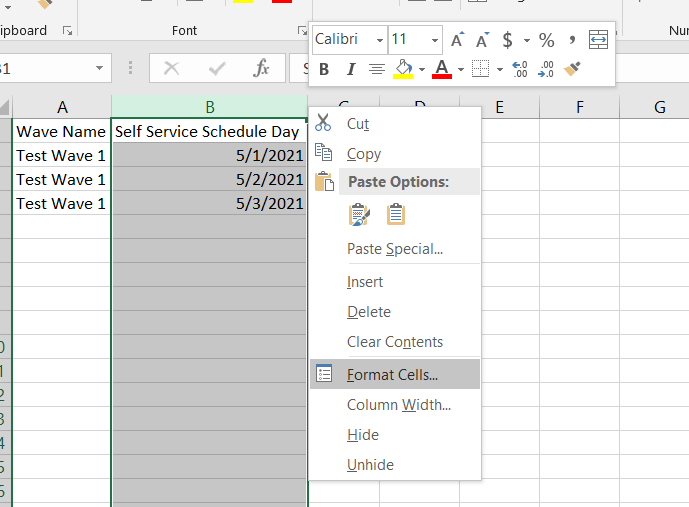
Date columns must be formatted correctly for the import to succeed. To format:
- Select the Self Service Schedule Day column in Excel, right click and select Format Cells
- In the Number tab, click on Date from the Category list, and then click on Custom
NOTE: The order of the clicks is required so the Custom tab will have date formatting populated into the Type field.
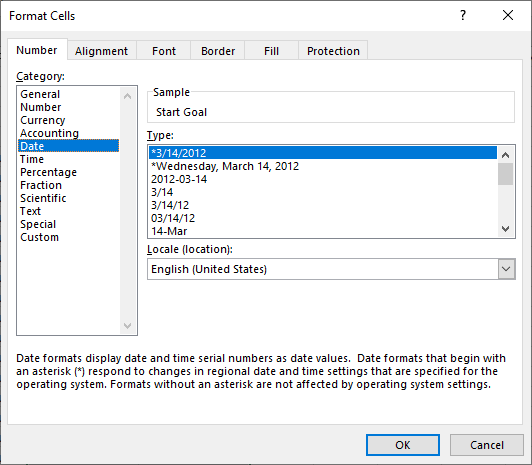
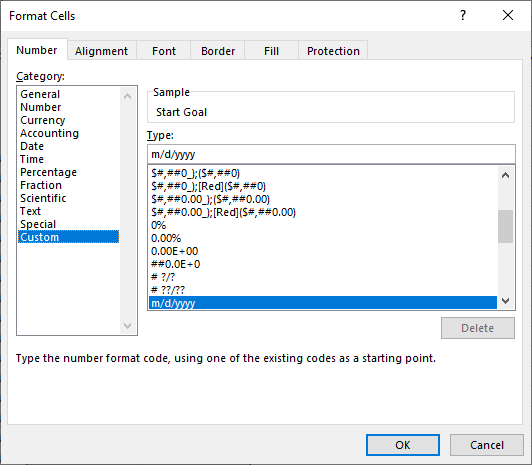
- In the Type field, enter the format code
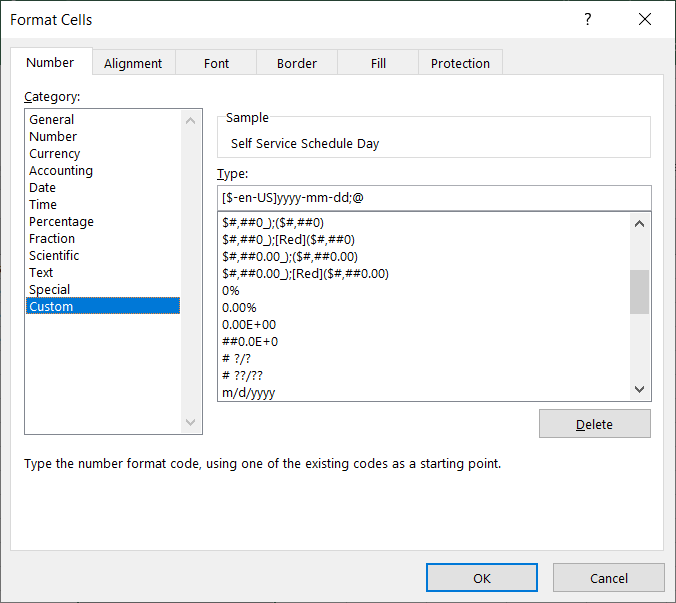
- The following date formats are supported:
| Date |
| yyyy-mm-dd |
| mm/dd/yyyy |
| m/dd/yyyy |
| m/d/yyyy |
| dd/mm/yyyy |
| dd.mm.yyyy |
NOTE: Be sure to use the locale identifier (e.g., [$-en-US], [$-en-GB]) so that the dates are interpreted correctly.
- Click OK and save the CSV
NOTE: Be sure to save your template in CSV UTF-8 (Comma delimited) (*.csv) to preserve any special characters.