The Reports Configuration page provides the ability to manage ReadyWorks reports. ReadyWorks includes many reports out-of-the-box and a report builder to generate your own reports.
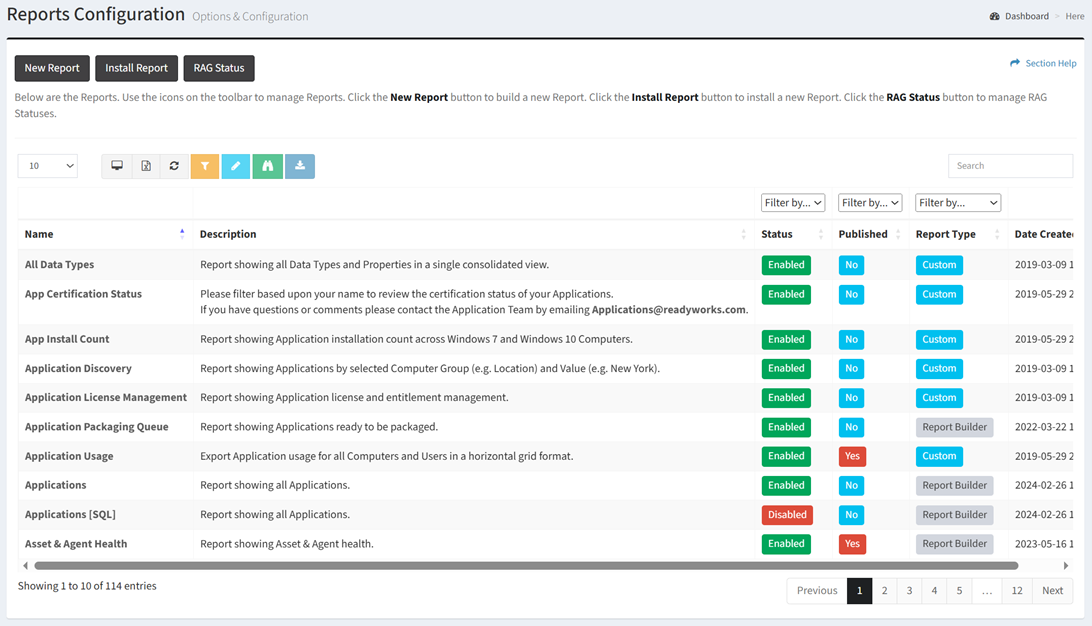
Available operations:
- Build new reports with the Report Builder by clicking on the New Report button
- Install new reports by clicking on the Install Report button
- Manager RAG (red, amber, green) statuses by clicking on the RAG Status button
- View a list of reports in ReadyWorks
- Columns available
- Name – Name of the report
- Description – Description of the report
- Status – Whether the report is enabled or disabled
- Filter by Disabled, Enabled
- Published – Whether the report is published or not
- Report Type – Type of the report (Custom, Report Builder)
- Filter by Custom, Report Builder
- Date Created – Date the report was created
- View reports by clicking the hyperlink of the Name field
- Edit custom report properties by selecting a report (row) and clicking the Edit Report button on the toolbar
- Edit reports built with the Report Builder by selecting a report (row) and clicking the Edit Report button on the toolbar
- View published reports (ReadyWorks reports that can be accessed by non-ReadyWorks users using a report URL without having to login to ReadyWorks) by selecting a published report (row) and clicking the View Published Report button on the toolbar
- Download a report source ZIP by selecting a report (row) and clicking the Download Report button on the toolbar
- Delete reports by selecting a report (row) and clicking the Delete Report button on the toolbar
- Remove report views by clicking the refresh button
- You can also change the number of visible rows in the table, view full screen, export to CSV or Excel, refresh the table, and search for text
NOTE: Contact ReadyWorks Support to create or modify custom reports. A detailed description of some of the custom reports available in ReadyWorks is outlined in Available Reports.
In this section