From the T-Comm Templates page, you can create T-Comm templates. To create:
- Click the New T-Comm Template button to bring up the New T-Comm Template page
- Enter the properties of the new T-Comm template
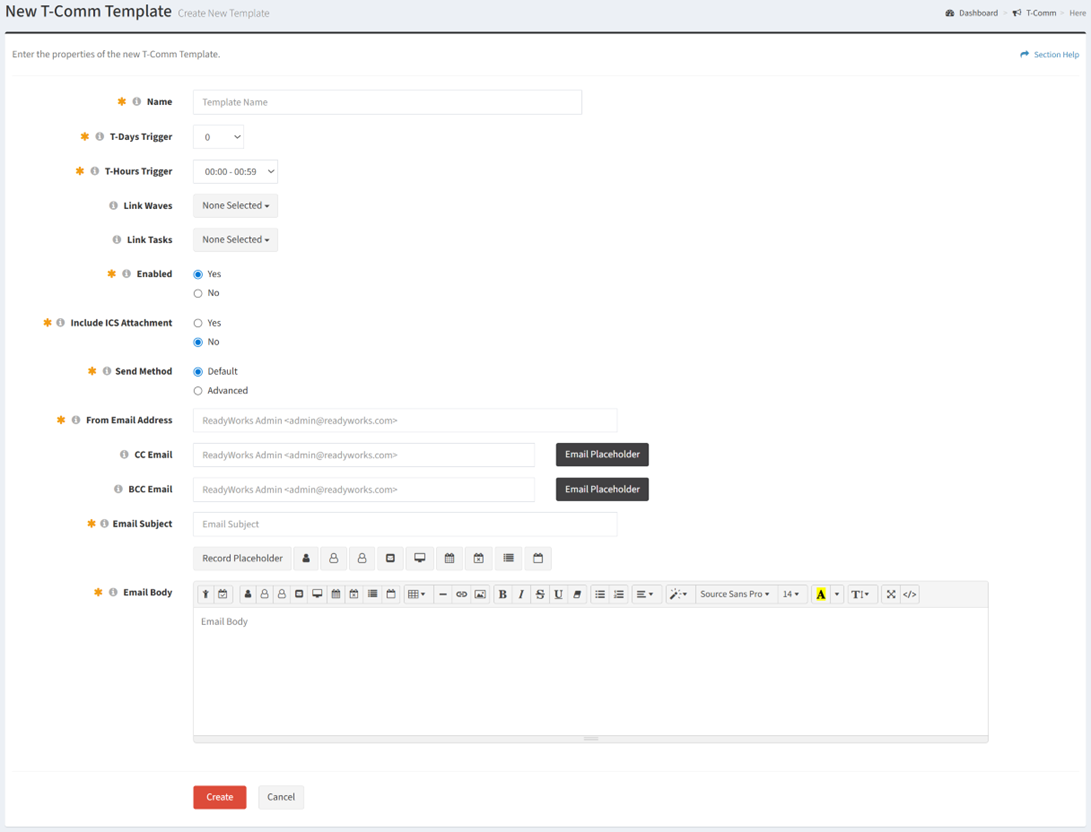
- Name – Name of the T-Comm template (required)
- T-Days Trigger – Days before or after the start date of a wave or task when the T-Comm template will be sent (required)
- T-Hours Trigger – Hour of the day the T-Comm template will be sent (i.e. 11 equates to 11:00am through 11:59am, 23 equates to 11:00pm through 11:59pm) (required)
- Link Waves – Waves the T-Comm template is linked to (optional)
- Link Tasks – Tasks the T-Comm template is linked to (optional)
- Enabled – Whether the T-Comm template is enabled or disabled (required)
- Include ICS Attachment – Whether an ICS attachment is sent with the T-Comm template (optional)
NOTE: In the case that your email client does not support HTML in the ICS attachment, it will default to plain text. - Send Method – Method of the T-Comm template (Default, Advanced). Select the Advanced method to add Send Criteria to limit T-Comm sending to only those records with matching properties. (optional)
- From Email Address – Send from email address of the T-Comm template (required)
- CC Email – Recipient to be copied on the T-Comm template (separate multiple recipients with a comma) (optional)
- BCC Email – Recipient to be blind copied on the T-Comm template (separate multiple recipients with a comma (optional)
- Email Subject – Subject of the T-Comm template. Utilize placeholders in the email subject to personalize emails. (required)
- Email Body – Body of the T-Comm template. Utilize placeholders in the email body to personalize emails. (required)
- Click the Create button when finished to create the T-Comm template. You will be redirected back to the T-Comm Templates page. Click the Cancel button to cancel the operation.