From the Dashboards tab, you can create dashboards. To create:
- Click the New Dashboard button to bring up the New Dashboard dialog
- Enter the properties of the new dashboard
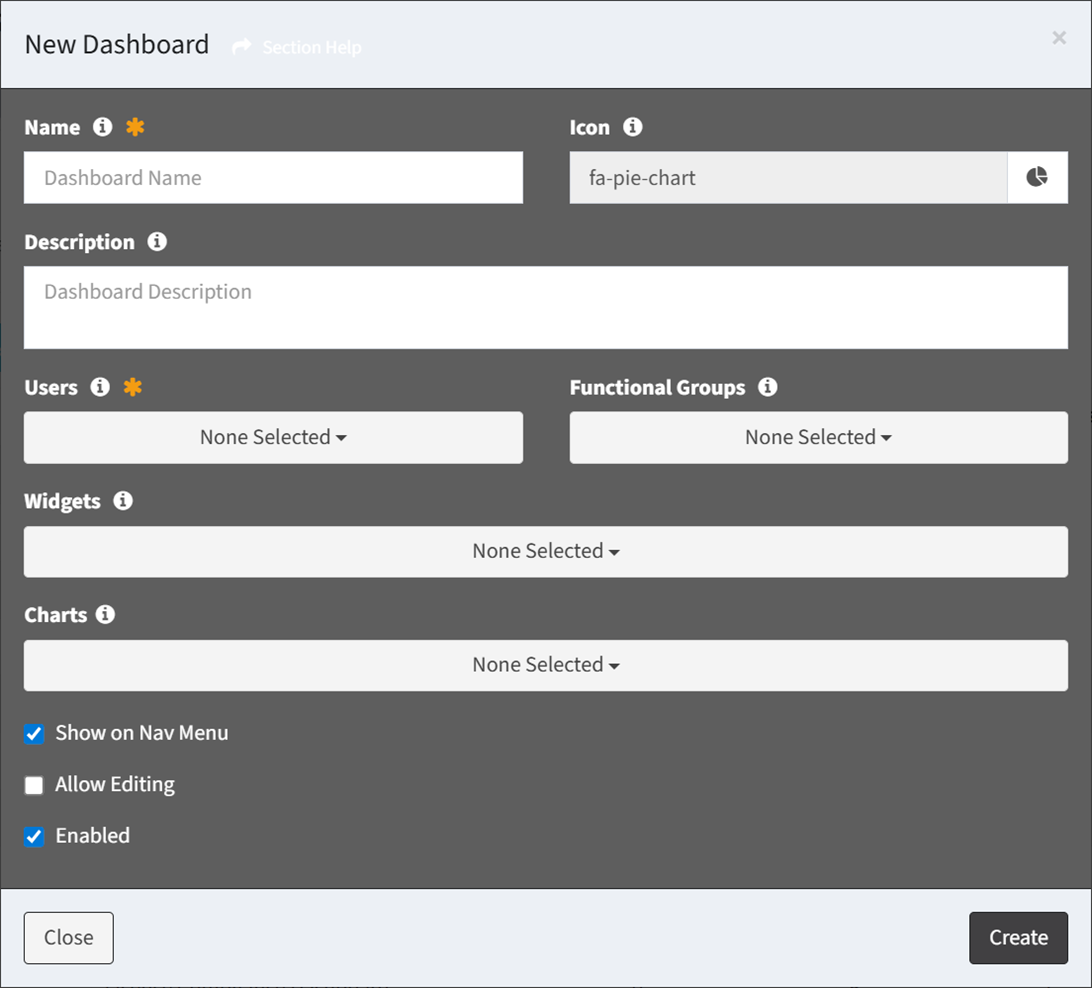
- Name – Name of the dashboard (required)
- Icon – Icon of the dashboard (required)
- Description – Description of the dashboard (optional)
- Users – Assign the dashboard to ReadyWorks users (required)
- Functional Groups – Assign the dashboard to ReadyWorks functional groups (optional)
- Widgets – Select the widgets to show on the dashboard (optional)
- Drag and drop to reorder widgets
- Charts – Select the charts to show on the dashboard (optional)
- Drag and drop to reorder charts
- Show on Nav Menu – Choose if the dashboard is displayed on the Navigation Menu (optional)
- Allow Editing – Choose if ReadyWorks users are allowed to edit the settings of or delete charts on the dashboard (optional)
- Enabled – Choose if the dashboard is enabled (optional)
- Click the Create button when finished to create the dashboard. You will be redirected back to the Dashboards tab. Click the Close button to cancel the operation.