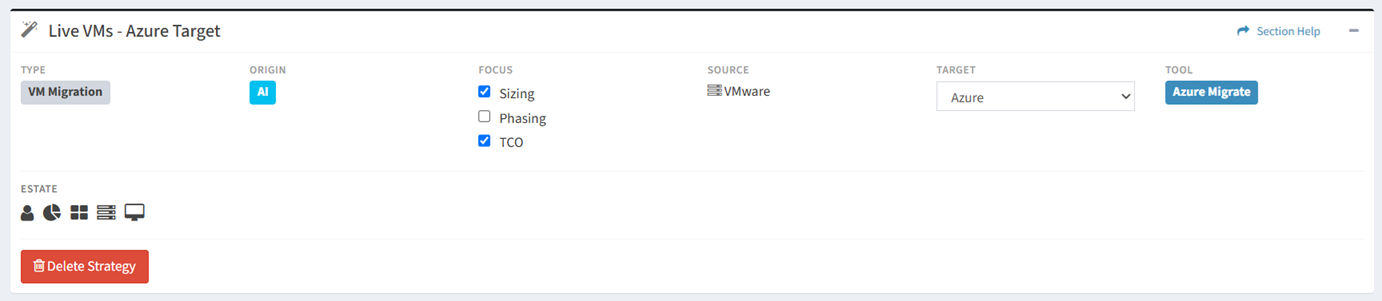
The Strategy Properties panel provides the ability to view and update the properties of strategies.

Available operations:
- View and update the properties of the strategy. A subset of properties is available for editing.
- Fields available (editable unless otherwise noted)
- Name – Name of the strategy (read only)
- Origin – Origin of the strategy (AI) (read only)
- Focus – Areas of focus of the strategy
- Sizing – Capacity footprint
- Phasing – Migration planning and wave sequencing
- TCO – Target cost analysis
- Source – Source platform where the workloads currently reside before migration
- NOTE: VMware is the only migration source currently supported.
- Target – Destination platform of the strategy
- Azure – Migration to Azure using Azure Migrate
- Nutanix – Migration to Nutanix using Nutanix Move
- OpenShift – Migration to OpenShift using OpenShift MTV
- Tool – Migration tool used for the strategy (read only)
NOTE: The migration tool is resolved from the source and target pair.
- The edit function is only available to users in the Administrator security group
- Click the Estate icons to view the Accelerator reports in a new browser tab
- Executive Summary – View a high-level summary of your physical infrastructure and software
- VM Classification – View the distribution of virtual machines by classification (VDI vs. Corp)
- Virtual Estate Overview – View an overview of your virtual estate, including vCenter, datacenter, cluster, and host configurations
- VM Inventory – View your virtual machine inventory and detailed configuration information
- Guest OS Details – View the distribution of guest operating systems across your virtual environment
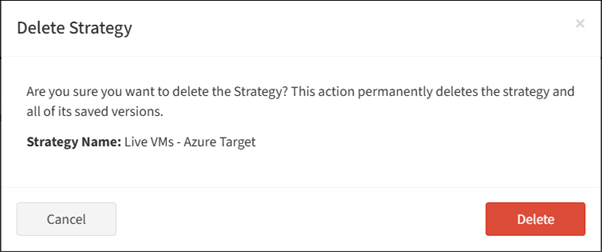
- Delete the strategy by clicking the Delete Strategy button
Delete Strategy
From the Strategy Properties tab, you can delete the strategy. To delete:
- Click the Delete Strategy button
- The delete button is only visible when Enable Delete has been checked under Settings – Options (top right corner of the UI)
- The delete function is only available to users in the Administrator security group
- Click the Delete button to confirm the delete operation. Click the Cancel button to cancel the operation.