From the Tasks tab, you can create tasks. To create:
- Click the New Task button to bring up the New Task dialog
- Enter the properties of the new task
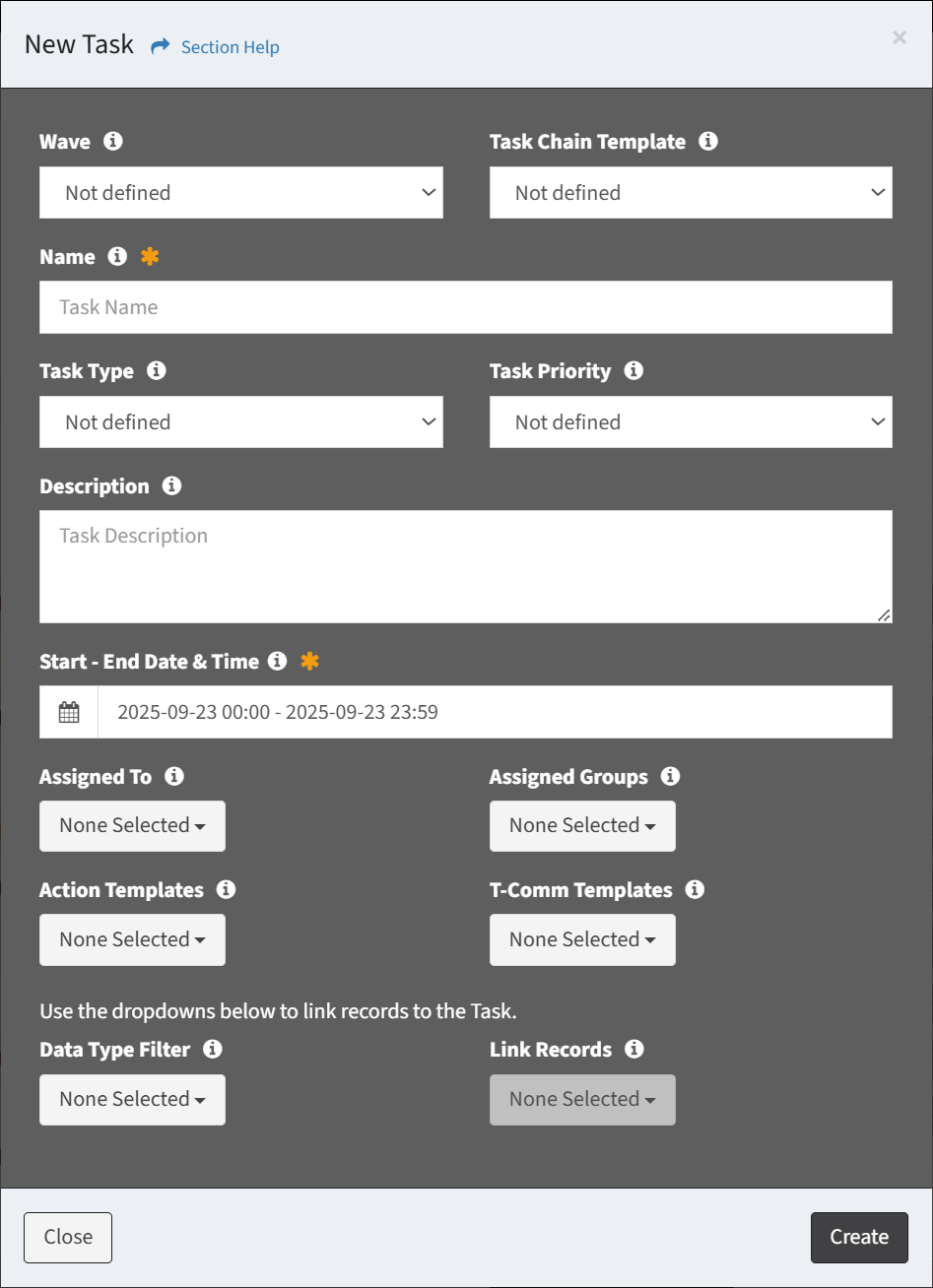
- Wave – Assign the task to a wave (optional)
- Task Chain Template – Select the task chain template to load into the task (optional)
- Name – Name of the task (required)
- Task Type – Assign a task type to the task (optional)
- Task Priority – Assign a priority to the task (optional)
- Description – Description of the task (optional)
- Start – End Date & Time – Select the start and end goals of the task (required)
NOTE: The start and end goals of the task must be contained within the wave start and end boundaries (if the task was assigned to a wave). - Assigned To – Assign the task to a ReadyWorks user (optional)
- Assigned Groups – Assign the task to ReadyWorks functional groups (optional)
- Action Templates – Select the action templates to load into the task (optional)
- T-Comm Templates – Select the T-Comm templates to link to the task (optional)
- Data Type Filter – Select a data type to filter the Link Records drop down (optional)
- Once a data type is selected the Link Records button will become available (ungrayed)
- Link Records – Select data records from the drop down to link to the task (optional)
- Click the Create button when finished to create the task. You will be redirected back to the Tasks tab. Click the Close button to cancel the operation.