From the Task Scheduler, you can create daily, hourly, and weekly scheduled tasks to run ReadyWorks cron jobs. To create the scheduled tasks:
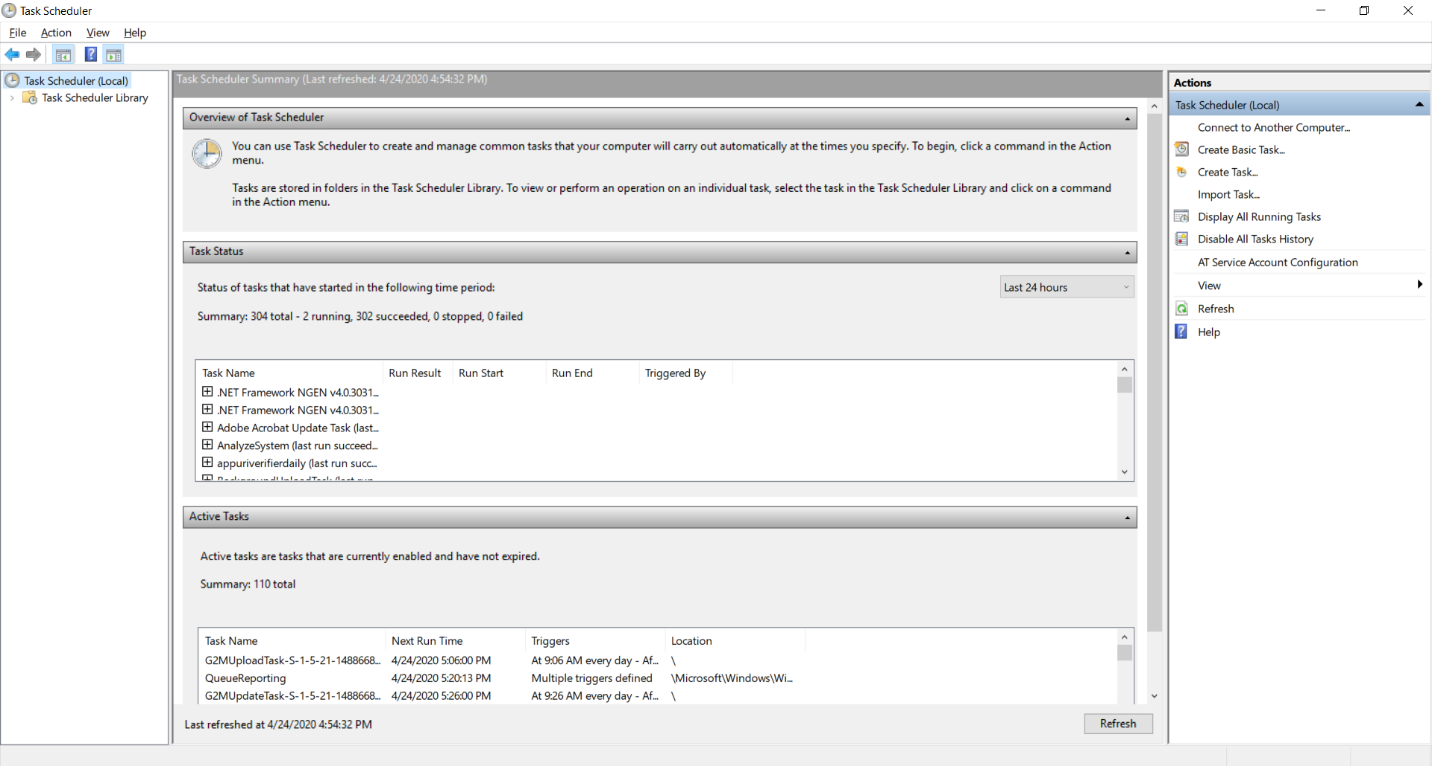
- Open the Task Scheduler
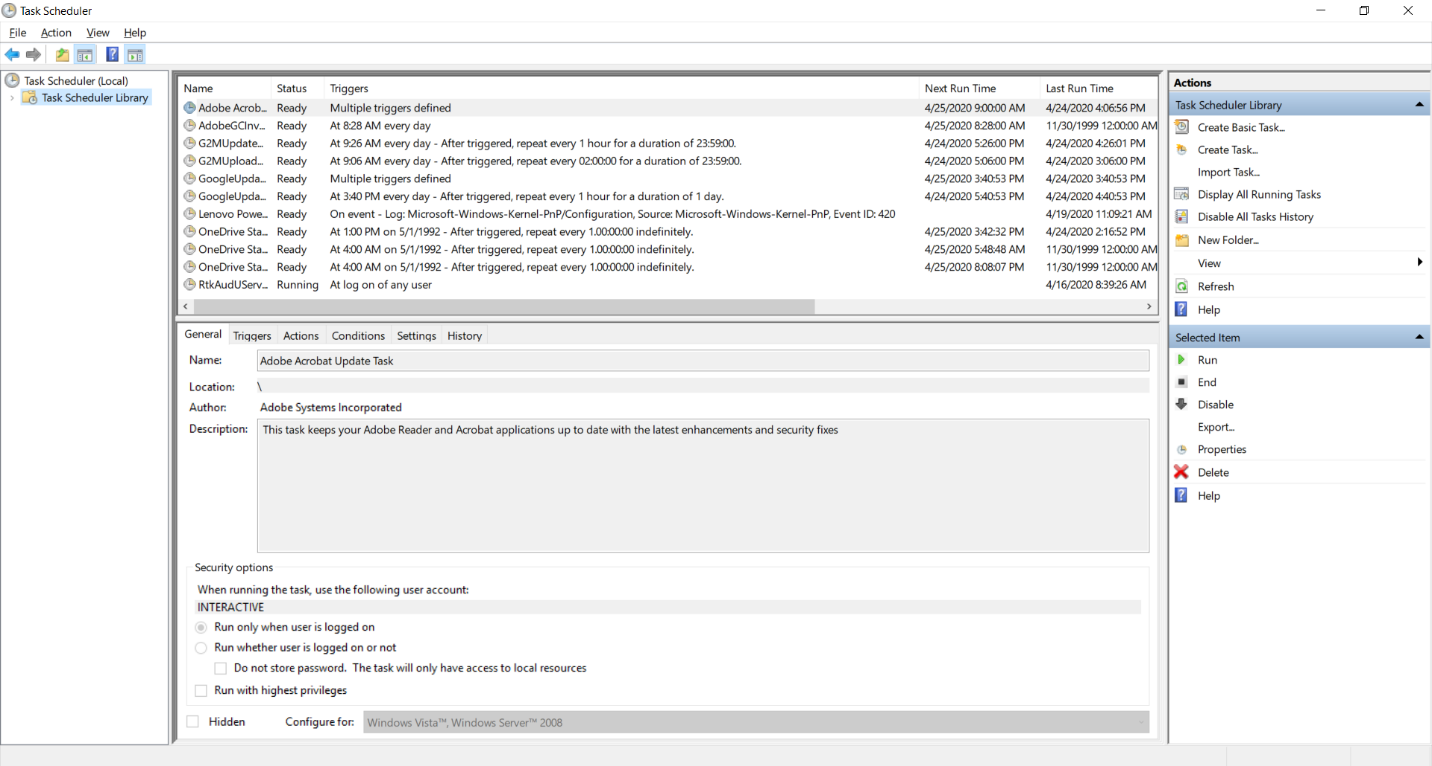
- Select the Task Scheduler Library folder from the navigation menu. From the Actions menu, click New Folder…
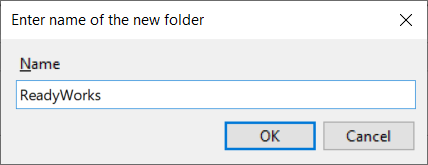
- Enter ReadyWorks for new folder name and click OK
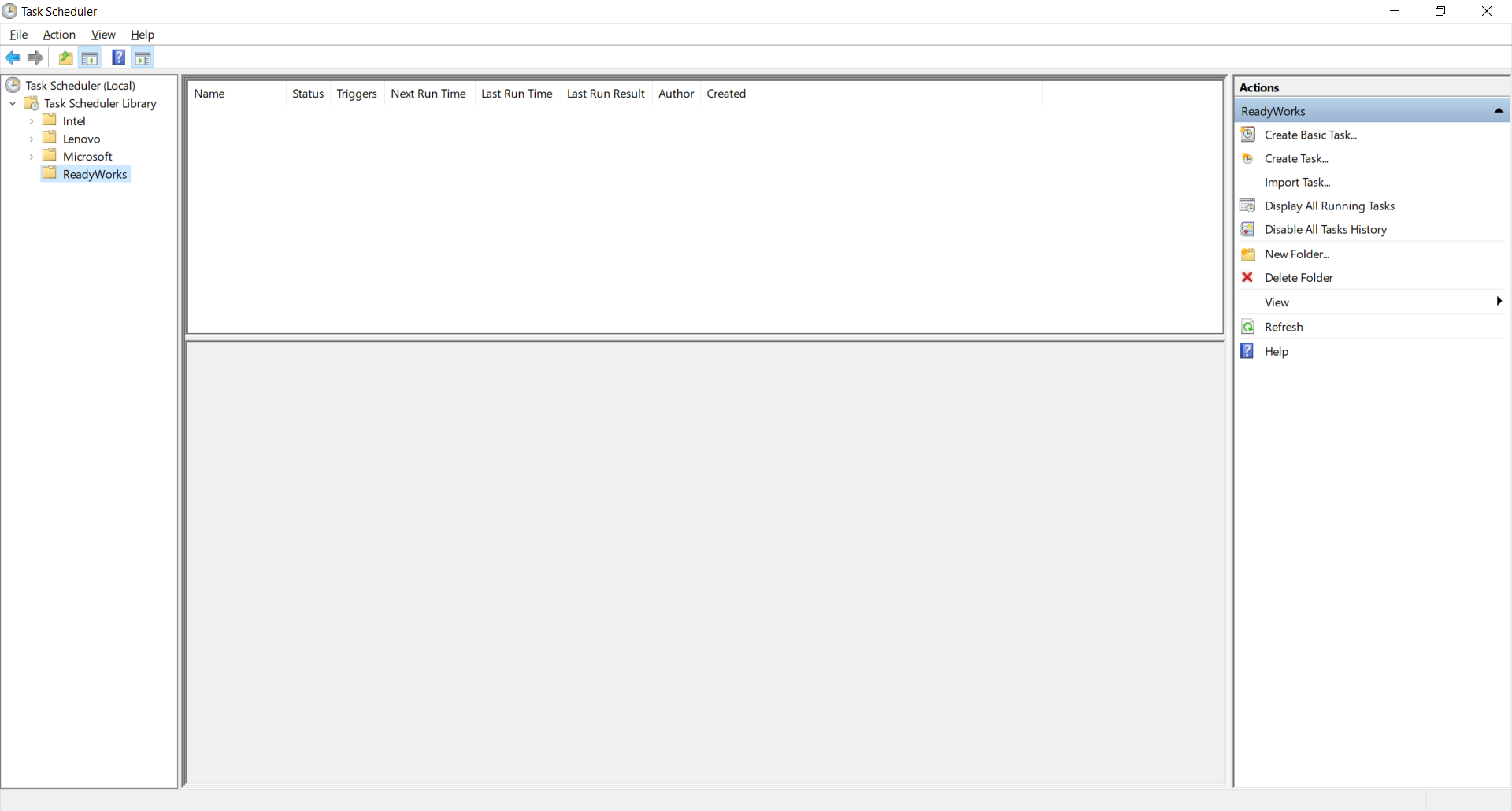
- The ReadyWorks folder will appear under the Task Scheduler Library folder
- Create a Daily task
- From the Actions menu, click Create Task…
- On the General tab, enter the settings of the task
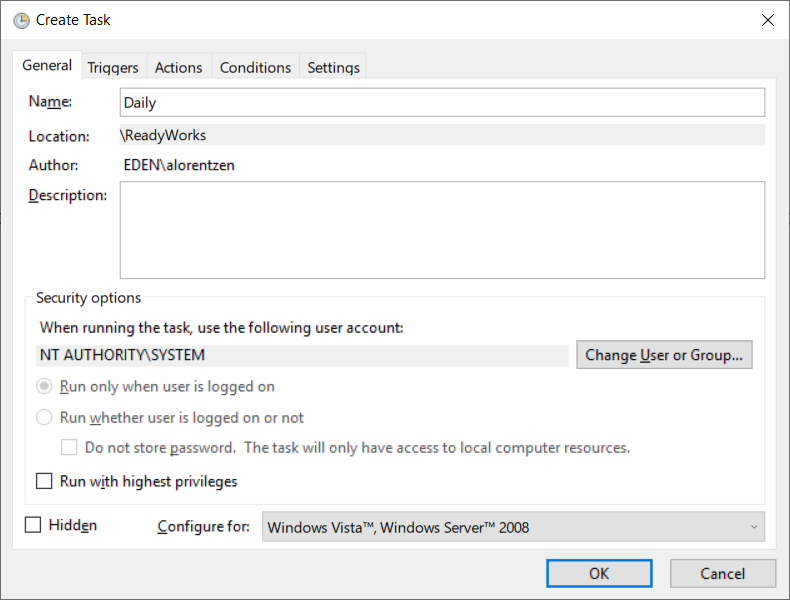
- Name – Daily
- User Account – NT AUTHORITY\SYSTEM
- On the Trigger tab, create a trigger for the task
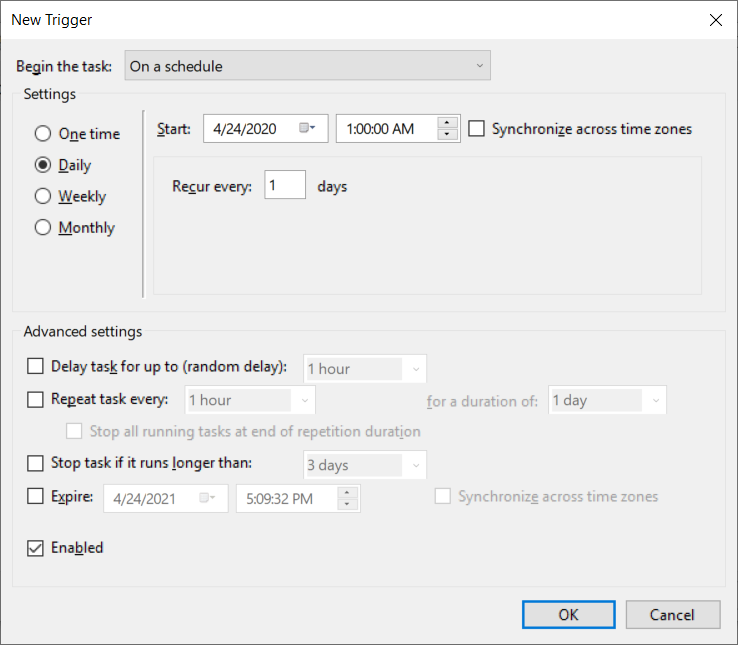
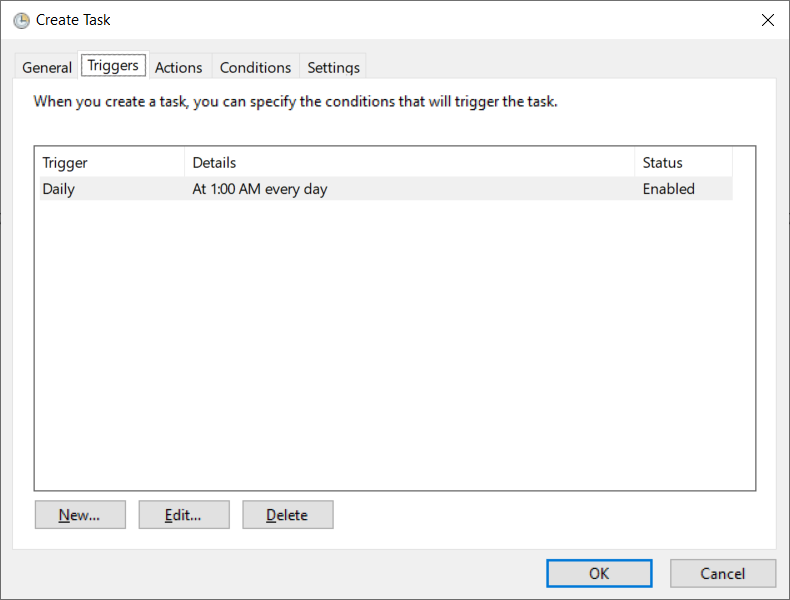
- Trigger – Daily
- Start Time – 1:00 AM
- On the Actions tab, create an action for the task
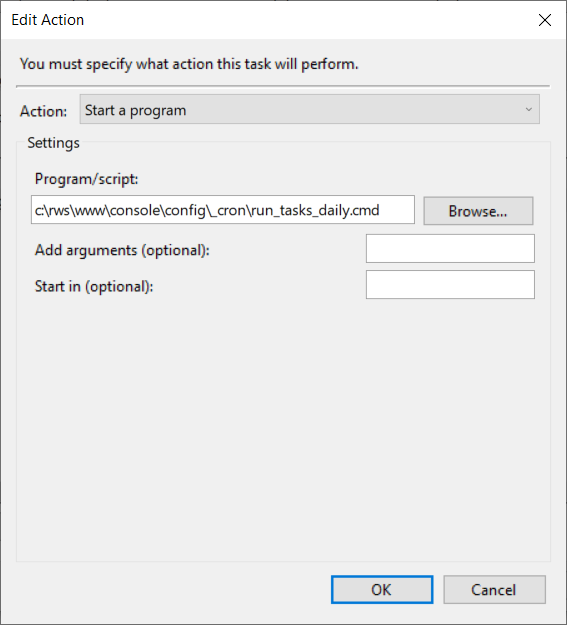
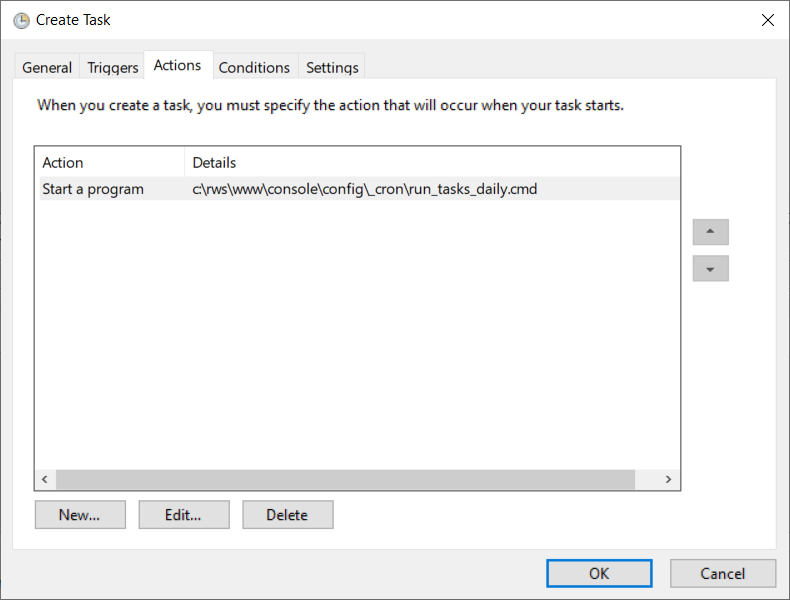
- Program – %SystemRoot%\rws\www\console\_cron\run_tasks_daily.cmd
- Click OK to create the Daily task
- Create an Hourly task
- From the Actions menu, click Create Task…
- On the General tab, enter the settings of the task
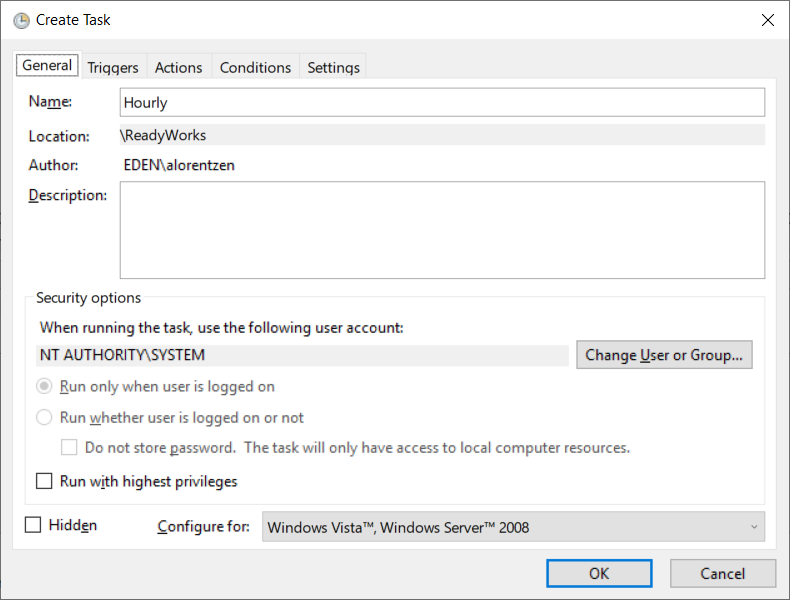
- Name – Hourly
- User Account – NT AUTHORITY\SYSTEM
- On the Trigger tab, create a trigger for the task
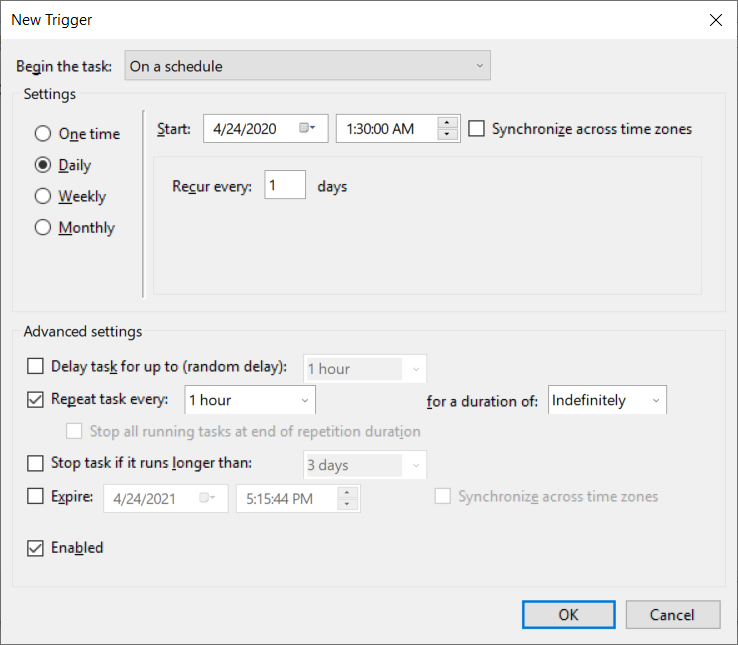
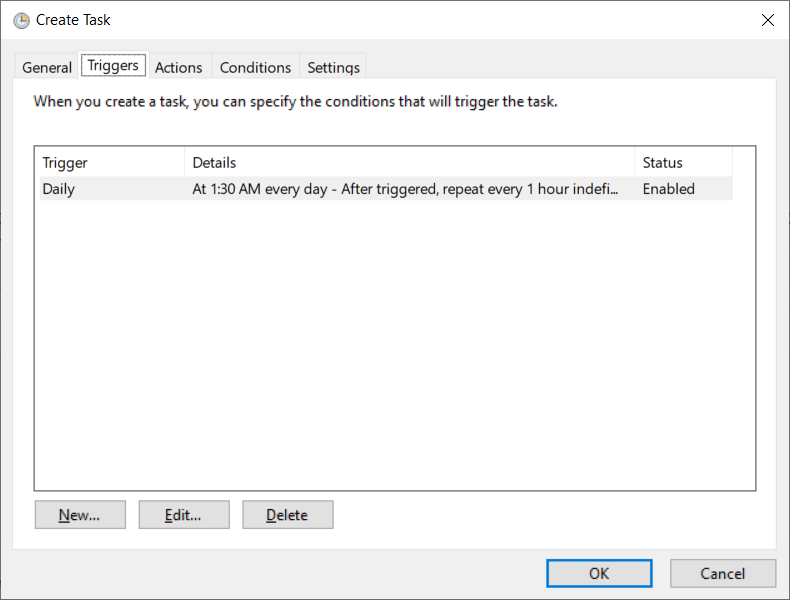
- Trigger – Daily
- Start Time – 1:30 AM
- Repeat Task Every – 1 hour, Indefinitely
- On the Actions tab, create an action for the task
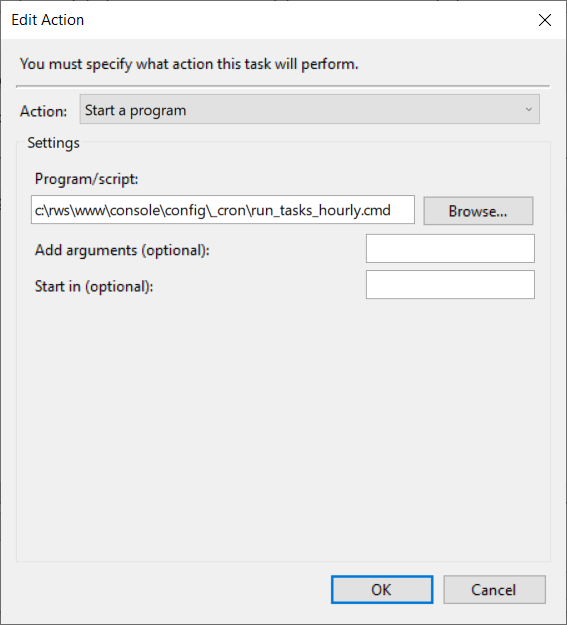
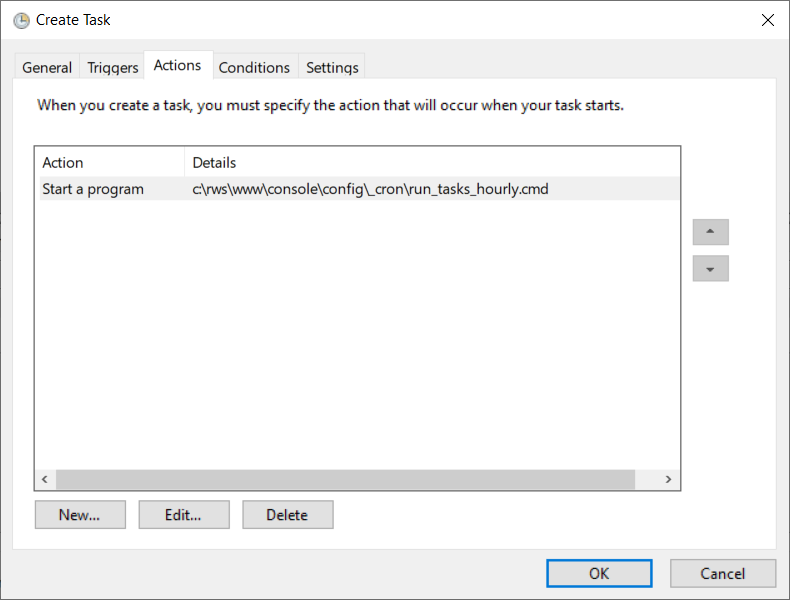
- Program – %SystemRoot%\rws\www\console\_cron\run_tasks_hourly.cmd
- Click OK to create the Hourly task
- Create a Weekly task
- From the Actions menu, click Create Task…
- On the General tab, enter the settings of the task
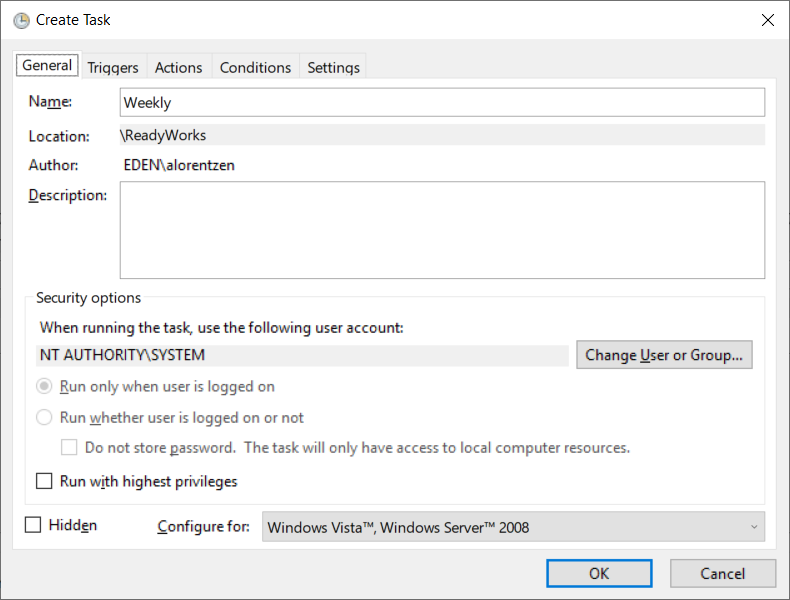
- Name – Weekly
- User Account – NT AUTHORITY\SYSTEM
- On the Trigger tab, create a trigger for the task
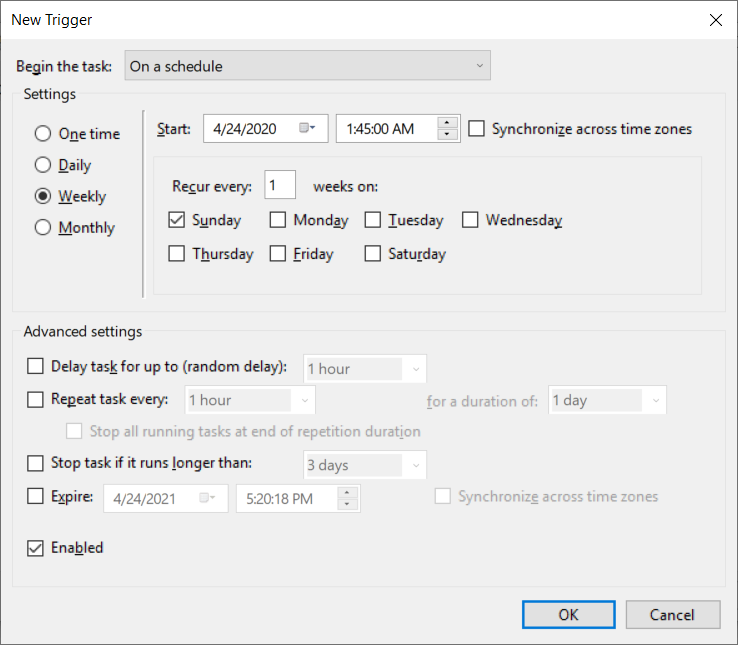
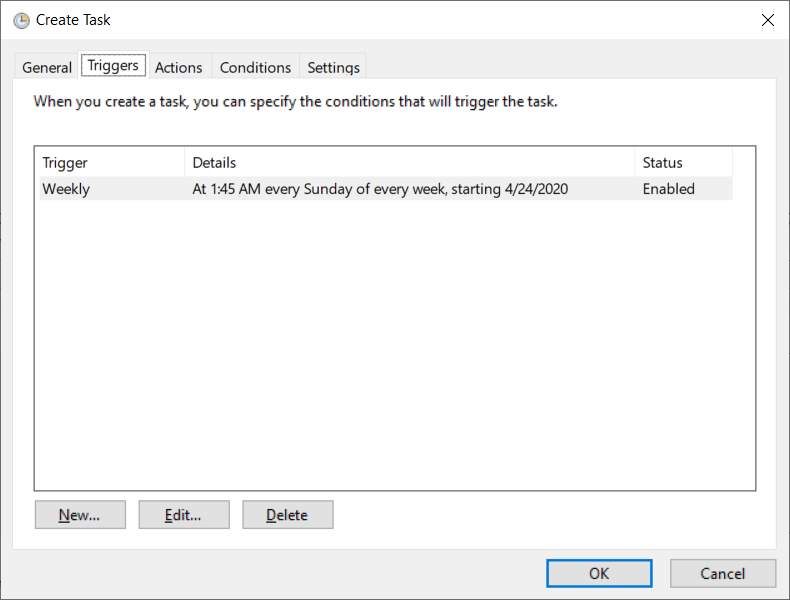
- Trigger – Weekly
- Start Time – 1:45 AM
- On the Actions tab, create an action for the task
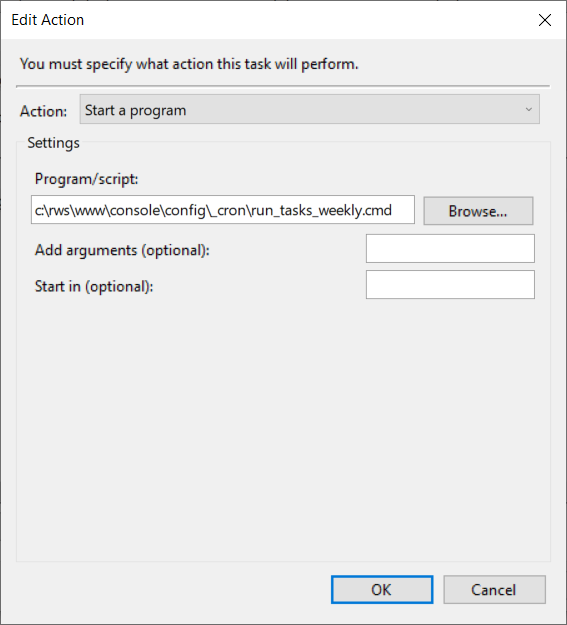
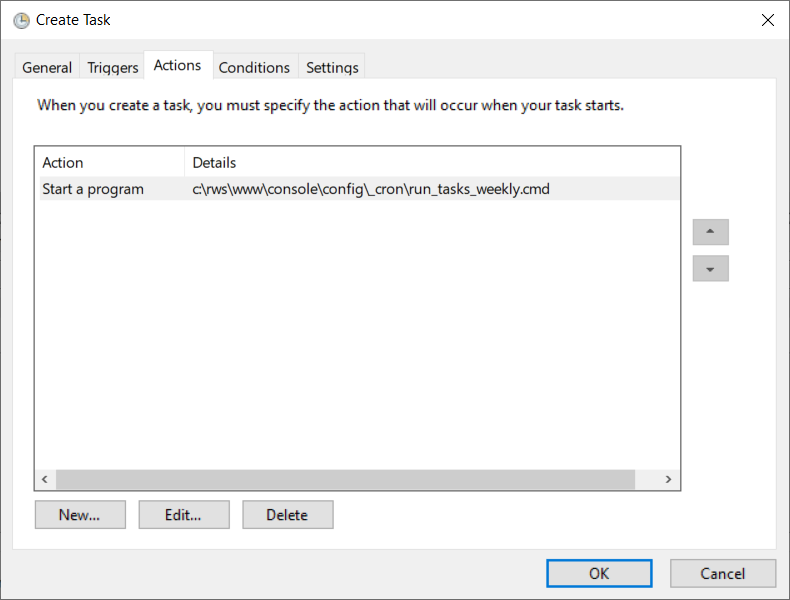
- Program – %SystemRoot%\rws\www\console\_cron\run_tasks_weekly.cmd
- Click OK to create the Weekly task
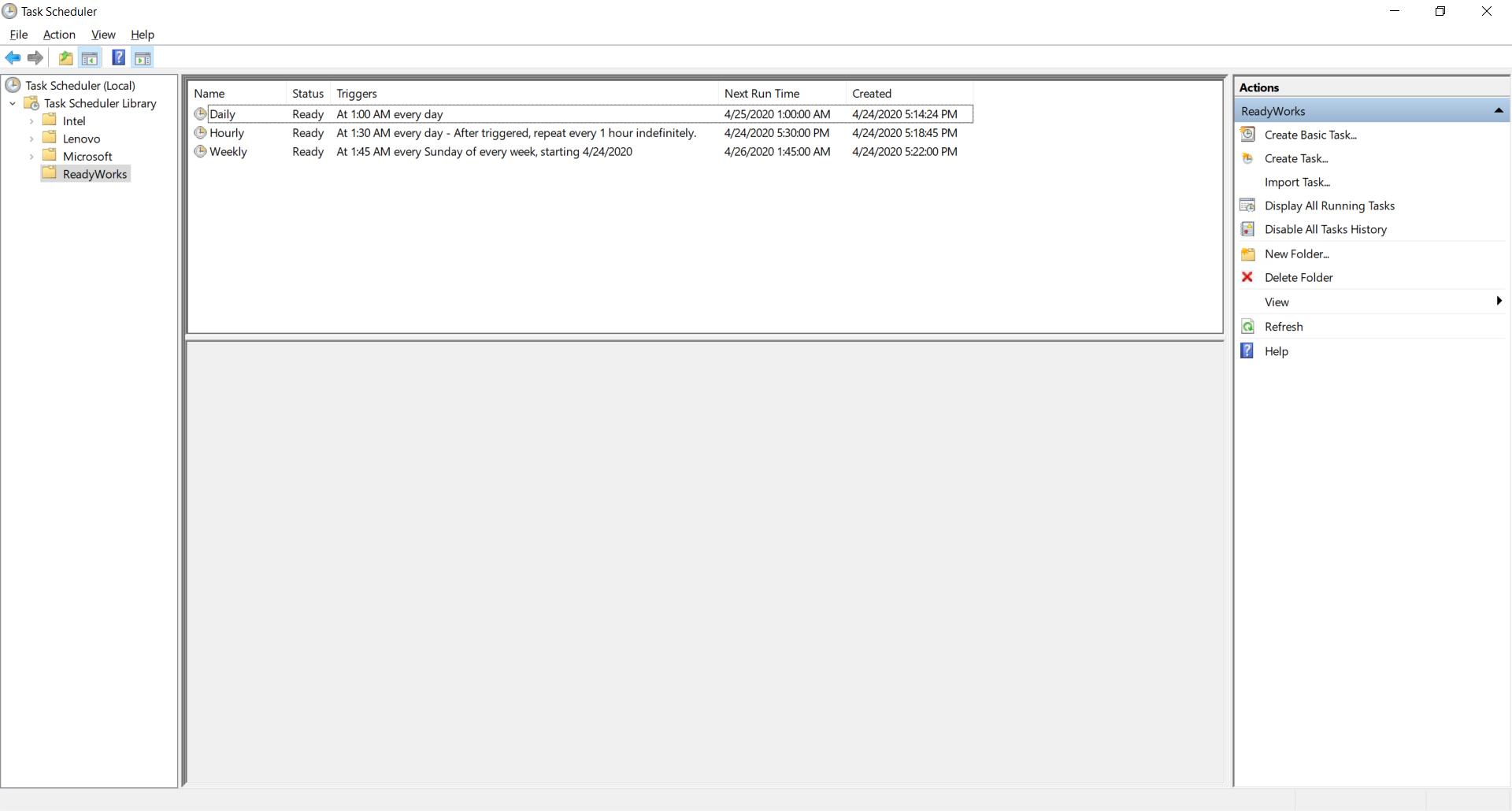
- The daily, hourly, and weekly tasks will be displayed in the Task Scheduler
- Exit the Task Scheduler