The Outbound Job Fields tab provides the ability to manage outbound job fields.
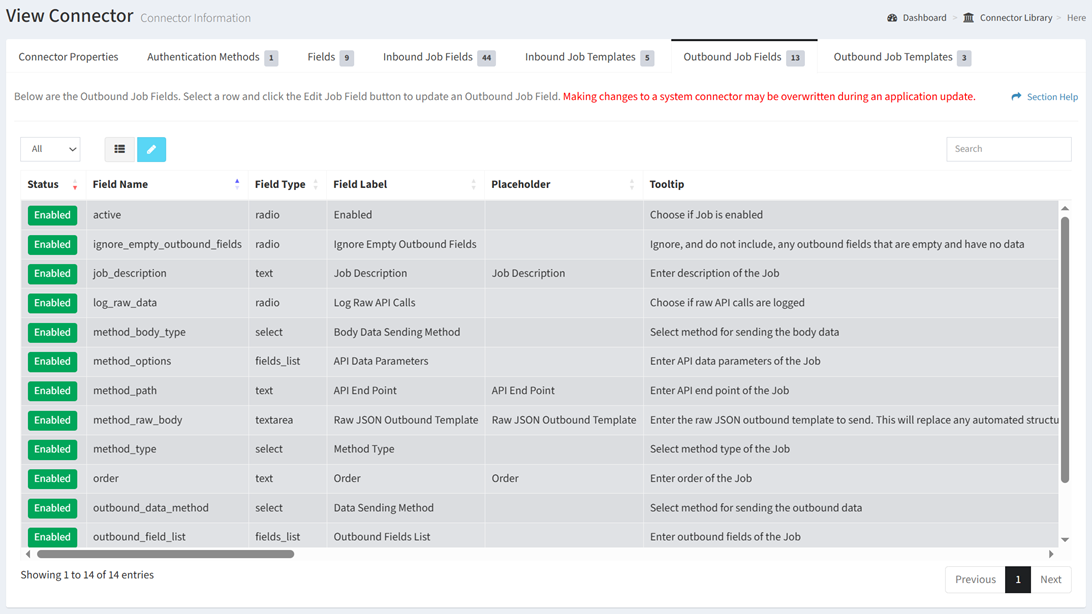
Available operations:
- View outbound job fields associated with the connector
- Columns available
- Id (hidden by default) – System Id of the job field
- Status – Whether the job field is enabled or disabled
- Connector (hidden by default) – Connector of the job field
- Field Name – Name of the job field
- Field Type – Type of the job field
- Field Label – Label of the job field
- Placeholder – Placeholder of the job field
- Tooltip – Tooltip of the job field
- Input Data – JSON input data of the job field
- Min Length – Minimum length (number of characters) of the job field
- Max Length – Maximum length (number of characters) of the job field
- Default Value – Default value of the job field
- RegEx Pattern – Regular expression pattern to validate input values of the job field
- RegEx Message – Message to display for input values that do not match the regular expression pattern
- Order – Order of the job field in the New Outbound Job and Edit Outbound Job dialogs
- Required – Whether the job field is required
- Job Field Template Id (hidden by default) – Template Id of the job field
- Can Disable (hidden by default) – Whether the job field can be disabled
- Edit outbound job fields by selecting a job field (row) and clicking the Edit Job Field button on the toolbar
- You can also change the number of visible rows in the table, set column visibility, and search for text
NOTE: The following outbound job fields are enabled by default and cannot be disabled: Body Data Sending Method, Data Sending Method, Enabled, Job Description, Order, Outbound Fields List, Return Data Fields List.