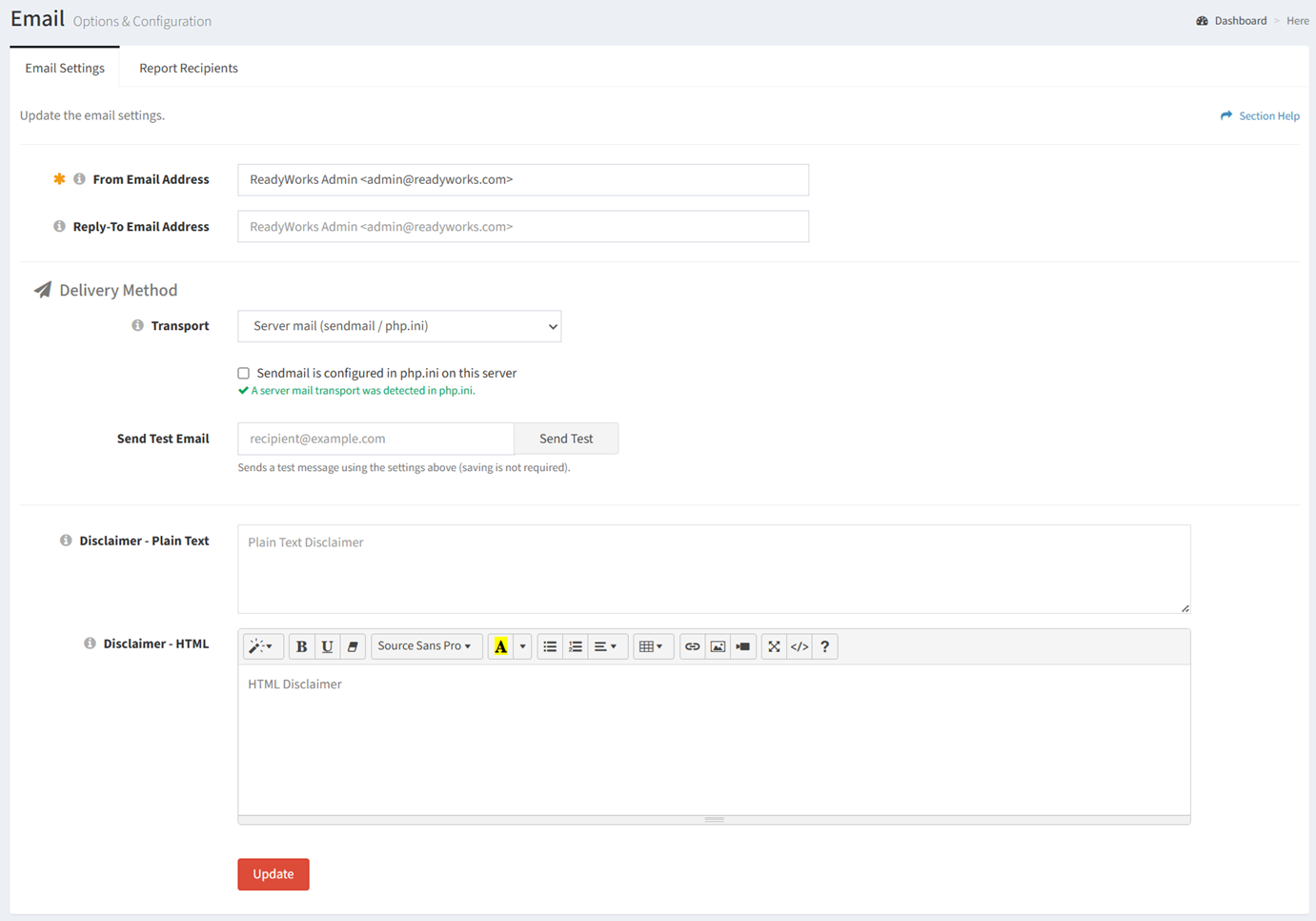
The Email Settings tab on the Email page provides the ability to view and configure email settings.
Available operations:
- View and update email settings
- Fields available
- From Email Address – Send from email address of ReadyWorks emails (required)
- Reply-To Email Address – Reply-To email address of ReadyWorks emails (required)
- Transport – Delivery method of ReadyWorks emails (required)
- Disclaimer – Plain Text – Plain text disclaimer to be appended to the bottom (footer) of all ReadyWorks emails
- Disclaimer – HTML – HTML disclaimer to be appended to the bottom (footer) of all ReadyWorks emails
- Test email connectivity
Update Email Settings
From the Email Settings tab, you can update the email settings. To update:
- Enter a value for each email setting
- Click the Update button to save your email settings
Server Mail
From the Email Settings tab, you can use the server’s configured mail transport. To configure:
- Select Server mail (sendmail / php.ini) from the Transport drop down

- Check Sendmail is configure in php on this server to override the auto detection and force SMTP to use the default mail() function

- Click the Update button to save your email settings
SMTP Server
From the Email Settings tab, you can configure a dedicated SMTP server. To configure:
- Select SMTP server from the Transport drop down

- Enter the hostname of the SMTP server in the SMTP Host text box

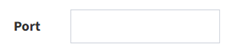
- Enter the port used to connect to the SMTP server in the Port text box
- Select the encryption method for the SMTP connection from the Encryption drop down

- None – No encryption. Data, including credentials (if used), is sent in plain text. Only use on trusted internal networks or SMTP relays that don’t require encryption.
- STARTTLS – Starts with an unencrypted connection, then upgrades it to an encrypted TLS connection. Recommended for most modern SMTP servers.
- SSL/TLS – Establishes an encrypted connection immediately before any SMTP communication begins (often called implicit TLS). Used by some SMTP servers and legacy configurations.
- Check Verify the server’s TLS certificate to ensure a secure connection. Disable only for trusted internal SMTP relays using self-signed or untrusted certificates.

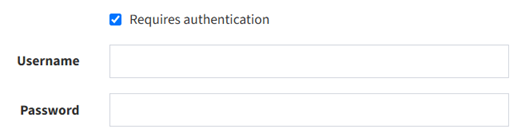
- Check Requires authentication to authenticate with the SMTP server using a username and password
- Click the Update button to save your email settings
Send Test Email
From the Email Settings tab, you test email connectivity. To test:
- Enter an email address in the Send Test Email text box (separate multiple recipients with a comma)

- Click the Send Test button when finished to send a test email to the entered recipient. You can test email connectivity without saving the configuration.