From the Connections page, you can activate connections. To activate:
- Select a connector
- Click the Activate New Connection button for the connector to bring up the Activate New Connection dialog
- Enter the properties of the new connection
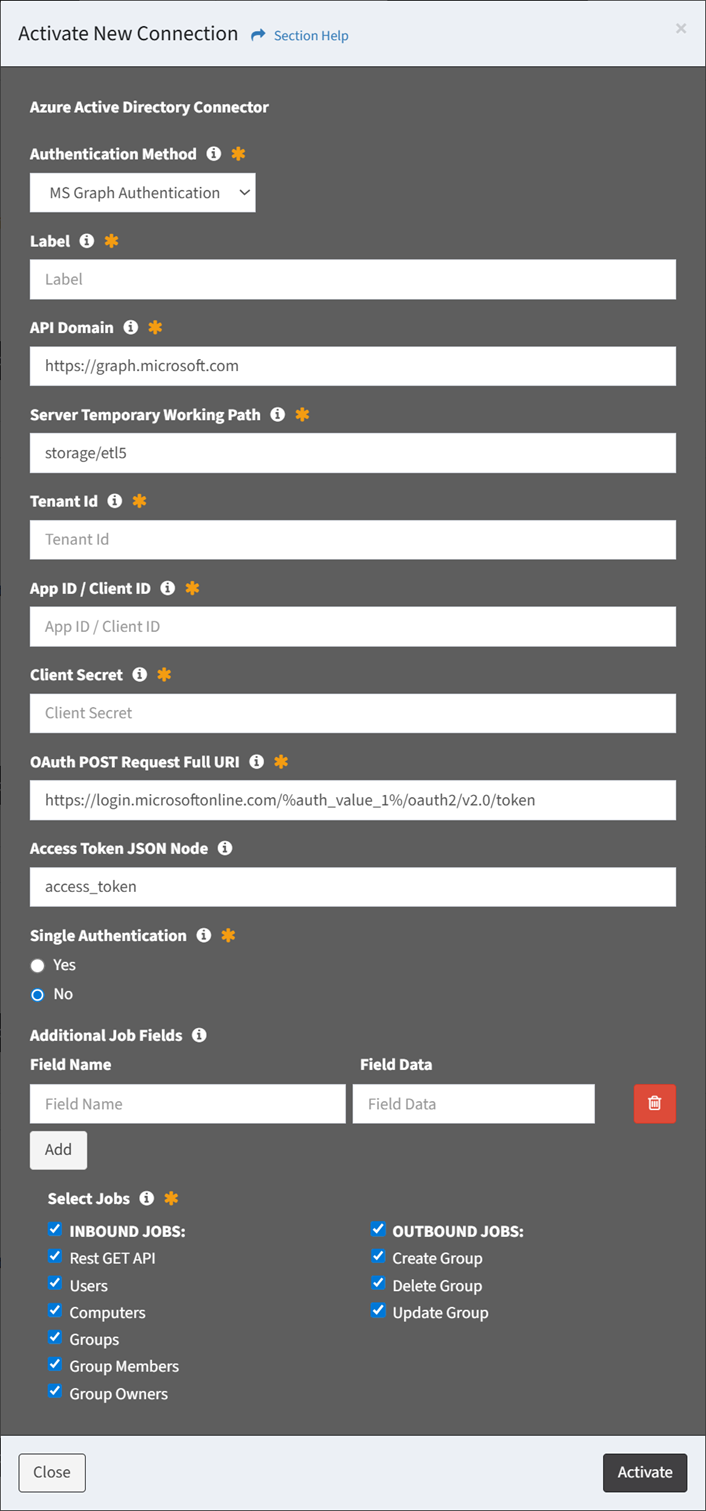
- Select the authentication method from the Authentication Method drop down
- Enter unique label to be used as ETL table prefix for the connection jobs
- Enter the properties for the selected authentication method
NOTE: The fields associated with the selected Authentication Method are defined on the Fields tab when viewing a connector. - Enter additional fields to add to the staging data when the jobs run (optional)
- Select the inbound and outbound jobs to add to the connection
NOTE: The available jobs are defined on the Inbound Job Templates and Outbound Job Templates tabs when viewing a connector.
- Click the Activate button when finished to activate the connection. You will be redirected back to the Connections page. Click the Close button to cancel the operation.
NOTE: New jobs inherit the configuration of the Inbound Job Templates or Outbound Job Templates they are instantiated from.- The activate connection function is only available to users in the Administrator security group