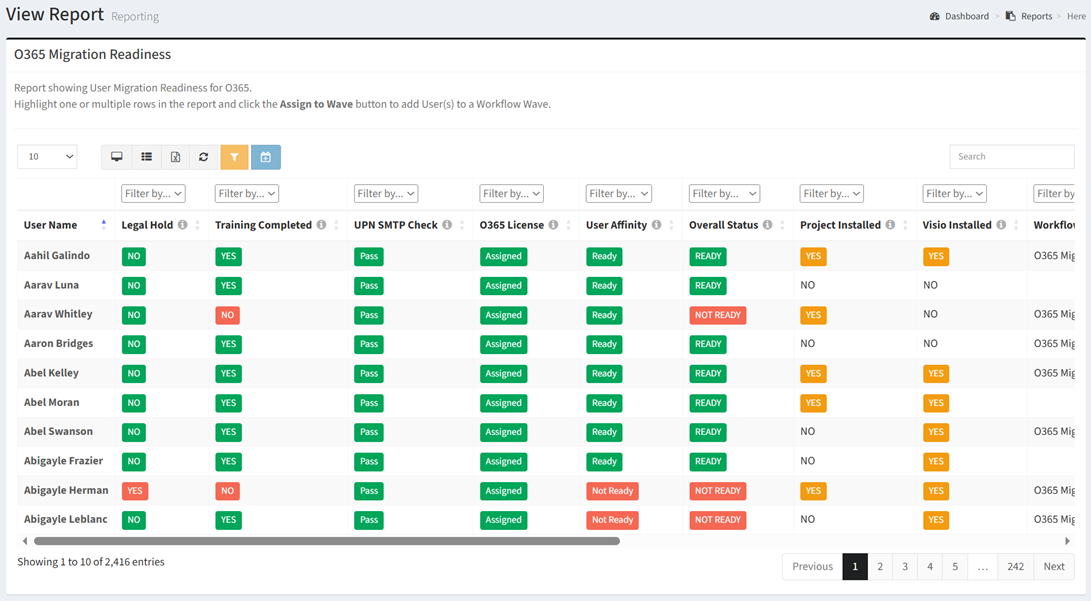
The O365 Migration Readiness report shows Users and their overall Office 365 Migration Readiness status.
| Data Types | Required Fields |
| User | Name, Location, Department, Mailbox Size, UPN, Email, Proxy, O365 License Type |
| O365 License Type | Name, Description, Purchased Licenses |
| Location | Name |
| Department | Name |
Available operations:
- View a list of users and their overall migration readiness status
- Columns available
- User Name – Name of the user
- Legal Hold – Whether the user is on legal hold or not (Yes, No)
- Training Completed – Whether the user has completed training (Yes, No)
- UPN SMTP Check – Comparison of the UPN and Email (Pass, Fail)
- O365 License – Whether a license is assigned or not (Assigned, None)
- Filter on Assigned or None
- User Affinity – Check of the overall readiness of all users linked to the user (Ready, Not Ready)
- Filter on Ready or Not Ready
- Overall Status – Rollup of the UPN SMTP check, MB Size Check, O365 License and User Affinity (Ready, Not Ready)
- Filter by Ready or Not Ready
- Project Installed – Whether the user has Microsoft Project installed (Yes, No)
- Visio Installed – Whether the user has Microsoft Visio installed (Yes, No)
- Workflow Wave – Waves the user is assigned to
- Filter by wave names or Undefined
- Department – Name of the department
- Filter by department names or Undefined (no department)
- Location – Name of the location
- Filter by location names or Undefined (no location)
- O365 License Type – Name of the location
- Mailbox Item Count – Number of items in the user’s mailbox
- Mailbox Location – Location of the user’s mailbox (O365 Tenant, On-Premises Exchange)
- Filter by O365 Tenant, On-Premises Exchange, or Undefined (no mailbox location)
- User Data Type Specific Columns – Columns specific to the user data type
- Add users to an Orchestration Wave by selecting one or more users (rows) and clicking the Assign to Wave button on the toolbar. In the Link Users to Wave dialog, select the waves that you want to link to from the Waves drop down and then click the Link button. Click the Close button to cancel the operation.
- You can also change the number of visible rows in the table, view full screen, export to CSV or Excel, refresh the table, and search for text