From the App Filters tab, you can create app filters. To create:
- Click the New App Filter button to bring up the New App Filter dialog
- Enter the properties of the new app filter
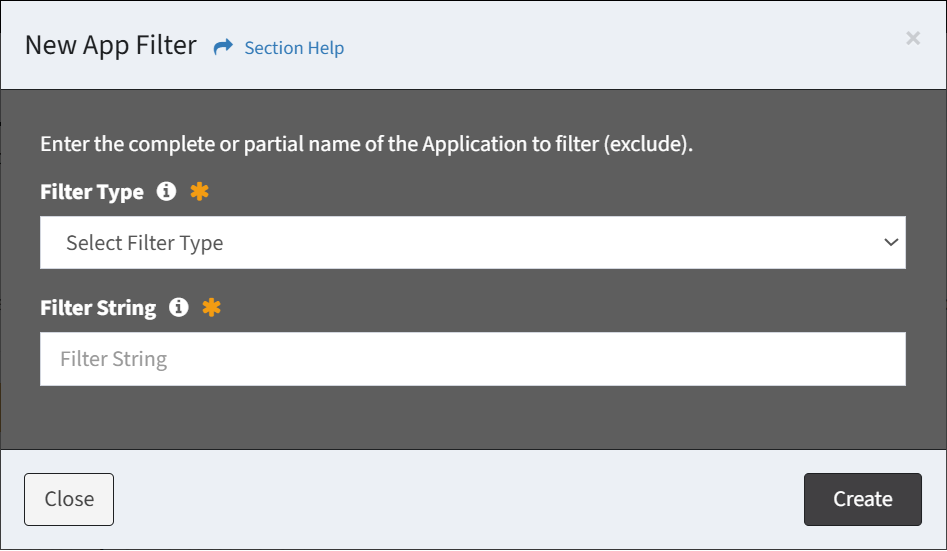
- Filter Type – How the filter will be matched (required)
- Starts With – Application name starts with the filter string
- Ends With – Application name ends with the filter string
- Contains – Application name contains the filter string
- Exactly Matches – Application name exactly matches the filter string
- Filter String – String that will be matched to the Application name (required)
- Click the Create button when finished to create the app filter. You will be redirected back to the App Filters tab. Click the Close button to cancel the operation.
NOTE: The App Filters tab is only displayed in ETL5 when Show the App Filters tab is checked on the ETL Settings tab.