ReadyWorks provides the ability to add placeholders to the email subject, email body, CC email, and BCC email of T-Comm templates to personalize emails.
Email Subject Placeholders
Placeholders can be utilized in the email subject to personalize the email with the user’s name, record name, and wave or task details. Click the Record Placeholder button to insert a placeholder for any data column of any data type into the email subject.

| Placeholder | Icon | Variable | Description |
| Full Name |  | %[name]% | Name field of the user directly or indirectly linked to the wave or task |
| First Name |  | %[first_name]% | First Name field of the user directly or indirectly linked to the wave or task |
| Last Name | | %[last_name]% | First Name field of the user directly or indirectly linked to the wave or task |
| Email |  | %[email]% | Email field of the user directly or indirectly linked to the wave or task |
| Record Name |  | %[record_name]% | Name field of the data record directly linked to the wave or task |
| Start Goal Date |  | %[start_goal]% | Start Goal date of the wave or task |
| Start Goal Time | N/A | %[start_goal_time]% | Start Goal time of the wave or task |
| End Goal Date |  | %[end_goal]% | End Goal date of the wave or task |
| End Goal Time | N/A | %[end_goal_time]% | End Goal time of the wave or task |
| Group Name |  | %[group_name]% | Name field of the wave or task |
| Today’s Date |  | %[date_today]% | Today’s date |
Email Body Placeholders
Placeholders can be utilized in the email body to personalize the email with the user’s name, portal URL, record name, and wave or task details. Click the Record Placeholder button to insert a placeholder for any data column of any data type into the email body.

| Placeholder | Icon | Variable | Description |
| Portal URL |  | %[portal_url]% | Unique URL for each user to the portal |
| User Experience Calendar |  | %[ss_calendar]% | List of schedule days configured on the wave |
| Full Name | | %[name]% | Name field of the user directly or indirectly linked to the wave or task |
| First Name | | %[first_name]% | First Name field of the user directly or indirectly linked to the wave or task |
| Last Name | | %[last_name]% | First Name field of the user directly or indirectly linked to the wave or task |
| Email | | %[email]% | Email field of the user directly or indirectly linked to the wave or task |
| Record Name | | %[record_name]% | Name field of the data record directly linked to the wave or task |
| Start Goal Date | | %[start_goal]% | Start Goal date of the wave or task |
| Start Goal Time | N/A | %[start_goal_time]% | Start Goal time of the wave or task |
| End Goal Date | | %[end_goal]% | End Goal date of the wave or task |
| End Goal Time | N/A | %[end_goal_time]% | End Goal time of the wave or task |
| Group Name | | %[group_name]% | Name field of the wave or task |
| Today’s Date | | %[date_today]% | Today’s date |
| Image |  | Not applicable | Upload an image file or link to display in the email |
Email Placeholders
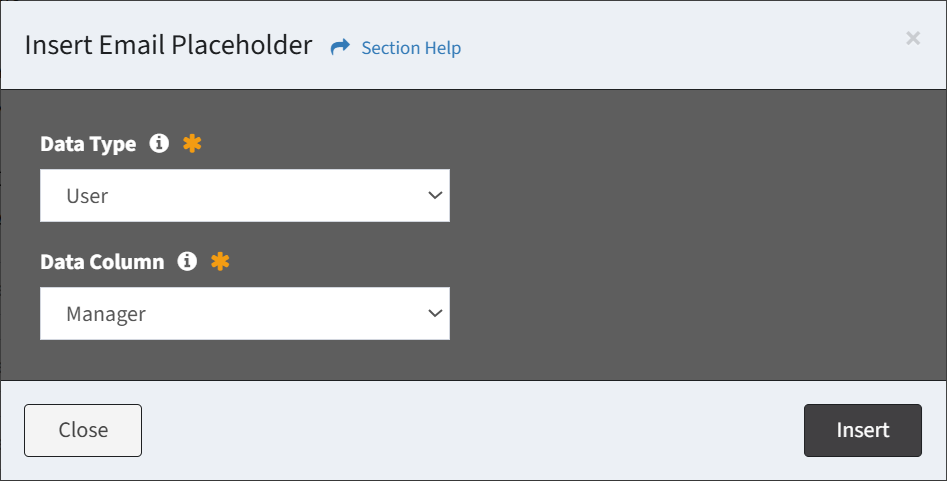
Placeholders can be utilized in the CC email and BCC email to copy or blind copy other recipients (e.g., the user’s manager) on the T-Comm template. Click the Email Placeholder button to bring up the Insert Email Placeholder dialog. Select the data type and data column (lookup alias to the User data type) of the placeholder and click the Insert button.
Record Placeholders
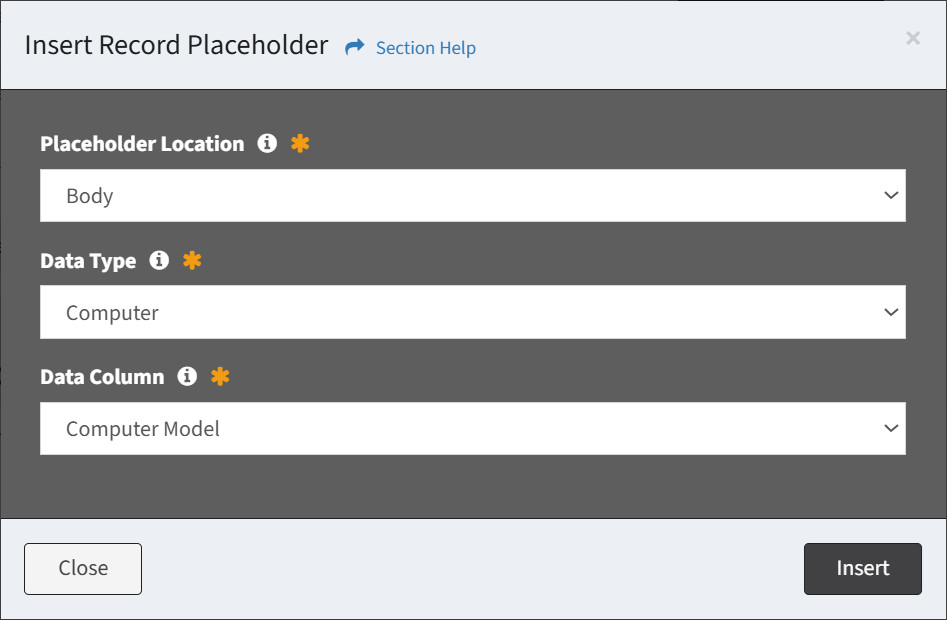
Click the Record Placeholder button to bring up the Insert Record Placeholder dialog. Select the location (Body, Subject), data type, and data column of the placeholder and click the Insert button.
Portal URL
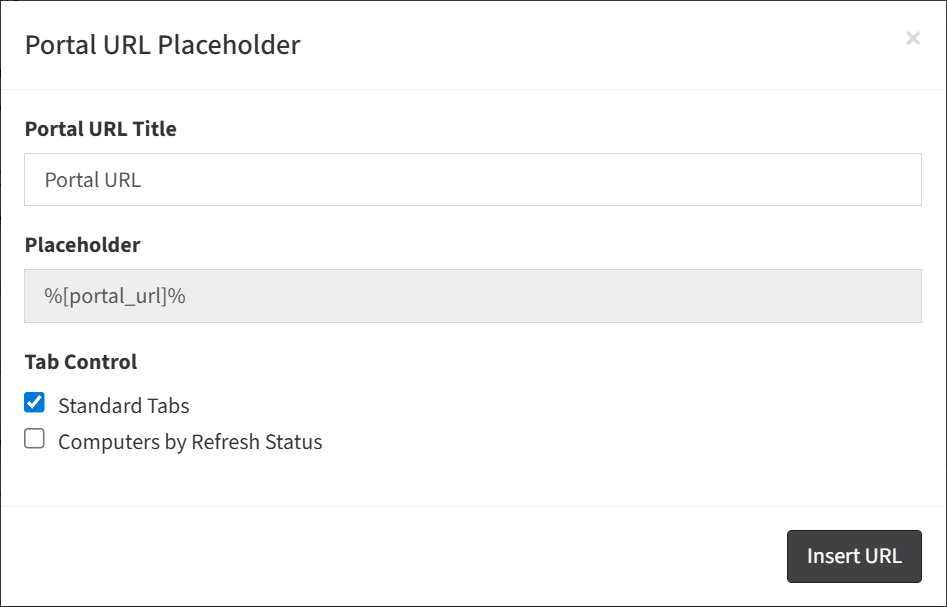
Click the Portal URL placeholder to bring up the Insert Portal URL dialog. Enter the title of the portal URL, select the tabs (features) to display in the URL, and click the Insert URL button. The title will be displayed as a hyperlink to the actual portal URL. Standard Tabs include out of the box portal features (User Information, Computers, Applications, Scheduling). Additional tabs (if created) are available for selection (e.g. Computers by Refresh Status shown below). Different portal URLs can be added to T-Comm templates to send users different portal views.
Image
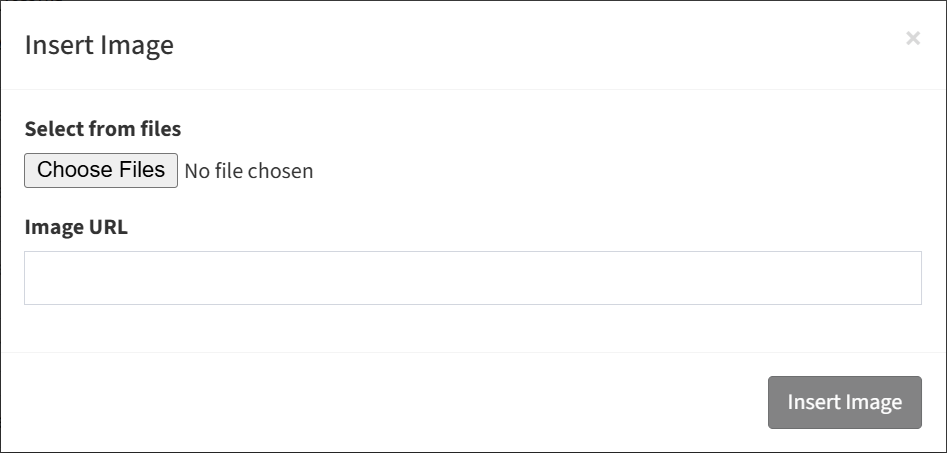
Click the Image placeholder to bring up the Insert Image dialog. Enter the image URL or browse to upload a file and click the Insert Image button.