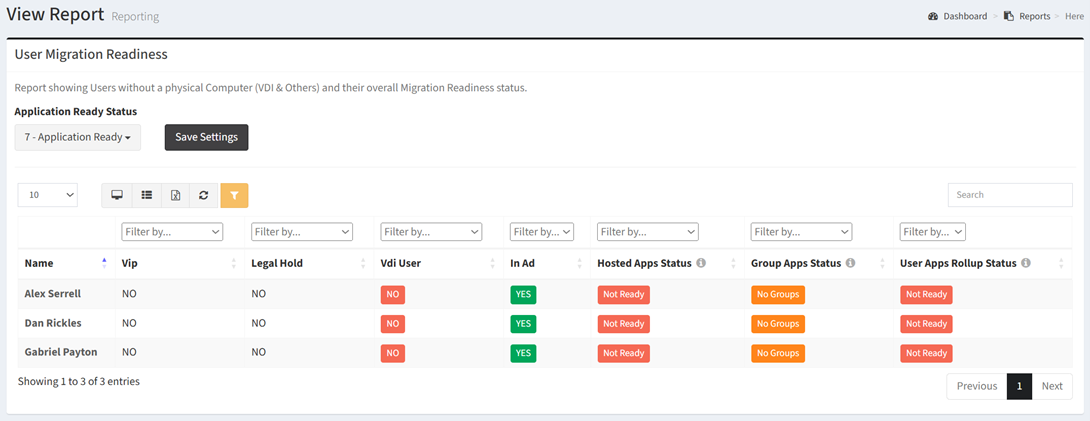
The User Migration Readiness report shows Users without a physical Computer (VDI & Others) and their overall Migration Readiness.
| Data Types | Required Fields |
| User | Name, VIP, Legal Hold, VDI User, In AD |
| Hosted App | Name, App Status |
| Win7 App Group | Name |
| Win10 App Group | Name |
Available operations:
- View a list of users without a physical computer and their overall migration readiness
- Columns available
- Id (hidden by default) – System Id of the user record
- Name – Name of the user
- VIP – Whether the user is a VIP (Yes, No)
- Filter by Yes, No, or Undefined
- Legal Hold – Whether the user is on legal hold (Yes, No)
- Filter by Yes, No, or Undefined
- VDI User – Whether the user is on VDI (Yes, No)
- Filter by Yes, No, or Undefined
- In AD – Whether the user is in AD (Yes, No)
- User Data Type Specific Columns(hidden by default) – Columns specific to the user data type
- Hosted App Status – Aggregate status of all hosted apps linked to the user (Ready, Not Ready, No Apps, All Ready Status)
- Filter by Ready, Not Ready, No Apps, or All Ready Status
- Ready – All of the user’s hosted apps are ready
- Not Ready – User has at least one hosted app that is not ready
- No Apps – User has not hosted apps linked
- All Ready Status – Ready or No Apps
- Group Apps Status – Aggregate status of all applications associated to the user’s Win7/Win10 app groups (Ready, Not Ready, No Groups, No Apps, All Ready Status)
- Filter by Ready, Not Ready, No Groups, No Apps, or All Ready Status
- Ready – User has app groups, and the apps associated with the groups are ready
- Not Ready – User has app groups, and at least one of the apps associated with the groups are not ready
- No Groups – User does not have any Win7 or Win8 app groups
- No Apps – User has app groups, but no apps are associated with the groups
- All Ready Status – Ready or No Groups
- User Apps Rollup Status – Rollup of the Hosted App Status and Group App Status (Ready, Not Ready)
- Filter by Ready or Not Ready
- Select the status(es) that signify ready from the Application Ready Status drop down
- Save the settings by clicking the Save Settings button. Saving the settings refreshes the report data.
- You can also change the number of visible rows in the table, view full screen, export to CSV or Excel, refresh the table, and search for text