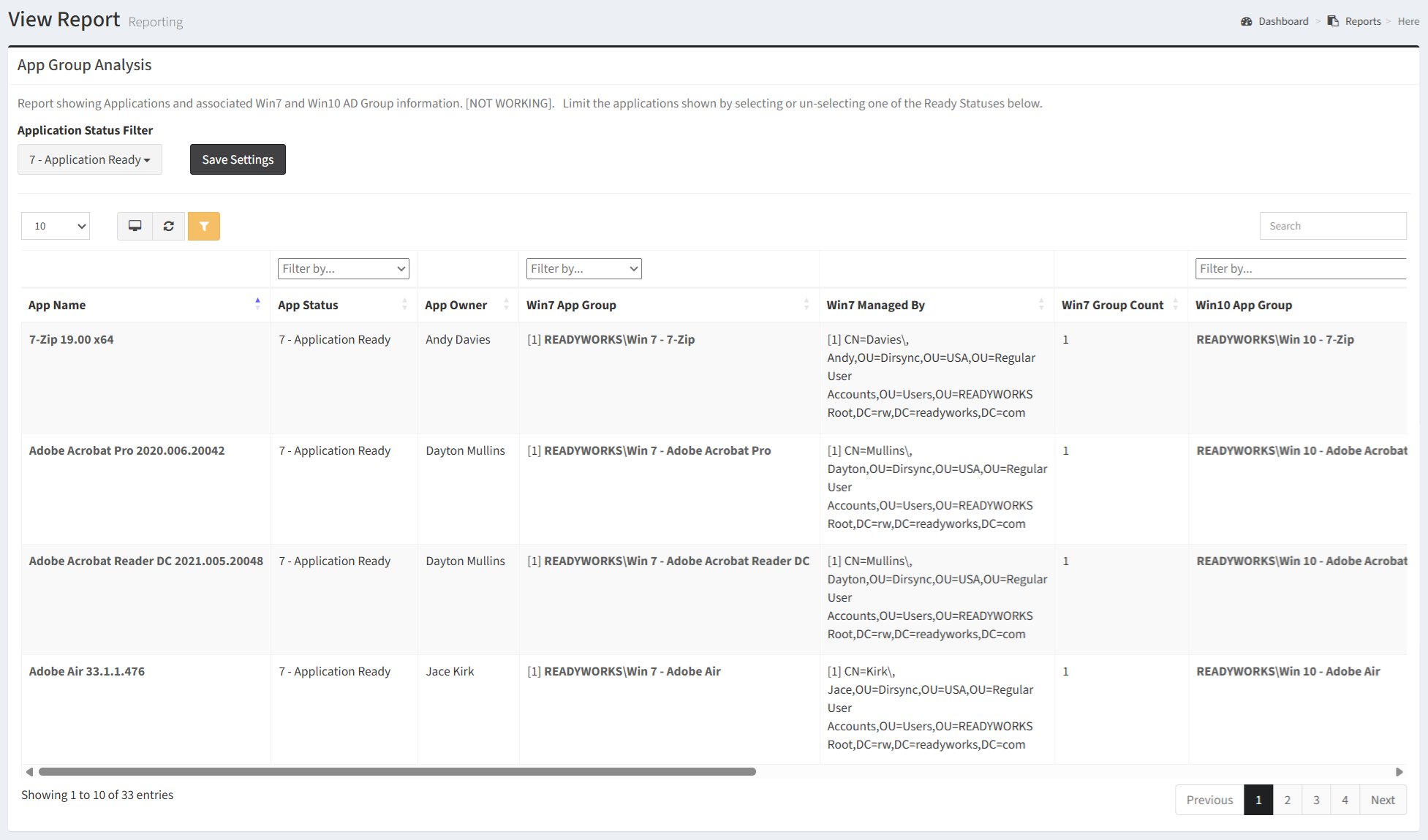
The Application Group Analysis report shows Applications and associated Win7 and Win10 AD Group information.
| Data Types | Required Fields |
| Application | Name, App Status, App Owner, Win7 App Group, Win10 App Group |
| Win7 App Group | Name, Managed By |
| Win10 App Group | Name, Managed By |
Available operations:
- View a list of applications and associated Win7 and Win10 AD group information
- Columns available
- App Name – Name of the application
- App Status – Status of the application
- Filter by status names or Undefined (no app status)
- App Owner – Name of the application owner
- Win7 App Group – Name of the Win7 app group the application belongs to
- Win7 Managed By – User who manages the Win7 app group
- Win7 Group Count – Number of Win7 app groups the application belongs to
- Win10 App Group – Name of the Win10 app group the application belongs to
- Win10 Managed By – User who manages the Win10 app group
- Users Missing App – Users are members of the Win7/Win10 app groups but do not have the application installed
- Users Missing Win7/Win10 Group – Users who have the application installed but are missing the associated Win7/Win10 app groups
- App Readiness Status – Readiness status of the application (Ready, Not Ready, Missing Win10 Group)
- Sort by Ready, Not Ready or Missing Win10 Group
- Ready – Application has the necessary Win7/Win10 app groups and all users with the application installed are members of the app groups
- Not Ready – Users that are members of the Win7/Win10 app groups are missing the application or the user are not members of the necessary Win7/Win10 app groups
- Missing Win10 Group – No Win10 app group is associated to the application
- Select the status(es) that signify ready from the Application Status Filter drop down
- Save the settings by clicking the Save Settings button. Saving the settings refreshes the report data.
- You can also change the number of visible rows in the table, view full screen, export to CSV or Excel, refresh the table, and search for text