

Search Knowledge Base by Keyword
-
Introduction
-
Fundamentals
-
My ReadyWorks
-
Analytics
-
-
-
- Available Reports
- All Data Types
- Application Certification Status
- Application Discovery
- Application Group Analysis
- App Group to SCCM Collection Analysis
- Application Install Count
- Application License Management
- Application Usage
- Assets by Values
- Build Sheet
- Computer User Assignment
- Data Type Column Mappings
- Delegate Relationships
- ETL5 Staging Data
- Migration Readiness (Basic)
- Migration Readiness (Complex)
- O365 License Management
- O365 Migration Readiness
- Patch Summary
- Record Count by Property
- SCCM OSD Status
- Scheduled Computers by Wave
- Scheduled Users by Manager
- User Migration Readiness
- VIP Users
- Wave & Task Details
- Wave Group
- Windows 10 Applications
- Show all articles ( 14 ) Collapse Articles
-
-
-
-
Orchestration
-
Data
-
-
- View Primary Data
- Record Properties
- Images
- Notes
- Waves
- Tasks
- Attachments
- History
- Rationalization
- QR Code
- Linked Records
- SCCM Add/Remove Programs
- Altiris Add/Remove Programs
- Related Records
- Advanced Search
- Relationship Chart
- Primary Data Permissions
- Show all articles ( 2 ) Collapse Articles
-
Integration
-
-
-
- View Connection
- Connection Properties
- Make Into Connector
- Delete Connection
- Connection Error Settings
- Inbound Jobs
- Outbound Jobs
- New Inbound Job
- New Outbound Job
- Job Error Settings
- Enable Job
- Disable Job
- Edit Inbound Job
- Edit Outbound Job
- Upload File
- Run Inbound Job
- Run Outbound Job
- Set Runtime to Now
- Reset Job
- Delete Job
- Job Log
- Show all articles ( 6 ) Collapse Articles
-
-
- View Connector
- Connector Properties
- Authentication Methods
- New Authentication Method
- Authentication Method Error Settings
- Edit Authentication Method
- Delete Authentication Method
- Fields
- Edit Field
- Inbound Job Fields
- Edit Inbound Job Field
- Inbound Job Templates
- New Inbound Job Template
- Job Template Error Settings
- Edit Inbound Job Template
- Delete Inbound Job Template
- Outbound Job Fields
- Edit Outbound Job Field
- Outbound Job Templates
- New Outbound Job Template
- Edit Outbound Job Template
- Delete Outbound Job Template
- Show all articles ( 7 ) Collapse Articles
-
-
- ETL5 Connector Info
- Absolute
- Azure Active Directory
- Cloudian
- Cohesity
- Comma-Separated Values (CSV) File
- Dell EMC
- Dell PowerFlex
- Everpure
- Generic Rest JSON API
- Generic Rest XML API
- Hitachi Vantara
- Intel Redfish
- Ivanti (Landesk)
- JAMF
- JetPatch
- JSON Data (JSON) File
- Lenovo XCLarity
- MariaDB
- Microsoft Endpoint Manager: Configuration Manager
- Microsoft Intune
- Microsoft SQL
- NetApp
- Nutanix AHV Compatibility Matrix
- Nutanix Collector
- Nutanix Move
- Nutanix Prism
- Nutanix Prism - Legacy
- Oracle MySQL
- PostgreSQL
- PowerShell: Microsoft Active Directory
- PowerShell: Oracle MySQL
- PowerShell: Microsoft SQL
- Pure Storage
- Qumulo
- RVTools
- Scality
- ServiceNow
- Simple Object Access Protocol (SOAP)
- Tanium
- Veeam
- VMware vCenter
- VMware vCenter SOAP
- XML Data (XML) File
- Show all articles ( 29 ) Collapse Articles
-
-
Admin
-
-
-
- Modules
- Attachments
- Bulk Edit
- Data Generator
- Data Mapping
- Data Quality
- ETL
- Form Builder
- Images
- Multi-Factor Authentication
- Notifications
- Rationalization
- Relationship Chart
- Reports
- Rules
- Single Sign-On
- T-Comm
- User Experience
- Show all articles ( 4 ) Collapse Articles
-
-
API
-
Administration
-
FAQs
-
Solutions
-
Email Settings
< Back
The Email Settings tab on the Email page provides the ability to view and configure email settings.
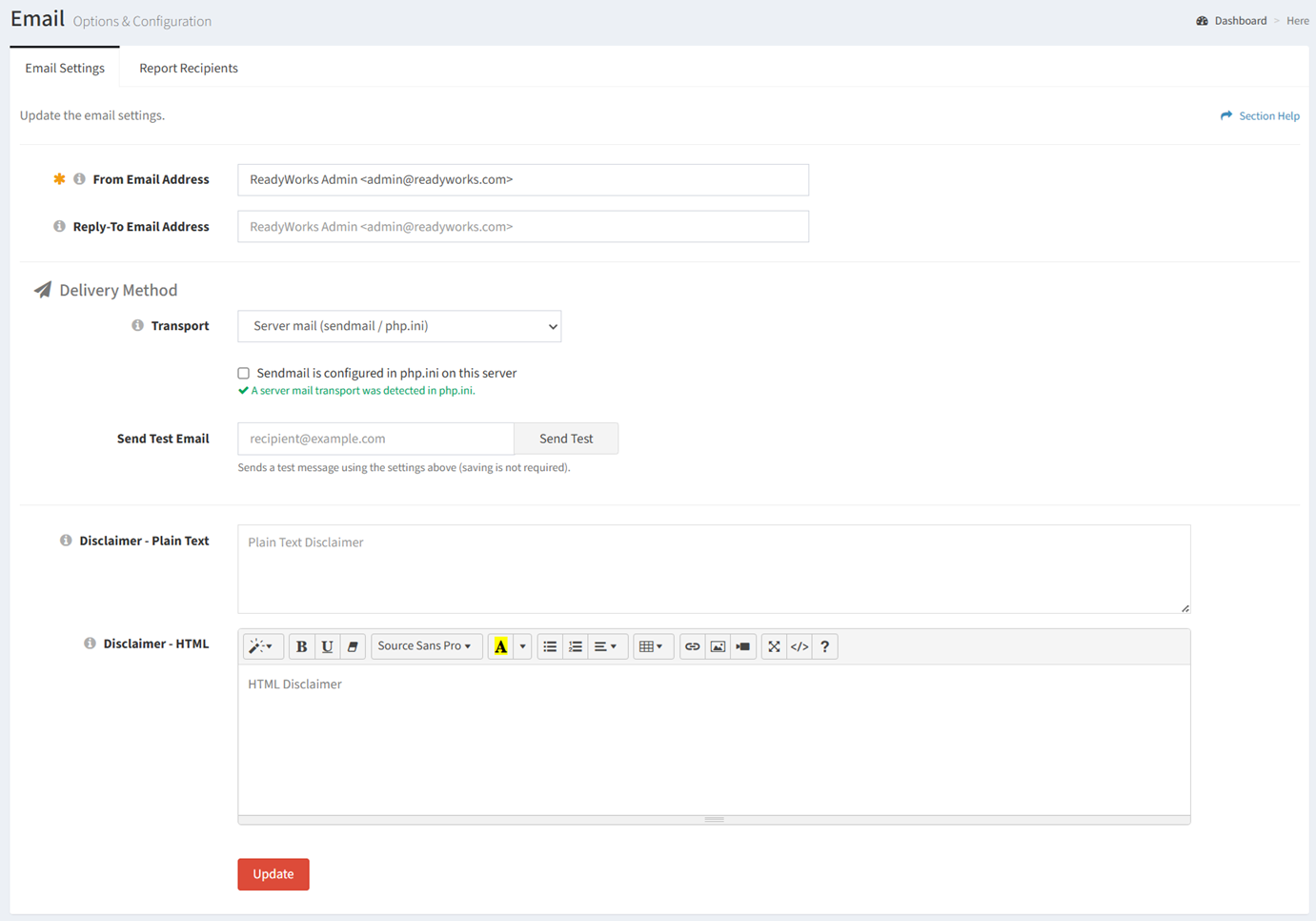
Available operations:
- View and update email settings
- Fields available
- From Email Address – Send from email address of ReadyWorks emails (required)
- Reply-To Email Address – Reply-To email address of ReadyWorks emails (required)
- Transport – Delivery method of ReadyWorks emails (required)
- Server Mail (Sendmail / php.ini) – Use the server’s configured mail transport
NOTE: To use the server’s configured mail transport it must first be configured to connect to your SMTP server. - SMTP Server – Configure a dedicated SMTP server
- Server Mail (Sendmail / php.ini) – Use the server’s configured mail transport
- Disclaimer – Plain Test – Plain text disclaimer to be appended to the bottom (footer) of all ReadyWorks emails
- Disclaimer – HTML – HTML disclaimer to be appended to the bottom (footer) of all ReadyWorks emails
- Fields available
- Test email connectivity
Update Email Settings
From the Email Settings tab, you can update the email settings. To update:
- Enter a value for each email setting
- Click the Update button to save your email settings
Server Mail
From the Email Settings tab, you can use the server’s configured mail transport. To configure:
- Select Server mail (sendmail / php.ini) from the Transport drop down

- Check Sendmail is configure in php on this server to override the auto detection and force SMTP to use the default mail() function

- Click the Update button to save your email settings
SMTP Server
From the Email Settings tab, you can configure a dedicated SMTP server. To configure:
- Select SMTP server from the Transport drop down

- Enter the hostname of the SMTP server in the SMTP Host text box

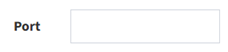
- Enter the port used to connect to the SMTP server in the Port text box
- Select the encryption method for the SMTP connection from the Encryption drop down

- None – No encryption. Data, including credentials (if used), is sent in plain text. Only use on trusted internal networks or SMTP relays that don’t require encryption.
- STARTTLS – Starts with an unencrypted connection, then upgrades it to an encrypted TLS connection. Recommended for most modern SMTP servers.
- SSL/TLS – Establishes an encrypted connection immediately before any SMTP communication begins (often called implicit TLS). Used by some SMTP servers and legacy configurations.
- Check Verify the server’s TLS certificate to ensure a secure connection. Disable only for trusted internal SMTP relays using self-signed or untrusted certificates.

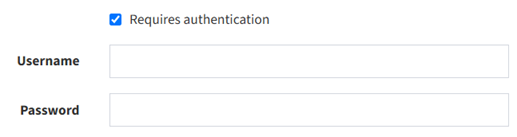
- Check Requires authentication to authenticate with the SMTP server using a username and password
- Click the Update button to save your email settings
Send Test Email
From the Email Settings tab, you test email connectivity. To test:
- Enter an email address in the Send Test Email text box (separate multiple recipients with a comma)

- Click the Send Test button when finished to send a test email to the entered recipient. You can test email connectivity without saving the configuration.