
Search Knowledge Base by Keyword
-
Introduction
-
Fundamentals
-
My ReadyWorks
-
Analytics
-
-
-
- Available Reports
- All Data Types
- Application Certification Status
- Application Discovery
- Application Group Analysis
- App Group to SCCM Collection Analysis
- Application Install Count
- Application License Management
- Application Usage
- Assets by Values
- Build Sheet
- Computer User Assignment
- Data Type Column Mappings
- Delegate Relationships
- ETL5 Staging Data
- Migration Readiness (Basic)
- Migration Readiness (Complex)
- O365 License Management
- O365 Migration Readiness
- Patch Summary
- Record Count by Property
- SCCM OSD Status
- Scheduled Computers by Wave
- Scheduled Users by Manager
- User Migration Readiness
- VIP Users
- Wave & Task Details
- Wave Group
- Windows 10 Applications
- Show all articles ( 14 ) Collapse Articles
-
-
-
-
Orchestration
-
Data
-
-
- View Primary Data
- Record Properties
- Images
- Notes
- Waves
- Tasks
- Attachments
- History
- Rationalization
- QR Code
- Linked Records
- SCCM Add/Remove Programs
- Altiris Add/Remove Programs
- Related Records
- Advanced Search
- Relationship Chart
- Primary Data Permissions
- Show all articles ( 2 ) Collapse Articles
-
Integration
-
-
-
- View Connection
- Connection Properties
- Make Into Connector
- Delete Connection
- Connection Error Settings
- Inbound Jobs
- Outbound Jobs
- New Inbound Job
- New Outbound Job
- Job Error Settings
- Enable Job
- Disable Job
- Edit Inbound Job
- Edit Outbound Job
- Upload File
- Run Inbound Job
- Run Outbound Job
- Set Runtime to Now
- Reset Job
- Delete Job
- Job Log
- Show all articles ( 6 ) Collapse Articles
-
-
- View Connector
- Connector Properties
- Authentication Methods
- New Authentication Method
- Authentication Method Error Settings
- Edit Authentication Method
- Delete Authentication Method
- Fields
- Edit Field
- Inbound Job Fields
- Edit Inbound Job Field
- Inbound Job Templates
- New Inbound Job Template
- Job Template Error Settings
- Edit Inbound Job Template
- Delete Inbound Job Template
- Outbound Job Fields
- Edit Outbound Job Field
- Outbound Job Templates
- New Outbound Job Template
- Edit Outbound Job Template
- Delete Outbound Job Template
- Show all articles ( 7 ) Collapse Articles
-
-
- ETL5 Connector Info
- Absolute
- Azure Active Directory
- Cloudian
- Cohesity
- Comma-Separated Values (CSV) File
- Dell EMC
- Dell PowerFlex
- Everpure
- Generic Rest JSON API
- Generic Rest XML API
- Hitachi Vantara
- Intel Redfish
- Ivanti (Landesk)
- JAMF
- JetPatch
- JSON Data (JSON) File
- Lenovo XCLarity
- MariaDB
- Microsoft Endpoint Manager: Configuration Manager
- Microsoft Intune
- Microsoft SQL
- NetApp
- Nutanix AHV Compatibility Matrix
- Nutanix Collector
- Nutanix Move
- Nutanix Prism
- Nutanix Prism - Legacy
- Oracle MySQL
- PostgreSQL
- PowerShell: Microsoft Active Directory
- PowerShell: Oracle MySQL
- PowerShell: Microsoft SQL
- Pure Storage
- Qumulo
- RVTools
- Scality
- ServiceNow
- Simple Object Access Protocol (SOAP)
- Tanium
- Veeam
- VMware vCenter
- VMware vCenter SOAP
- XML Data (XML) File
- Show all articles ( 29 ) Collapse Articles
-
-
Admin
-
-
-
- Modules
- Attachments
- Bulk Edit
- Data Generator
- Data Mapping
- Data Quality
- ETL
- Form Builder
- Images
- Multi-Factor Authentication
- Notifications
- Rationalization
- Relationship Chart
- Reports
- Rules
- Single Sign-On
- T-Comm
- User Experience
- Show all articles ( 4 ) Collapse Articles
-
-
API
-
Administration
-
FAQs
-
Solutions
-
VMs in Strategy
< Back
The VMs in Strategy tab provides the ability to manage VMs added to strategies.
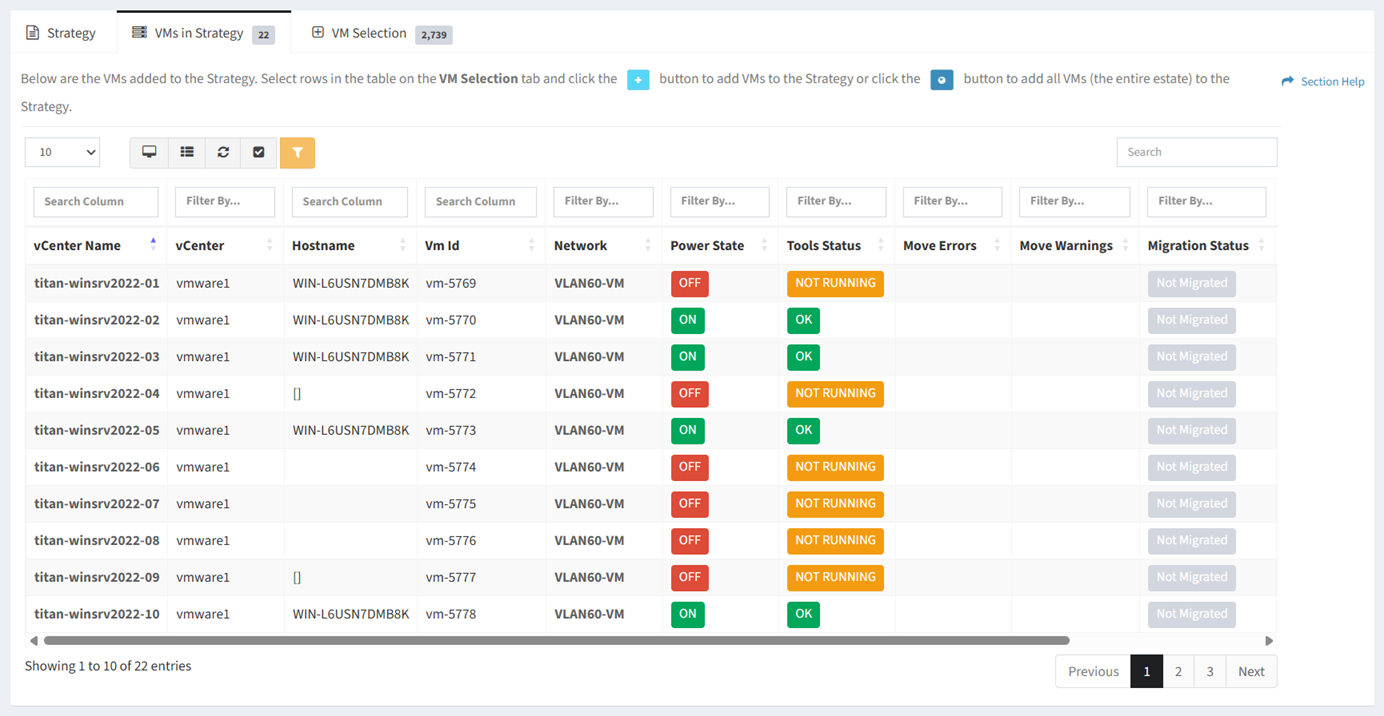
Available operations:
- View VMs added to the strategy
- View the properties of VMs by clicking the hyperlink of the Name field
- Remove VMs from the strategy by selecting one or more VMs (rows) and clicking the Remove VMs from Strategy button on the toolbar
- Select all VMs (rows) on the page by clicking the Select All button on the toolbar
- Deselect all VMs (rows) on the page by clicking the Deselect All button on the toolbar
- You can also change the number of visible rows in the table, view full screen, set column visibility, refresh the table, and search for text
NOTE: Available filter values are based on the data in the table and other applied filters.
Remove VMs from Strategy
From the VMs in Strategy tab, you can remove VMs from a strategy. To remove:
- Select one or more VMs (rows) to remove
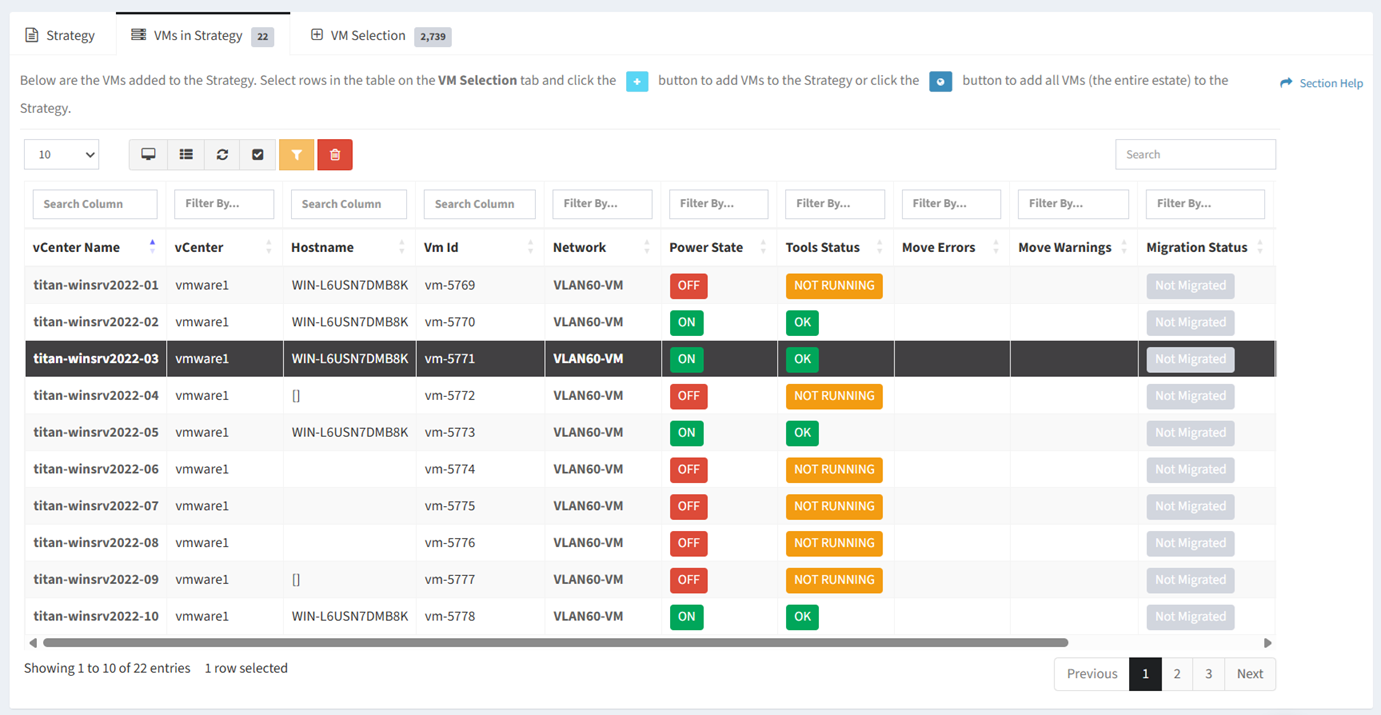
- Click the Remove VMs from Strategy button on the toolbar

- The remove button is only visible when Enable Delete has been checked under Settings – Options (top right corner of the UI)


- The remove button is enabled (ungrayed out) when a VM (row) is selected

- The remove function is only available to users in the Administrator security group
- The remove button is only visible when Enable Delete has been checked under Settings – Options (top right corner of the UI)
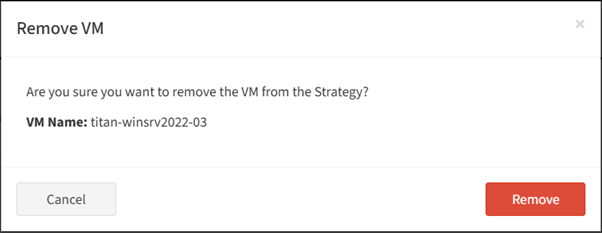
- Click the Remove button to confirm the remove operation. Click the Cancel button to cancel the operation.