

Search Knowledge Base by Keyword
-
Introduction
-
Fundamentals
-
My ReadyWorks
-
Analytics
-
-
-
- Available Reports
- All Data Types
- Application Certification Status
- Application Discovery
- Application Group Analysis
- App Group to SCCM Collection Analysis
- Application Install Count
- Application License Management
- Application Usage
- Assets by Values
- Build Sheet
- Computer User Assignment
- Data Type Column Mappings
- Delegate Relationships
- ETL5 Staging Data
- Migration Readiness (Basic)
- Migration Readiness (Complex)
- O365 License Management
- O365 Migration Readiness
- Patch Summary
- Record Count by Property
- SCCM OSD Status
- Scheduled Computers by Wave
- Scheduled Users by Manager
- User Migration Readiness
- VIP Users
- Wave & Task Details
- Wave Group
- Windows 10 Applications
- Show all articles ( 14 ) Collapse Articles
-
-
-
-
Orchestration
-
Data
-
-
- View Primary Data
- Record Properties
- Images
- Notes
- Waves
- Tasks
- Attachments
- History
- Rationalization
- QR Code
- Linked Records
- SCCM Add/Remove Programs
- Altiris Add/Remove Programs
- Related Records
- Advanced Search
- Relationship Chart
- Primary Data Permissions
- Show all articles ( 2 ) Collapse Articles
-
Integration
-
-
-
- View Connection
- Connection Properties
- Make Into Connector
- Delete Connection
- Connection Error Settings
- Inbound Jobs
- Outbound Jobs
- New Inbound Job
- New Outbound Job
- Job Error Settings
- Enable Job
- Disable Job
- Edit Inbound Job
- Edit Outbound Job
- Upload File
- Run Inbound Job
- Run Outbound Job
- Set Runtime to Now
- Reset Job
- Delete Job
- Job Log
- Show all articles ( 6 ) Collapse Articles
-
-
- View Connector
- Connector Properties
- Authentication Methods
- New Authentication Method
- Authentication Method Error Settings
- Edit Authentication Method
- Delete Authentication Method
- Fields
- Edit Field
- Inbound Job Fields
- Edit Inbound Job Field
- Inbound Job Templates
- New Inbound Job Template
- Job Template Error Settings
- Edit Inbound Job Template
- Delete Inbound Job Template
- Outbound Job Fields
- Edit Outbound Job Field
- Outbound Job Templates
- New Outbound Job Template
- Edit Outbound Job Template
- Delete Outbound Job Template
- Show all articles ( 7 ) Collapse Articles
-
-
- ETL5 Connector Info
- Absolute
- Azure Active Directory
- Cloudian
- Cohesity
- Comma-Separated Values (CSV) File
- Dell EMC
- Dell PowerFlex
- Everpure
- Generic Rest JSON API
- Generic Rest XML API
- Hitachi Vantara
- Intel Redfish
- Ivanti (Landesk)
- JAMF
- JetPatch
- JSON Data (JSON) File
- Lenovo XCLarity
- MariaDB
- Microsoft Endpoint Manager: Configuration Manager
- Microsoft Intune
- Microsoft SQL
- NetApp
- Nutanix AHV Compatibility Matrix
- Nutanix Collector
- Nutanix Move
- Nutanix Prism
- Nutanix Prism - Legacy
- Oracle MySQL
- PostgreSQL
- PowerShell: Microsoft Active Directory
- PowerShell: Oracle MySQL
- PowerShell: Microsoft SQL
- Pure Storage
- Qumulo
- RVTools
- Scality
- ServiceNow
- Simple Object Access Protocol (SOAP)
- Tanium
- Veeam
- VMware vCenter
- VMware vCenter SOAP
- XML Data (XML) File
- Show all articles ( 29 ) Collapse Articles
-
-
Admin
-
-
-
- Modules
- Attachments
- Bulk Edit
- Data Generator
- Data Mapping
- Data Quality
- ETL
- Form Builder
- Images
- Multi-Factor Authentication
- Notifications
- Rationalization
- Relationship Chart
- Reports
- Rules
- Single Sign-On
- T-Comm
- User Experience
- Show all articles ( 4 ) Collapse Articles
-
-
API
-
Administration
-
FAQs
-
Solutions
-
Strategy Content
< Back
The Strategy tab provides the ability to view and manage strategy content.
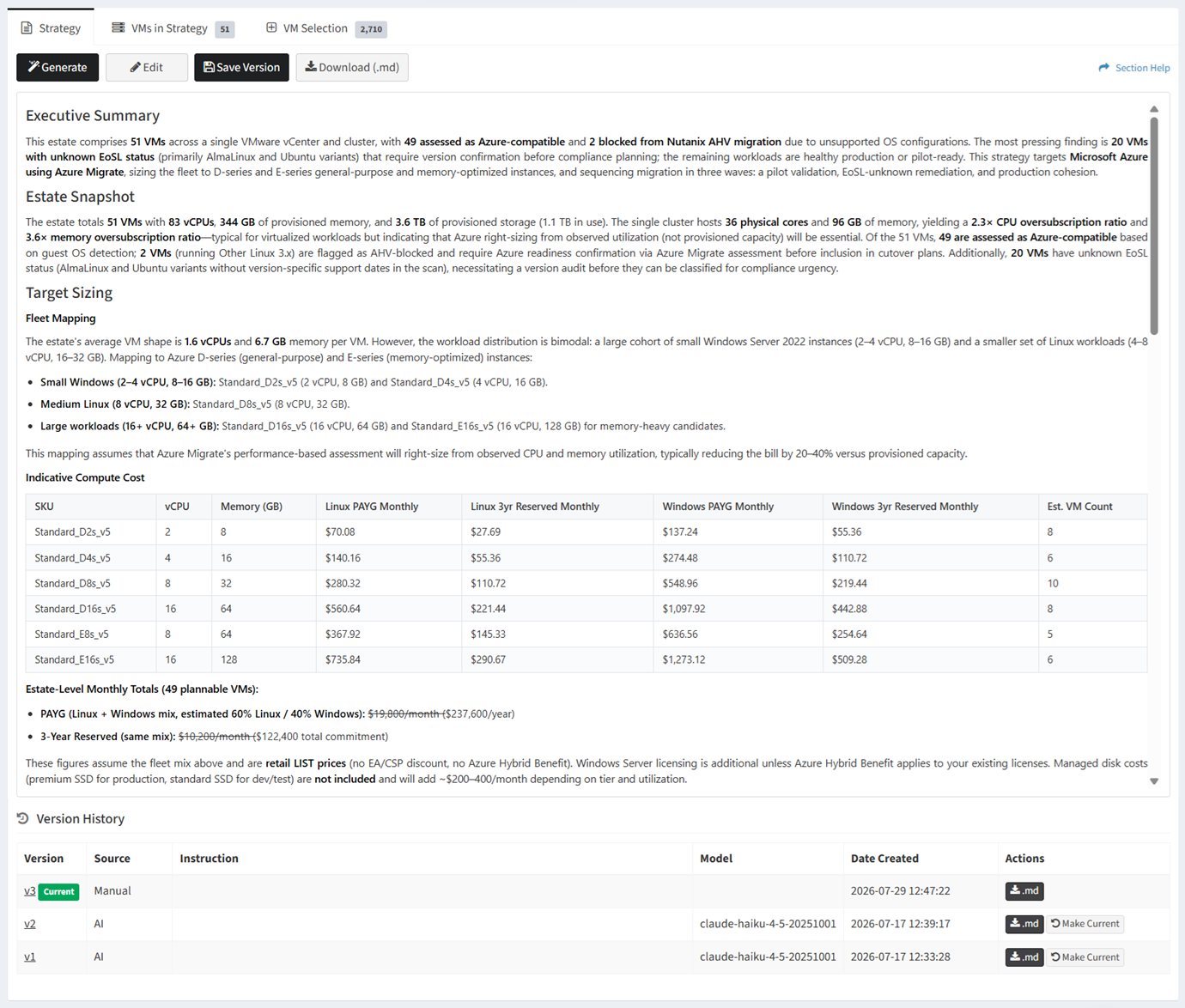
Available operations:
- Generate new strategy content by clicking on the Generate button
- Edit strategy content by clicking on the Edit button
- Preview strategy content by click on the Preview button
- Save a new strategy content version by clicking on the Save Version button
- Download strategy content as a Markdown (.md) file by clicking on the Download (.md) button
- Manage the version history of strategy content
Generate
From the Strategy tab, you can generate strategy content. To generate:
- Click the Generate button to generate the strategy content

- The button will display Generating while the content is being generated
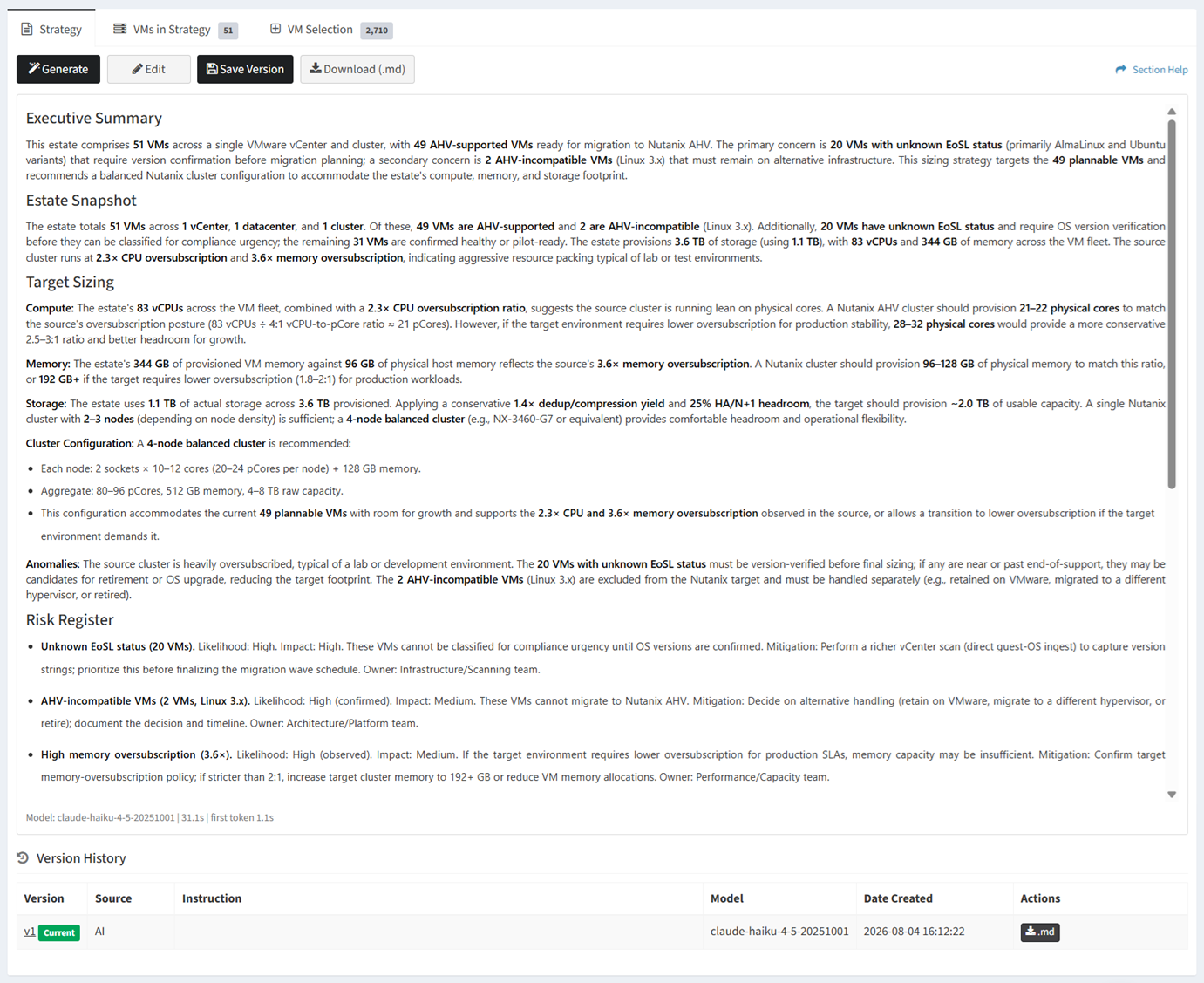
- The first generated strategy content is displayed and the version history is updated. The source of generated strategy content is AI. Editing strategy content requires saving a new version.
Edit
From the Strategy tab, you can manually edit strategy content. To edit:
- Click the Edit button to manually edit the Markdown of the strategy content
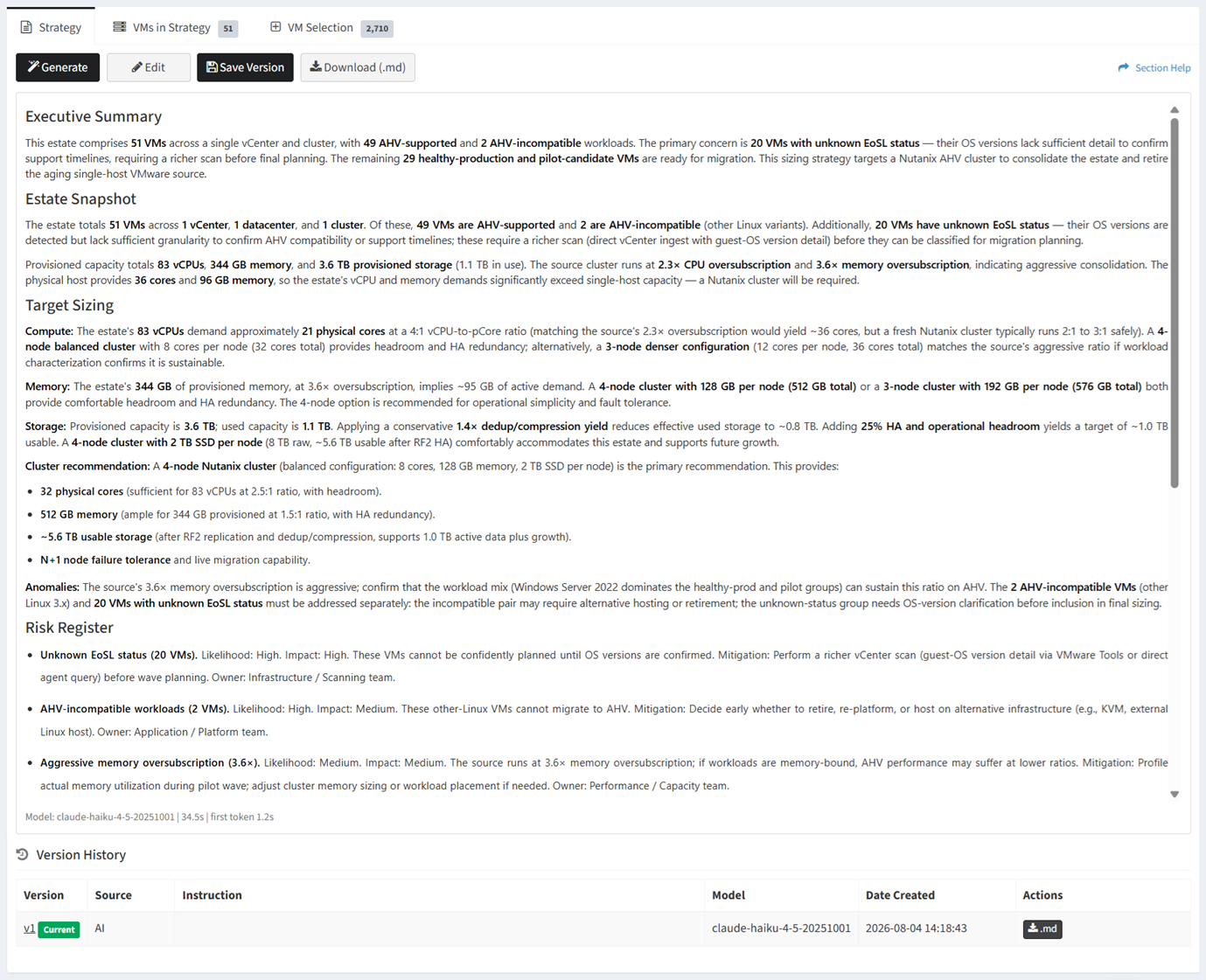
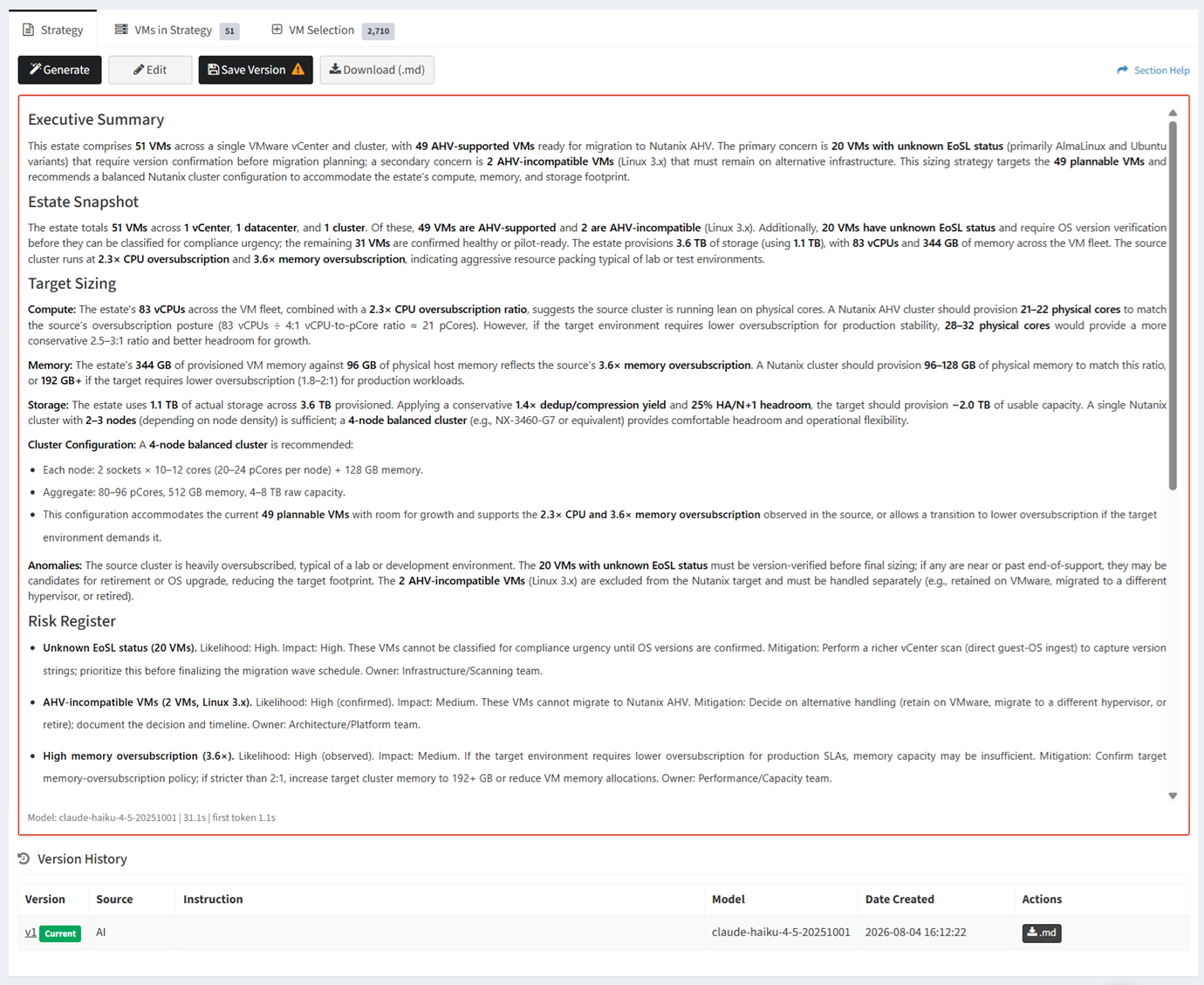
- When finished manually editing, click the Preview button to preview your changes. Unsaved changes are signified by the red outline of the strategy content.
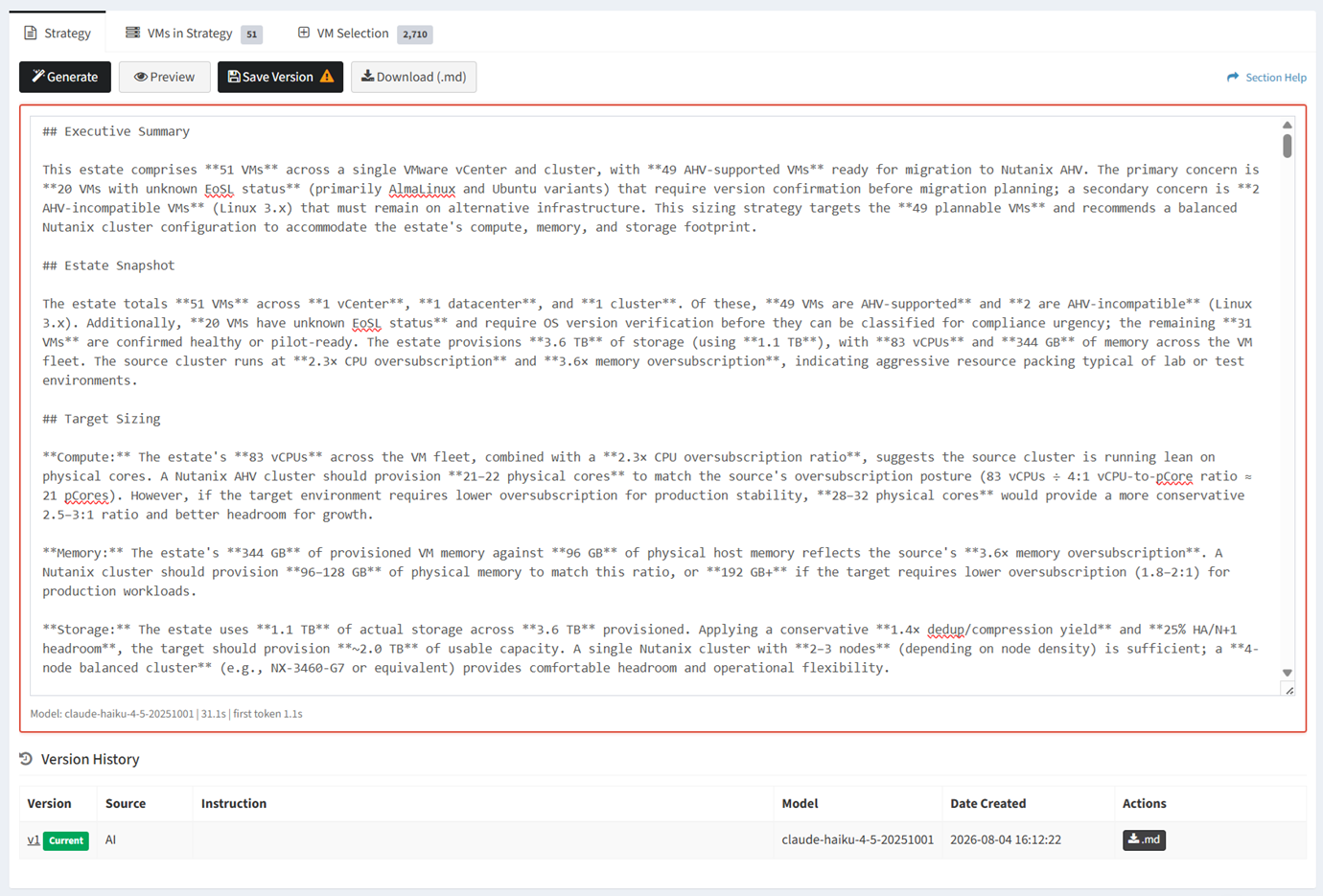
- Click the Save Version button to save your changes to a new version
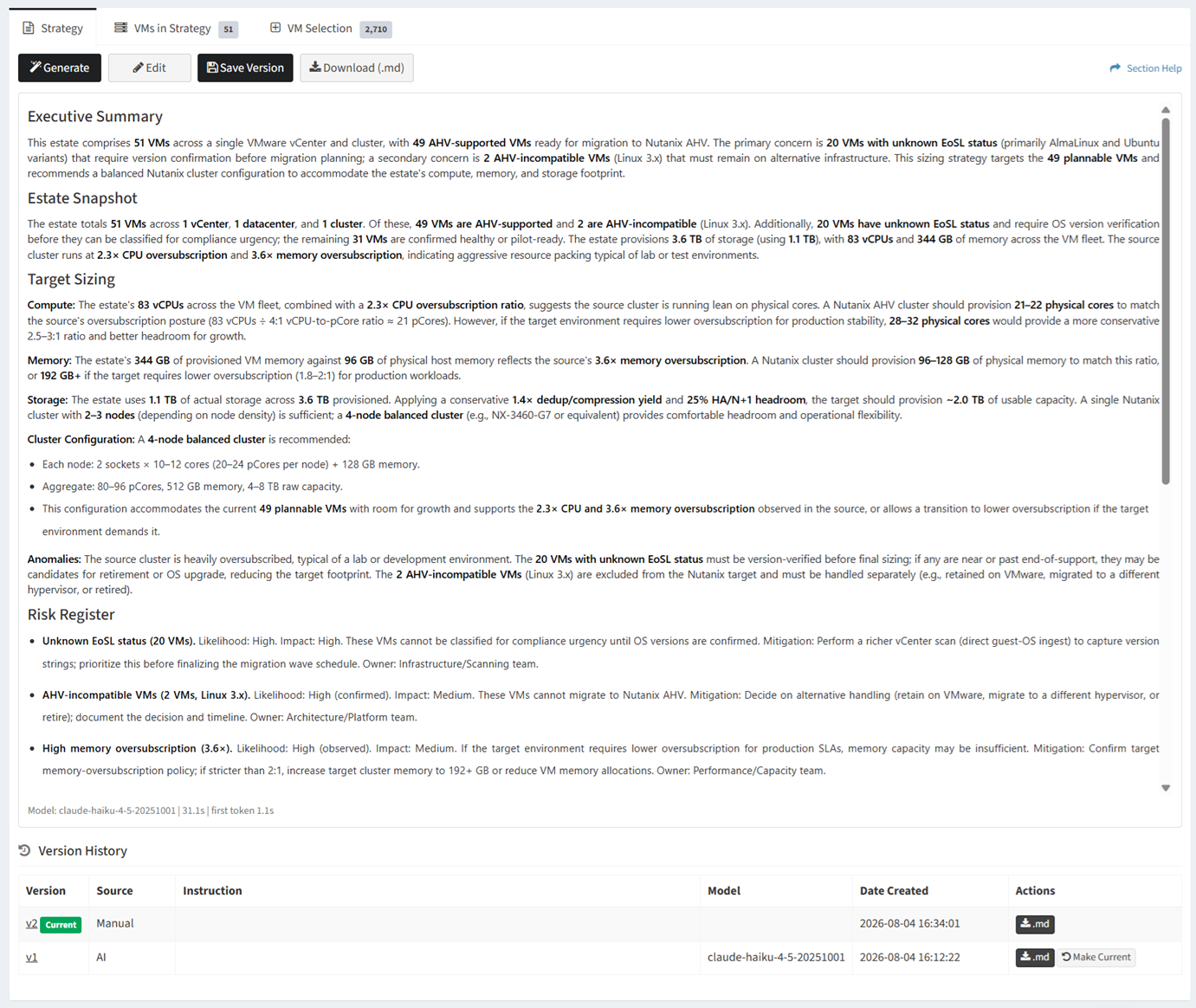
- Upon saving, the new version becomes current and the version history is updated. The source of manually edited strategy content is Manual.
Preview
From the Strategy tab, you can preview manual edits to the Markdown of strategy content. To preview:
- When finished manually editing, click the Preview button to preview your changes. Unsaved changes are signified by the red outline of the strategy content.
- Click the Save Version button to save your changes to a new version
- Upon saving, the new version becomes current and the version history is updated. The source of manually edited strategy content is Manual.
Save Version
From the Strategy tab, you can save manually edited strategy content. To save:
- Click the Save Version button to save your changes to a new version
- Upon saving, the new version becomes current and the version history is updated. The source of generated strategy content is AI while the source of manually edited strategy content is Manual.
Download
From the Strategy tab, you can download strategy content as a Markdown (.md) file. To download:
- Click the Download (.md) button to download the strategy content as a Markdown (.md) file
- The strategy content Markdown (.md) file will download
Version History
The Version History tab provides the ability to view and manage strategy content version history.

Available operations:
- View a list of strategy versions
- Columns available
- Version – Version identifier of the strategy. The current active version is marked as Current.
- Source – How the version was created
- AI – Version generated by an AI model
- Manual – Version created or edited manually
- Instruction – Prompt or instructions used to generate the version, if applicable
- Model – AI model used to generate the version. Blank for manually created versions.
- Date Created – Date the version was created
- Actions – Download the version as a Markdown (.md) file or make a previous version the current version
- Download a version as a Markdown (.md) file by clicking the
 button
 - Make a version the current version by clicking the
 button
- Download a version as a Markdown (.md) file by clicking the
- Columns available
- View the strategy content of a version by clicking the hyperlink of the Version field